
Gadgets
5 Quick Tips to Boost Your Roku Device’s Performance

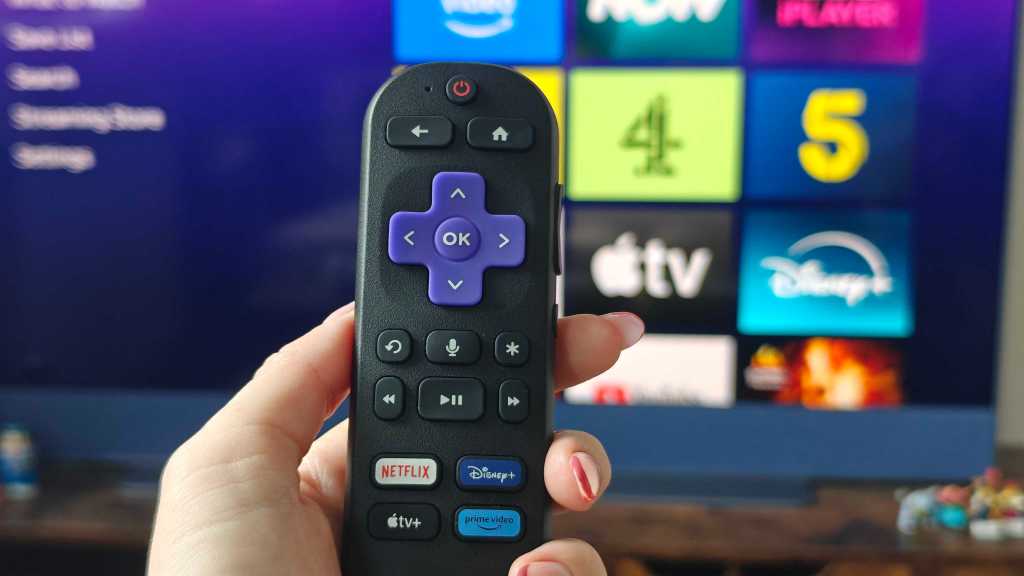
How to Improve Roku Performance: Tips and Tricks
Roku TVs and streaming sticks are popular entertainment devices known for their wide range of apps and user-friendly interface. However, over time, these devices can slow down for various reasons, leading to longer loading times. If you’re experiencing this issue, there are several methods you can try to clear the cache and restore your Roku device to its normal speed. Here are some solutions to consider:
1. Restart your Roku
If your Roku is running slow, restarting it can often help improve performance. Roku offers two ways to restart your device. Firstly, you can navigate to the Settings menu on the Home screen, select ‘System,’ then ‘Power,’ and choose ‘System Restart.’ Alternatively, you can perform a restart using the remote by following a specific sequence of button presses.
2. Unplug your Roku
If restarting your Roku doesn’t solve the issue, you can try a manual approach by unplugging the device. For Roku sticks or boxes, remove them from the HDMI slot, or for Roku TVs, unplug them from the wall. Wait at least ten seconds before plugging everything back in to allow the device to reset.
3. Check the app you’re having issues with on your Roku
If you’re experiencing problems with a specific app on your Roku, such as Amazon Prime Video or Netflix, the issue might not be with the device itself but with the app. Check the app status using websites like Downdetector or social media platforms to see if others are facing similar issues. You can also try uninstalling and reinstalling the problematic app to fix any issues.
4. Reset your Roku’s Wi-Fi connection
If your Roku is having trouble connecting to the internet, resetting the Wi-Fi connection can help resolve the issue. Go to the Settings menu, select ‘System,’ then ‘Advanced System Settings,’ and choose ‘Network Connection Reset.’ Follow the on-screen instructions to reset the connection and reconnect to your Wi-Fi network.
5. Factory reset your Roku
If all else fails, you can perform a factory reset on your Roku device. Keep in mind that this will erase all your login details, passwords, user profiles, and preferences. To factory reset your Roku, go to the Settings menu, select ‘System,’ then ‘Advanced System Settings,’ and choose ‘Factory Reset.’ Enter the confirmation code and proceed with the reset.
If you’ve tried all the above solutions and are still facing issues with your Roku device, consider reaching out to Roku’s support team for further assistance.









Cyber Warfare: The Battlefront of the Digital Age

Monster Hunter Stories 3: The Challenge of Twisted Reflection

Revolutionizing Cash-Pay Clinic Prescribing: VITL Secures $7.5M Amid GLP-1 Boom

Balancing Act: The Decision to Shut Down Sora

Exclusive Arrival: Cupra Born VZ Lands in Australia – But There’s a Twist!

iPhone 12 Pro Max vs Samsung Note 20 Ultra / Huawei Mate 40 Pro Camera Test Comparison.

ClickFix: The New Threat to macOS Security

Kingdom Come: Deliverance 2 – The Rise of Artificial Intelligence

Elon Musk’s Latest Venture Faces Uncertainty as Last Co-Founder Departs xAI

EU Takes Action Against Instagram and Facebook for Violating Illegal Content Rules

Warning: Facebook Creators Face Monetization Loss for Stealing and Reposting Videos

Facebook Compliance: ICE-tracking Page Removed After US Government Intervention

Facebook’s New Look: A Blend of Instagram’s Style

Facebook and Instagram to Reduce Personalized Ads for European Users

InstaDub: Meta’s AI Translation Tool for Instagram Videos

Reclaim Your Account: Facebook and Instagram Launch New Hub for Account Recovery

Meta discontinues Messenger apps for Windows and macOS

Breaking Updates: Meta Connect 2025 Unveils Latest Developments
iPhone 12 Pro Max vs Samsung Note 20 Ultra / Huawei Mate 40 Pro Camera Test Comparison.

iPhone 12 Pro Max vs Samsung Note 20 Ultra / Huawei / Xiaomi / OnePlus Battery Life DRAIN Test.

The BEST Smartphone of 2020 🏆

The Self-Healing Smartphones!

Apple is not what it used to be.

Smartphones are Boring now.

The Fastest Android Phone Ever.

Unboxing the $122,000 Smartphone. 🤯

Are Linux Smartphones about to KILL Android?
-
 Facebook5 months ago
EU Takes Action Against Instagram and Facebook for Violating Illegal Content Rules
-
 Facebook5 months ago
Warning: Facebook Creators Face Monetization Loss for Stealing and Reposting Videos
-
 Facebook5 months ago
Facebook Compliance: ICE-tracking Page Removed After US Government Intervention
-
 Facebook4 months ago
Facebook’s New Look: A Blend of Instagram’s Style
-
 Facebook4 months ago
Facebook and Instagram to Reduce Personalized Ads for European Users
-
 Facebook6 months ago
InstaDub: Meta’s AI Translation Tool for Instagram Videos
-
 Facebook4 months ago
Reclaim Your Account: Facebook and Instagram Launch New Hub for Account Recovery
-
 Apple5 months ago
Meta discontinues Messenger apps for Windows and macOS
