
Mobile Tech
Beware: The Top 9 Scams Preying on Mac Users in 2026

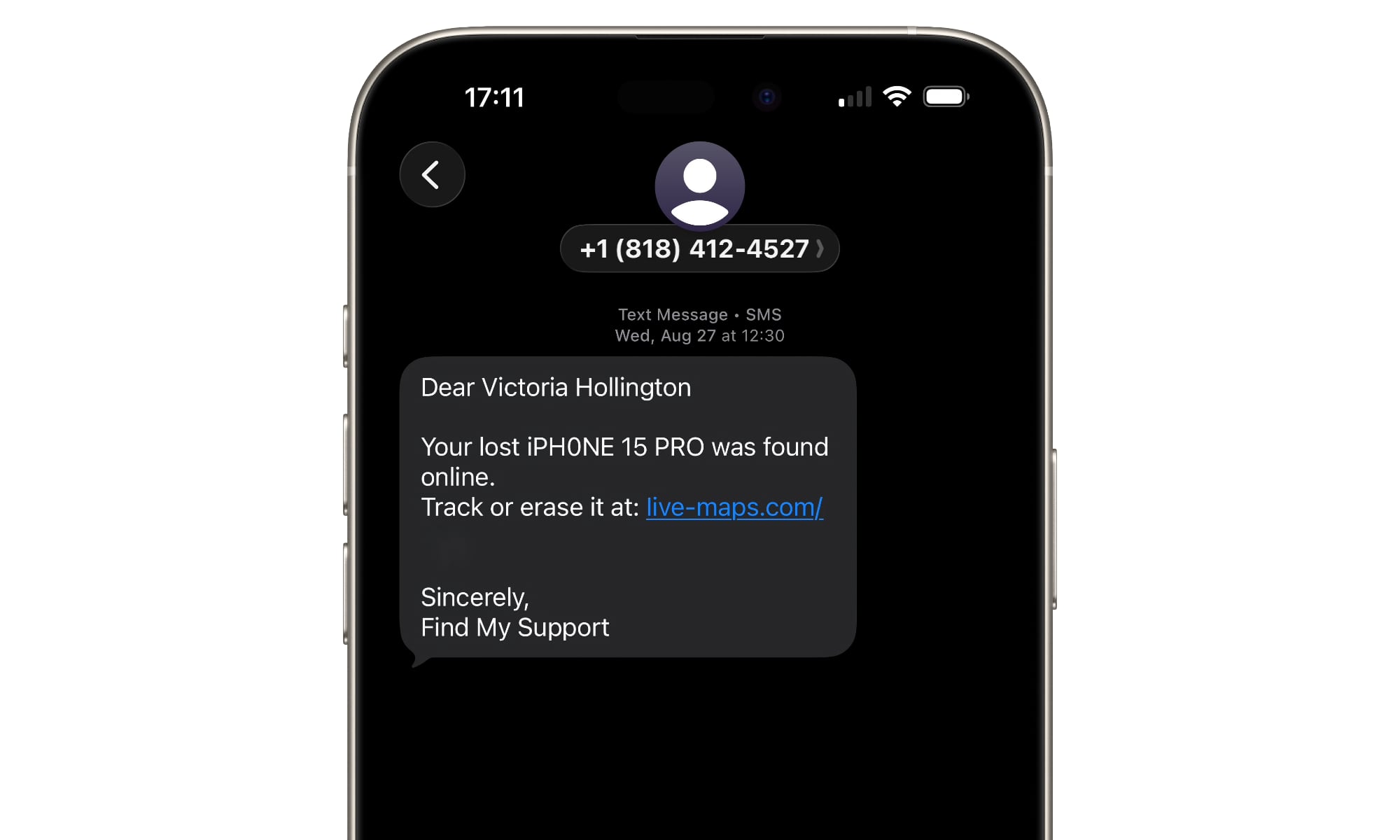
It is a common belief that Macs are inherently safer than Windows computers. And to be fair, macOS does a lot right out of the box. It blocks sketchy apps from the get-go, Safari is solid for privacy, and it tends to be measurably safer against both apps and potential cyberattacks. Apple also constantly pushes out security updates — even for Macs that are several years old.
But here’s the part people don’t love hearing: attackers don’t usually start with your operating system. They start with you and your daily habits. They go after the places where we’re most predictable, like urgent situations, trust, convenience, and the tiny moments where you’re distracted and trying to get something done.
That’s why the most common attacks still look boring on paper. To make matters worse, many of us know about them and fall into the trap of thinking we’re “too smart to fall for them.”
Still, even today you’ll find fake login pages, people reusing weak passwords, scam pop-ups, and shady downloads. The biggest difference is that the delivery has gotten cleaner and more convincing with the rise of AI, allowing even half-literate foreign scammers to wage sophisticated attacks.
The bottom line is that no one is 100% safe against online scams and hacks. Not even a Mac user. So let’s go over the most common ways everyday users get targeted today, to help you be confident that you’ll be safe rather than sorry.
Phishing Emails or Messages That Look Completely Legit
Phishing is still the MVP of cybercrime because it can work on nearly anyone, including smart people who should know better. Modern phishing emails don’t look like badly written messes from random addresses; they look like the real deal. Scammers can now imitate a real Apple receipt or a real bank alert. Sometimes it even references something you recently did, like ordering a package or signing in from a new device.
The safest thing you can do is boring but effective: never click a link in an unexpected email or message. Open the app or type in the site in your browser. If it’s real, the alert will be there too.
If you want a built-in safety net, lean on AutoFill. If you use the Passwords app (or another reputable password manager), it won’t automatically fill in your login info on a fake lookalike domain.
‘Your Mac Is Infected’ Pop-Ups
Picture this: you’re browsing, you click a questionable page, and suddenly your screen screams at you that your Mac is infected. It might show an Apple logo, or it might say your data is at risk. It might even tell you to call a number immediately. The entire goal is to create panic so you stop thinking clearly.
This scam works because the message mimics the design of a system warning from Apple, even though it’s really just a webpage. And if you haven’t seen it before, it’s easy to assume your Mac is actually reporting something bad.
Avoid engaging with the pop-up. Don’t click the buttons. Don’t call the number. Just close the tab. If your browser refuses to cooperate, force-quit the browser and reopen it.
And always remember that Apple does not send malware alerts through random websites. Real security prompts come from macOS itself, not from a banner that wants your credit card.
Hackers Target Reused and Easy Passwords
This is a seemingly small and very common mistake that causes a lot of damage. When a site gets breached, attackers don’t just try that password once. They try it everywhere: email, shopping accounts, social media, cloud storage, and bank accounts.
If your email gets taken over, everything else becomes easier to steal. If your Apple Account gets taken over, it can turn into a disaster, as your iCloud data, device backups, synced passwords, and more are at risk.
The fix isn’t super complicated: you merely need to be sure you use unique passwords for important accounts. Not “unique-ish,” but actually unique passwords that are hard to crack and each used in one and only one account. Don’t rely on a single strong password for all your important accounts — use a unique password for each, since even the most secure sites like banks and government agencies aren’t completely immune to data breaches.
The good news is you don’t have to memorize any of them. Apple’s Passwords app makes it incredibly easy to keep all of your credentials in one place across all of your Apple devices, from your Mac to your iPhone.
If you’re using the same password across multiple accounts (especially important accounts like your Apple Account or banking account), or you’re using “password” as your password, take some time to generate harder passwords. The harder the better. And stop using the same password across all your accounts. Yes, it’s easier to remember, but it’s also easier to hack into.
You’ll be shocked at how much safer you get with a few changes in the right places.
Malicious Browser Extensions
Extensions feel harmless because they’re framed as helpful add-ons. Some genuinely are useful PDF tools or AI helpers. But the wrong extension can track what you do, inject ads, or quietly redirect you to phishing pages.
This is especially relevant if you like testing new extensions that look useful, but actually come from shady developers you’ve never heard of.
There’s also the possibility that you visited a shady website and accidentally accepted a request to install an extension that’s causing more harm than good.
On Mac, you’re better off keeping extensions minimal and intentional. If you can’t figure out why you installed an extension, you probably don’t need it. So, whatever the reason, be sure to manage which extensions you have installed in your browser. If you’re using Safari, you can do that by going to Safari and then clicking on Safari Extensions.
Safari users also have a nice advantage here as Safari extensions are more controlled and Apple’s browser has strong built-in tracking prevention.
This doesn’t guarantee perfection, but it does lessen the chances of installing suspicious extensions.
Public Wi-Fi Snooping
Using public Wi-Fi isn’t always dangerous, but it can lead to trouble if you’re not careful. The main risk nowadays isn’t someone eavesdropping on your secure website visits on a legitimate public Wi-Fi network — thanks to HTTPS, that threat has been minimized. The real danger lies in logging into sensitive accounts on an untrusted network and falling for links, pop-ups, or fake websites.
Hotels, airports, and even coffee shops are known for hosting fake networks that try to deceive you into connecting to them. Attackers may try to trick you into revealing your credentials by redirecting you to fake websites that resemble the real ones.
If you frequently travel or work in cafes, avoid logging into your most sensitive accounts unnecessarily. Refrain from entering your passwords on suspicious pop-up login pages that appear after connecting to a Wi-Fi network. Consider using a reputable VPN service whenever you’re on a public network.
Trust your instincts. If a Wi-Fi login page seems suspicious, it probably is.
Fake Tech Support Calls
This scam, although outdated, is still successful because it preys on fear. Scammers impersonate companies like Apple, Microsoft, or banks, claiming there’s suspicious activity on your account or that you’ve lost all your funds. They offer immediate assistance, which typically involves remote access, unusual payments, or requesting your password to fix the alleged issue.
These scams work because they sound plausible and exploit your concerns about your accounts or device security. Remember that reputable companies like Apple or Microsoft do not contact customers out of the blue regarding malware issues. If you didn’t initiate the call for support, treat it as a scam.
If you suspect something is wrong, seek help through official support channels that you contact yourself. Don’t let an incoming call dictate your actions.
Social Engineering Through Social Media
Modern hacking often begins with a seemingly innocent conversation. A fake support account responds to your complaint, a friend’s account asks for assistance, or someone offers you a deal. Hackers use social media to engage you in direct messages, making it harder to verify their intentions and easier to manipulate you.
This tactic bypasses technical defenses and relies on social pressure and familiarity.
The best defense is to verify requests through a different channel. If someone you know asks for sensitive information or money, call them to confirm. If a supposed support account requests account details, halt communication and reach out to the company through its official channels.
Most companies will not ask for overly personal data, so if this occurs, cease communication with the individual. Block and report their account, and inform your close contacts.
Never share authentication codes through direct messages, even if the request appears to come from a legitimate account.
Insecure iCloud and Apple Account Settings
Your Apple Account serves as a master key to your digital ecosystem. If unauthorized individuals gain access to it, they can compromise all your connected accounts and devices.
Common vulnerabilities include using the same password for multiple accounts, weak device passcodes, lack of two-factor authentication, and old devices still linked to your account.
Take a few minutes to review your connected devices and login methods. Remove any unrecognized devices, enable two-factor authentication, and secure your email account, as it is a common target for hackers.
Fake QR Codes
QR codes are convenient, but they can be exploited by scammers. Malicious QR codes can lead you to fake websites, payment portals, or trick you into installing harmful software. Since QR codes streamline the browsing process, users are more likely to trust their contents without suspicion.
To protect yourself, always check the URL preview before proceeding. Ensure it matches the expected brand and appears legitimate. If the URL seems suspicious or unfamiliar, refrain from scanning the QR code.
Try to avoid scanning QR codes in public places, as they may pose security risks to your device.
Stay Safe Online and Offline
The essence of modern hacking lies in its disguise as routine activities. Whether it’s an email, a login prompt, a download link, or a message from a familiar contact, cyber threats can take various forms. Building good security habits is crucial for safeguarding yourself, especially when you’re preoccupied or fatigued.
By keeping these precautions in mind, you can recognize common tactics used by hackers against ordinary users. Cybercriminals don’t always rely on sophisticated tools; simple methods like phishing emails and social engineering are often effective. No one is immune to scams or cyberattacks, so prioritize developing secure habits and a vigilant mindset. While your devices offer protection, your behavior and awareness play a pivotal role in safeguarding your digital well-being.












Unbeatable Deals on Australia’s Most Affordable Seven-Seat Diesel SUV

Forza Horizon 6: Revving Up for a 2027 Release on PS5

Embracing Success: A Geek’s Guide to Conquering the Stereotypes of Villainy

Uncovering the Bronze Age Influence in Paradox’s Afterworld: A Deeper Dive Beyond the Top Five Reference Points

iPhone Duo: The Future of Mobile Dominance

Tech Advisor: The Delayed Android 17 QPR1 Update for Pixel 11

Venture Capital Firm Monte Carlo Capital Secures €13 Million for Fund II to Back Early-Stage DeepTech, AI, and SpaceTech Startups

The Battle Over iPhone Driver’s Licenses: Florida and Rhode Island Stand Firm

How Smart is the AI-Powered Huawei Mate 10 – with EMUI 8.0?

EU Takes Action Against Instagram and Facebook for Violating Illegal Content Rules

Warning: Facebook Creators Face Monetization Loss for Stealing and Reposting Videos

Facebook’s New Look: A Blend of Instagram’s Style

Facebook Compliance: ICE-tracking Page Removed After US Government Intervention

Facebook and Instagram to Reduce Personalized Ads for European Users

InstaDub: Meta’s AI Translation Tool for Instagram Videos

Reclaim Your Account: Facebook and Instagram Launch New Hub for Account Recovery

Meta discontinues Messenger apps for Windows and macOS

Breaking Updates: Meta Connect 2025 Unveils Latest Developments
How Smart is the AI-Powered Huawei Mate 10 – with EMUI 8.0?

I used a 2012 Smartphone in 2018 – Here’s what happened.

How to send ANY file Anywhere!

NEW Oneplus 5T Sandstone White Unboxing – The Ultimate Oneplus 5T?

HUAWEI P20 – THE SMARTPHONE REVOLUTION IS HERE?

How OnePlus succeeded when they should have failed.

Samsung sent us THIS! #AD

Ulefone Power 3 – Quad Camera Smartphone that last 2 weeks!

EPIC Smartphone FAILS that people will never forget.
-
 Facebook12 months ago
EU Takes Action Against Instagram and Facebook for Violating Illegal Content Rules
-
 Facebook12 months ago
Warning: Facebook Creators Face Monetization Loss for Stealing and Reposting Videos
-
 Facebook10 months ago
Facebook’s New Look: A Blend of Instagram’s Style
-
 Facebook12 months ago
Facebook Compliance: ICE-tracking Page Removed After US Government Intervention
-
 Facebook10 months ago
Facebook and Instagram to Reduce Personalized Ads for European Users
-
 Facebook12 months ago
InstaDub: Meta’s AI Translation Tool for Instagram Videos
-
 Facebook10 months ago
Reclaim Your Account: Facebook and Instagram Launch New Hub for Account Recovery
-
 Apple12 months ago
Meta discontinues Messenger apps for Windows and macOS
