
Gadgets
Mastering Your iPhone 17: Unlocking Hidden Features & Settings with These Top Tips & Tricks

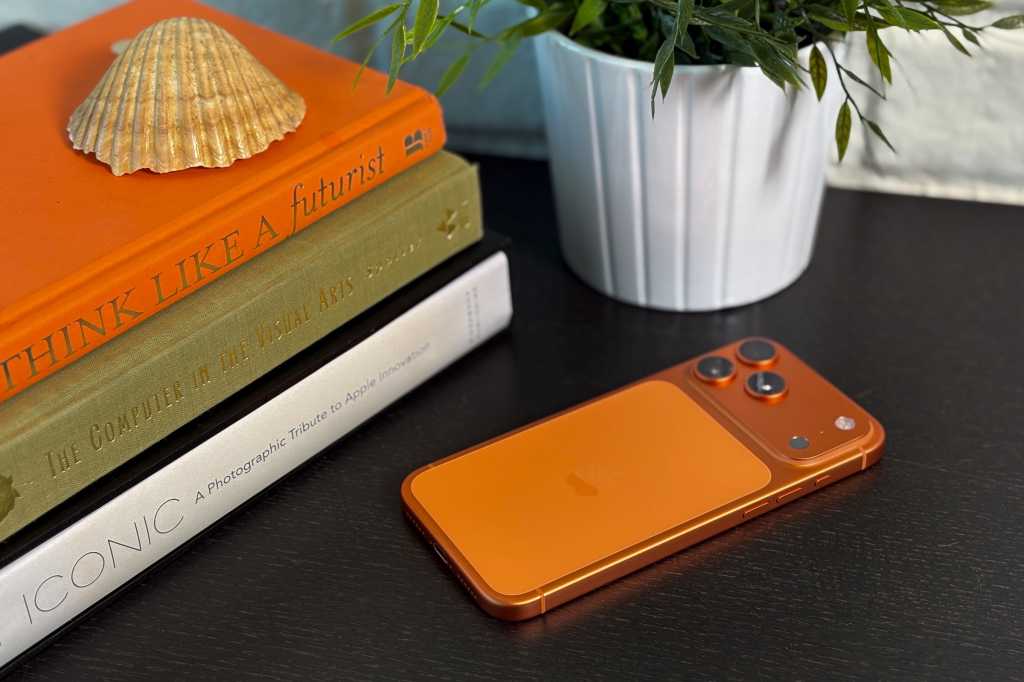
Apple’s iPhone 17 series is making headlines with its bold features, including the long-awaited 120Hz ProMotion Display. The lineup includes the base iPhone 17, the innovative iPhone Air, and the professional-grade iPhone 17 Pro and Pro Max. These new entries also come with the latest iOS 26 user experience, featuring a visual departure from previous releases with Liquid Glass and other new additions.
Whether you’re new to the iPhone 17 series or a long-time iPhone user upgrading to one of Apple’s latest models, this guide offers helpful tips and tricks. It’s written by someone who has reviewed almost every iPhone model from the last decade and has spent a lot of time optimizing the iOS experience.
Most of the tips in this guide are applicable across the iPhone 17, iPhone Air, iPhone 17 Pro, and iPhone 17 Pro Max, as well as recent older models like the iPhone 16 series. Let’s dive into the full rundown.
### Customise the Lock Screen Clock
With iOS 16, Apple introduced the ability to customize the lock screen clock’s font and color. With iOS 26, you can now also scale the clock and choose between the Liquid Glass aesthetic or the traditional flat appearance. To customize the lock screen clock:
– Press and hold on a blank area on the lock screen until it zooms out.
– Tap the “Customize” button at the bottom of the screen.
– Drag the grab handle to extend the clock to your preferred height.
– Adjust the font, color, and toggle between Glass and Solid appearance.
### Spatial Scene Lock Screen
iOS 26 introduces Spatial Scene lock screens, which create a faux 3D effect on compatible images. To create a Spatial Scene lock screen:
– Head to Settings and tap on Wallpaper.
– Add a new wallpaper or choose a photo from the Photos app.
– Enable Spatial Scenes on your lock screen by tapping the hexagonal icon.
– Create a new lock screen and set it as Wallpaper Pair.
### Spatial Scene in Photos
You can view compatible images as Spatial Scenes directly in the native Photos app. To enable the Spatial Scene effect on your photos:
– Open Photos and tap on an image.
– Tap the hexagonal icon to enable Spatial Scenes on the image.
### Faster Haptics for a Better Feel
Enhance the feel of interacting with your iPhone by adjusting the Haptic Touch duration in Settings. Choose between Default, Slow, or Fast haptic touch duration options.
### Hidden Keyboard Shortcuts
Discover hidden features of the iOS keyboard, including swipe-typing, accessing capital letters and numbers without toggling, and using left and right-justified compact keyboards. Long-press on keys to access these shortcuts.
### Disable Control Centre on Your Lock Screen
Protect your device from unauthorized access by disabling Control Centre on your lock screen. Head to Settings, tap on Face ID & Passcode, enter your passcode, and disable Control Centre access from the lock screen.
### Set a Custom Ringtone
Easily set a custom ringtone by downloading an audio file to the Files app, long-pressing on the file, tapping Share, and selecting Use As Ringtone.
### Battery Percentage
Monitor your device’s battery life by enabling Battery Percentage in Settings. This feature displays the battery percentage in the top right corner of the screen.
### Set a Charge Limit
Extend your battery’s lifespan by setting a charge limit in Settings under Battery. Limiting the charge to 80% can help preserve the battery health over time.
### Enable Adaptive Power Mode
Enhance battery life by enabling Adaptive Power Mode in Accessibility settings. This feature adjusts power usage dynamically to prolong battery life.
### Turn on Vehicle Motion Cues
Reduce motion sickness while using your phone in a moving vehicle by enabling Motion Cues in Accessibility settings. This feature adds dots to the screen to counteract motion effects.
### Make Apple Intelligence More Intelligent
Improve the AI experience on your iPhone by enabling ChatGPT in Apple Intelligence & Siri settings. This feature enhances the AI capabilities of your device.
### 4K 60fps Video by Default
Capture high-quality video by default by setting your camera to record in 4K at 60fps. Adjust the resolution and frame rate in Camera settings.
### Add a Grid and Level to Your Camera
Improve framing and alignment in your photos by enabling the grid and level tools in Camera settings. The grid helps with framing, while the level ensures your camera is perpendicular to the ground.
### Disable Macro Control
Disable the automatic switch to Macro Mode when shooting close-up photos. This feature can be disabled in Camera settings under Macro Control.
These tips and tricks will help you make the most of your iPhone 17 series and enhance your user experience. Explore these features and settings to optimize your device’s performance and functionality.





![Apple pushing back on 'vibe coding' iPhone apps, developers say [U]](https://bennetttechinnovation.com/wp-content/uploads/2026/03/Apple-Stands-Firm-Against-Vibe-Coding-iPhone-Apps-Defying-Developers-400x240.jpg)
![Apple pushing back on 'vibe coding' iPhone apps, developers say [U]](https://bennetttechinnovation.com/wp-content/uploads/2026/03/Apple-Stands-Firm-Against-Vibe-Coding-iPhone-Apps-Defying-Developers-80x80.jpg)


Apple WWDC 2026: The Ultimate Guide to What’s Coming Next

Unleashing the Beast: The 2027 Mercedes-AMG GT Black Series

15 Smartphone FAILS to ruin your day 😂

Data Breach at Mazda: Employee and Partner Information Exposed

City of Legends: Wartales Expansion – Choose Your Fate

Xiaomi 17 vs 17 Ultra Comparison: Why You Should Consider the Standard Model

Insight Partners Investigates ‘Fake Compliance’ Allegations, Delays Demos and Scrubs Investment Plans

Wuthering Heights: A Tale of Love and Loss Streaming Now

The Evolution of Apple’s AirPods Max: Unveiling the AirPods Max 2

EU Takes Action Against Instagram and Facebook for Violating Illegal Content Rules

Warning: Facebook Creators Face Monetization Loss for Stealing and Reposting Videos

Facebook Compliance: ICE-tracking Page Removed After US Government Intervention

Facebook’s New Look: A Blend of Instagram’s Style

Facebook and Instagram to Reduce Personalized Ads for European Users

InstaDub: Meta’s AI Translation Tool for Instagram Videos

Reclaim Your Account: Facebook and Instagram Launch New Hub for Account Recovery

Meta discontinues Messenger apps for Windows and macOS

Breaking Updates: Meta Connect 2025 Unveils Latest Developments
15 Smartphone FAILS to ruin your day 😂

World’s Biggest Smartphone Collection?

I switched to iPhone – This is what I found out.

What happened to Beats by Dre?

DON’T buy a Screen Protector before watching this.

Beware of Fake Reviewers! ⚠️

Xiaomi Mi 11 Unboxing & Review.

The Galaxy S21 Ultra is Better than you think.

Samsung Galaxy S21 Ultra vs iPhone 12 Pro Max Camera Test Comparison.
-
 Facebook5 months ago
EU Takes Action Against Instagram and Facebook for Violating Illegal Content Rules
-
 Facebook5 months ago
Warning: Facebook Creators Face Monetization Loss for Stealing and Reposting Videos
-
 Facebook5 months ago
Facebook Compliance: ICE-tracking Page Removed After US Government Intervention
-
 Facebook3 months ago
Facebook’s New Look: A Blend of Instagram’s Style
-
 Facebook4 months ago
Facebook and Instagram to Reduce Personalized Ads for European Users
-
 Facebook5 months ago
InstaDub: Meta’s AI Translation Tool for Instagram Videos
-
 Facebook4 months ago
Reclaim Your Account: Facebook and Instagram Launch New Hub for Account Recovery
-
 Apple5 months ago
Meta discontinues Messenger apps for Windows and macOS
