
Mobile Tech
The Hidden Drain: How Notifications Are Secretly Draining Your iPhone Battery

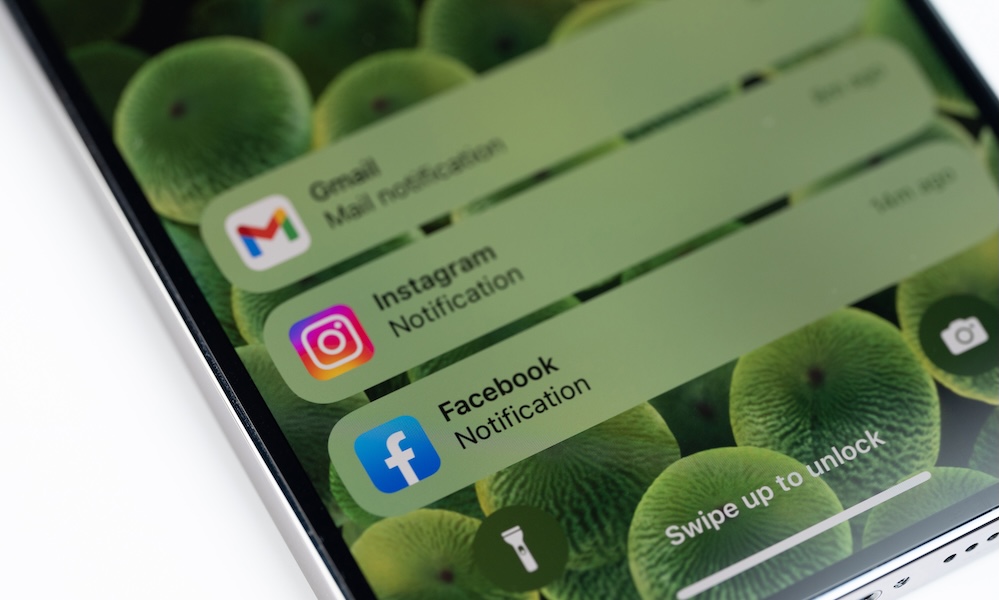
When people think about what drains their iPhone battery, they usually focus on obvious things, such as high screen brightness, video streaming, and gaming. And to be fair, those do matter. But there’s another battery drain that flies under the radar because it doesn’t feel intense in the moment: your notifications.
That’s what makes them so tricky. One alert doesn’t seem like a problem. Your phone lights up, maybe vibrates, and you glance at it for a second. But when that happens dozens or even hundreds of times a day across different apps, your iPhone never really gets a break. It’s constantly waking up, checking for updates in the background, and trying to grab your attention.
Over time, that adds up in a way most people don’t notice. Not only does your battery drain faster, but your iPhone feels busier than it should, and you end up unlocking your device more often than you intended. Notifications don’t just interrupt your day; they quietly chip away at your battery in the background.
Why Notifications Kill Your Battery Life
The main reason notifications affect battery life is that they do more than you might think at first. Every time an alert comes in, your device may wake up the screen, trigger a vibration or sound, and refresh content in the background. Even if each individual alert uses a small amount of power, that constant cycle repeating all day can make a noticeable difference.
It’s also not just about the alert itself. Notifications often lead to more activity. You see a message, unlock your iPhone, reply, then maybe check another app, scroll for a bit, and suddenly what should have been a quick glance turns into five more minutes of using your phone.
There are also the things your apps do that you don’t even notice. Frequent notifications typically refresh the relevant apps every time those alerts come in to ensure that the latest data is available when you open the app. That background activity, combined with constant wake-ups, keeps your iPhone working harder than it needs to. The result? Your battery starts to drain, maybe even faster than you first realized, especially if you have an older device.
That’s why notifications are so easy to underestimate. They don’t hit your battery all at once, like when you’re playing a game or doomscrolling on Instagram. Instead, they quietly drain your iPhone in small ways you don’t really think about.
What You Can Do to Stop It
The good news is that this is one of the easiest battery issues to fix. You don’t need to stop using your iPhone or give up important alerts. You just need to be more intentional about which apps are allowed to interrupt you.
The first step is to go through your notifications and clean them up. Most people have far more apps sending alerts than they actually need. Shopping apps, games, food delivery apps, and promotional alerts are usually the biggest culprits. Turning some of those off alone can make a noticeable difference.
Here’s a simple way to get started:
- Open the Settings app.
- Scroll down and tap Notifications.
- Scroll through your apps one by one.
- Turn off notifications for apps that don’t need immediate attention.
Try to keep alerts limited to things that truly matter, like messages, calls, and apps that give you important updates.
If you don’t want to completely disable notifications for certain apps, you can make them less intrusive instead. You can turn off Lock Screen alerts or remove sounds. That way, you still get the information, but your phone isn’t constantly lighting up and pulling your attention away.
Another powerful tool is the Scheduled Summary. Instead of receiving every notification the moment it arrives and forcing your iPhone battery to work overtime, this feature tells your iPhone to group less important alerts, delivering them in batches at specific times during the day. That helps cut down the constant interruptions while still keeping you informed.
Last but not least, Focus modes are also worth using if you haven’t already. They let you control which notifications come through at different times of day, like work, sleep, or personal time. Instead of everything coming through all the time, you decide what matters in each situation, giving your iPhone battery a much-needed break. That not only helps your battery but also makes your phone feel a lot less overwhelming. You can customize your Focus modes by going to Settings > Focus.
Pro Tip: It’s also a good idea to check your messaging apps and decide if you really need to get a notification every single time someone says something in a group chat. Most apps will let you mute those or filter them down to only alert you when you’re specifically mentioned by name. After all, a busy group chat can easily have your iPhone lighting up all day with dozens or even hundreds of notifications that you can read far more easily simply by opening the app later and scrolling up to see what you’ve missed.
Remember to Check Your Battery Settings
It’s also a good idea to check your Battery settings to see which apps are using the most power. Sometimes you’ll notice that certain apps are both sending a lot of notifications and using a lot of battery in the background. That combination is usually a clear sign that those apps need to be adjusted or limited.
If your battery is already running low, turning on Low Power Mode can help as well. It reduces background activity and limits certain features, giving you extra time to clean up your notification settings.
Last but not least, it’s worth checking your Battery Health & Charging status in Settings. If it’s already dropping below 80 percent, it might be time to consider replacing your battery or even your iPhone altogether.
A Simple Trick to Make Your Battery Last Longer
Notifications are one of those features that feel harmless because they’re so small and frequent. But that’s exactly why they can have such a big impact over time.
Combining all the notifications on your iPhone may not seem like a big deal, but together they can drain your battery faster than you realize. The good news is that this is a problem you can solve quickly. You don’t need a new phone or complicated settings; you just need to prioritize which apps truly need your attention and silence the rest. By doing this, your iPhone will not only have a longer battery life but will also feel more peaceful, focused, and user-friendly. It’s a simple solution that can make a big difference.








Stealthy Strikes: LucidRook Malware Threatens NGOs and Universities

Aqara Multi-State Sensor P100: The Ultimate Smart Home Sensor with Matter and Thread Compatibility

Unlocking Team Success: Recognizing the Signs for a Team-Building Day

Meta’s Dilemma: Balancing Open-Source Identity with Competitive AI Models

The Hidden Drain: How Notifications Are Secretly Draining Your iPhone Battery

Unveiling the Enigmatic Aston Martin Solo Speedster

The MacBook Neo: Revolutionizing the Windows Experience

Leo’s Stellar Connection: A Starlink Competitor Romance

Top Cyber Threats: Hybrid P2P Botnet, Apache RCE Exploit by 13-Year-Old, and More

EU Takes Action Against Instagram and Facebook for Violating Illegal Content Rules

Warning: Facebook Creators Face Monetization Loss for Stealing and Reposting Videos

Facebook Compliance: ICE-tracking Page Removed After US Government Intervention

Facebook’s New Look: A Blend of Instagram’s Style

Facebook and Instagram to Reduce Personalized Ads for European Users

InstaDub: Meta’s AI Translation Tool for Instagram Videos

Reclaim Your Account: Facebook and Instagram Launch New Hub for Account Recovery

Meta discontinues Messenger apps for Windows and macOS

Breaking Updates: Meta Connect 2025 Unveils Latest Developments

Samsung Galaxy Note 20 Ultra vs Galaxy S20 Ultra Impressions

Samsung Galaxy Z Fold 2 – The Big Problem.

I bought the cheapest smartphones EVER.

Xiaomi Mi 10 Ultra – Unboxing and Review.

Galaxy Note 20 Ultra Review.

I bought every Galaxy Note ever.

Samsung and Google are at War.

OnePlus 7 Pro in 2020 – Wow.

Poco X3 – The Shady Truth.
-
 Facebook6 months ago
EU Takes Action Against Instagram and Facebook for Violating Illegal Content Rules
-
 Facebook6 months ago
Warning: Facebook Creators Face Monetization Loss for Stealing and Reposting Videos
-
 Facebook6 months ago
Facebook Compliance: ICE-tracking Page Removed After US Government Intervention
-
 Facebook4 months ago
Facebook’s New Look: A Blend of Instagram’s Style
-
 Facebook4 months ago
Facebook and Instagram to Reduce Personalized Ads for European Users
-
 Facebook6 months ago
InstaDub: Meta’s AI Translation Tool for Instagram Videos
-
 Facebook4 months ago
Reclaim Your Account: Facebook and Instagram Launch New Hub for Account Recovery
-
 Apple6 months ago
Meta discontinues Messenger apps for Windows and macOS
