
Mobile Tech
Unlocking the Full Potential of CarPlay: Essential Tips and Tricks

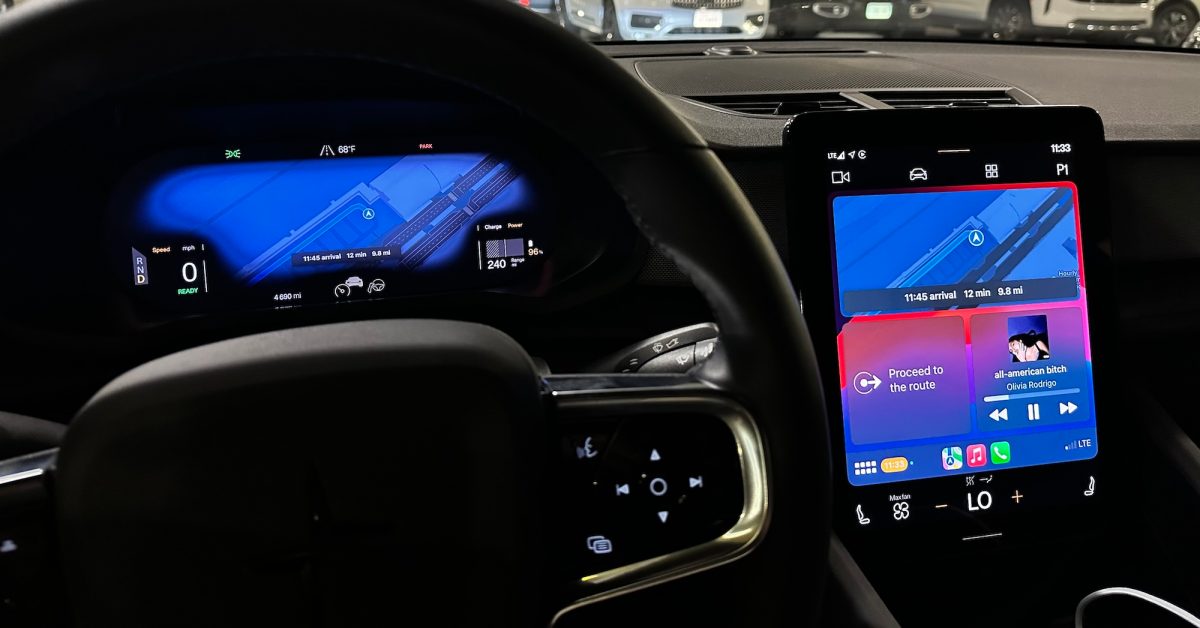
Apple CarPlay: Tips and Tricks for Maximizing Your Experience
Apple CarPlay is a game-changer for in-car entertainment, offering a superior infotainment experience compared to most car manufacturers’ options. With quick access to favorite apps, seamless connectivity, and integration with Siri, CarPlay is a must-have for the vast majority of people. Here are some tips and tricks to help you get the most out of your CarPlay experience…
Customize your CarPlay apps and Home Screen
Many of your favorite apps are available on CarPlay, but you may not want all of them cluttering your Home Screen. You can easily customize your CarPlay apps by following these steps:
- Open the Settings app on your iPhone
- Tap “General”
- Tap “CarPlay”
- Choose your car’s name and select “Customize”
From here, you can hide apps from appearing on CarPlay by tapping the red minus sign. You can also rearrange your CarPlay Home Screen by dragging apps into your desired order using the three lines on the right side of the app icons.
CarPlay wallpapers
While you can’t use any photo as your CarPlay wallpaper, Apple offers a selection of pre-installed options. To set a wallpaper on CarPlay, follow these steps:
- Open the Settings app on CarPlay
- Select “Wallpaper”
- Choose your desired wallpaper and tap “Set”
Apple occasionally adds new wallpaper options to CarPlay, but the choices are limited.
Wireless or wired?
CarPlay can work both wirelessly and wired, depending on your car’s make and model. Wired CarPlay typically provides a faster and more reliable experience, while wireless CarPlay may have some latency issues. Here’s a strategy you can follow:
- Use wireless CarPlay for quick trips around town
- Use wired CarPlay for longer road trips
If you want to bring wireless CarPlay to any car, you can consider using the CarlinKit 5.0 adapter, which converts wired CarPlay to a wireless experience for under $60.
Dark mode
CarPlay offers light mode and dark mode interfaces. In the Settings app on CarPlay, you can choose between Light, Dark, or Automatic modes. The Automatic setting switches between light and dark modes based on the time of day and other lighting factors.
Driving Focus mode
CarPlay enhances in-car safety by discouraging distractions. The Driving Focus mode blocks incoming notifications, messages, and calls to keep your focus on the road. You can customize this feature via the Settings app on your iPhone, allowing you to allow notifications from specific contacts or enable an automatic reply feature when driving.
Announce Messages
Announce Messages is a useful feature that reads messages aloud and allows you to reply using your voice. This feature works with Apple’s Messages app and third-party apps like WhatsApp. To enable Announce Messages on CarPlay, go to Settings > Siri & Search > Announce Notifications on your iPhone, and make sure Announce Messages with Siri is enabled in the CarPlay Settings app.
SharePlay
If you want others in your car to contribute to the music queue, CarPlay’s SharePlay feature allows them to do so. By generating a QR code on the Apple Music Now Playing screen, others can scan it to join the SharePlay session and add songs to the queue.
Widgets in iOS 26 CarPlay
iOS 26 introduced support for widgets in CarPlay, allowing you to access your favorite iPhone widgets on your car’s screen. To manage widgets in CarPlay, follow these steps:
- Open the Settings app
- Select General
- Choose CarPlay
- Tap “Widgets”
From here, you can add and reorder widgets in your stack, enable “Smart Rotate” to switch between widgets, and explore widget suggestions.
Live Activities in CarPlay
iOS 26 also brings Live Activities to CarPlay, mirroring the Live Activities feature from the iPhone on your car’s screen. Live Activities are enabled by default, but you can turn them off in the Settings app on CarPlay.
Pinned Messages
iOS 26 revamped the Messages app in CarPlay, introducing pinned messages at the top. If you prefer not to use this feature, you can disable pinned conversations in Messages on CarPlay by toggling off the option in the Settings app.
Icon tinting
If you want to refresh your CarPlay interface, you can choose from Default, Dark, and Clear icon tinting options in the Settings app on CarPlay.
Wrap up
Are you a CarPlay user? Share your favorite tips and tricks with us in the comments below!












Forgotten Fears: The Cape Fear Chronicles – Everything You Need to Know About the Apple TV+ Series

Breaking Boundaries: Top Translation Companies for Expanding Startups into New Markets

Rumors Swirl as a Foldable iPhone Prototype Surfaces Amidst Delay Speculation

Unlocking the Third Dimension: Transforming 2D Apps with the Galaxy XR Headset

Farewell to Laughter: Hacks Season 5 Delivers a Memorable Series Finale

Unlocking the Full Potential of CarPlay: Essential Tips and Tricks

Revolutionizing Enterprise Security: Asylon and Thrive Logic’s Groundbreaking Physical AI Integration

Luxury on Wheels: Aston Martin Valhalla Available at Exclusive Dubai Dealer for $1.4 Million

Lawsuit Filed Against Amazon for Unauthorized Use of YouTuber Content to Train Nova Reel AI

EU Takes Action Against Instagram and Facebook for Violating Illegal Content Rules

Warning: Facebook Creators Face Monetization Loss for Stealing and Reposting Videos

Facebook Compliance: ICE-tracking Page Removed After US Government Intervention

Facebook’s New Look: A Blend of Instagram’s Style

Facebook and Instagram to Reduce Personalized Ads for European Users

InstaDub: Meta’s AI Translation Tool for Instagram Videos

Reclaim Your Account: Facebook and Instagram Launch New Hub for Account Recovery

Meta discontinues Messenger apps for Windows and macOS

Breaking Updates: Meta Connect 2025 Unveils Latest Developments

I bought every Galaxy Note ever.

Samsung and Google are at War.

OnePlus 7 Pro in 2020 – Wow.

Poco X3 – The Shady Truth.

Huawei is replacing Android.

14 MEGA Smartphone Fails we’ll never forget.

Why Samsung’s Transparent Phone will fail.

6G – Explained!

Is Samsung about to take over?
-
 Facebook6 months ago
EU Takes Action Against Instagram and Facebook for Violating Illegal Content Rules
-
 Facebook6 months ago
Warning: Facebook Creators Face Monetization Loss for Stealing and Reposting Videos
-
 Facebook6 months ago
Facebook Compliance: ICE-tracking Page Removed After US Government Intervention
-
 Facebook4 months ago
Facebook’s New Look: A Blend of Instagram’s Style
-
 Facebook4 months ago
Facebook and Instagram to Reduce Personalized Ads for European Users
-
 Facebook6 months ago
InstaDub: Meta’s AI Translation Tool for Instagram Videos
-
 Facebook4 months ago
Reclaim Your Account: Facebook and Instagram Launch New Hub for Account Recovery
-
 Apple6 months ago
Meta discontinues Messenger apps for Windows and macOS
