
Mobile Tech
Unlocking the Power of StandBy Mode: 7 Essential Widgets to Enhance Your Experience

![Here are 7 widgets that make StandBy Mode worth using [video]](https://bennetttechinnovation.com/wp-content/uploads/2025/11/Unlocking-the-Power-of-StandBy-Mode-7-Essential-Widgets-to.jpg)
StandBy Mode was introduced to us with the release of iOS 17. It gave the iPhone this passive but dynamic viewing mode when charging and in landscape mode. It can be used as a clock, to see the weather, as a hub for the Home app, or to help avoid distraction. I personally think this is a stepping stone to some sort of HomeOS-type interface for future products. But as it stands today, it is still very useful, especially once you start to customize it with third-party widgets. So here are some of my favorites!
If you want to get a hands-on look at each of these widgets, be sure to check out our video below. In the video, we also do a complete walkthrough of StandBy Mode. We teach you how to use it, the settings that can be adjusted and the different views you need to be aware of. Check it out below!
1. Timery
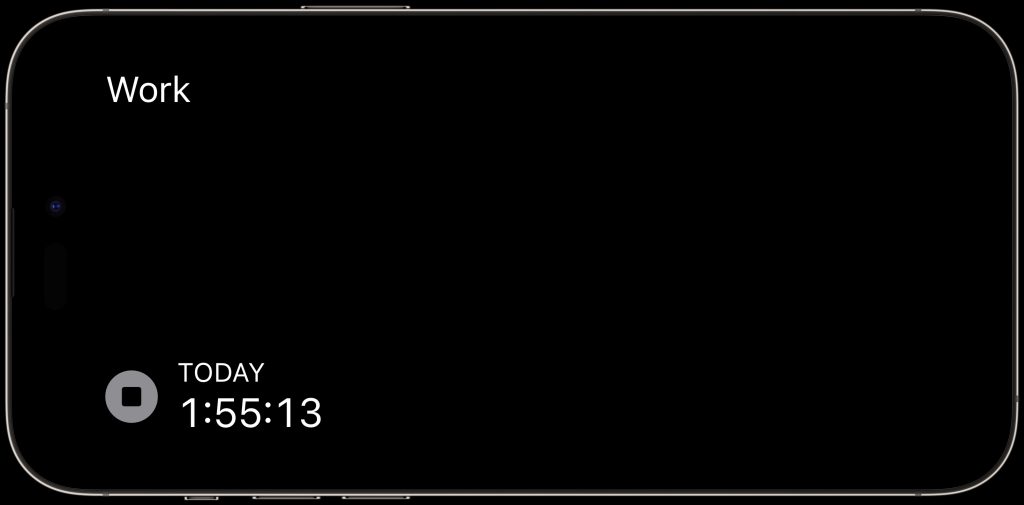
Timery is a very simple but useful app that helps with time management and tracking. I purely use the StandBy Mode widget to help focus me on certain tasks. It helps reduce distraction by gamifying certain task timing. So if I need to get something done and avoid distraction, I turn on the timery counter and then start working. Then, each session is tracked, graphed, and compared to previous sessions! The widget is simple and to the point, which is what I like for my Standby Mode widgets.
2. iScreen
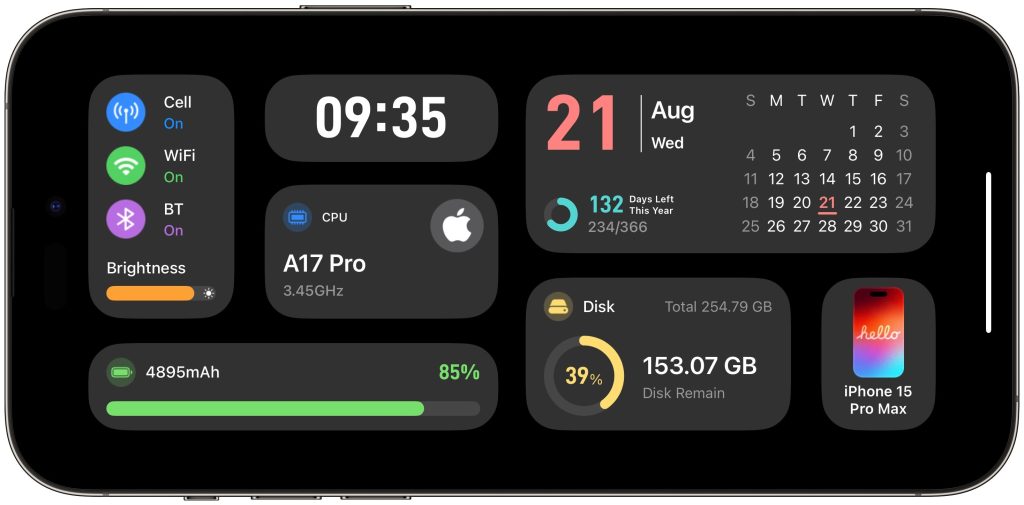
I am going to put this in the category of ‘fun’. Sometimes, it’s just nice to have widgets because they look great! iScreen is a widget-based app that has 100s of different widget options to choose from. Most importantly, it has a section totally dedicated to StandBy Mode. There are fun ones to give you battery levels, widgets that show off your images as polaroids, and even more clocks to choose from. But my favorite one has to be the widget that shows you all the system data of your iPhone in real-time.
Now this is a freemium app, so it has plenty of free widgets to choose from (you just need to watch an ad first). But there are some higher-quality ones, like the one below, that require a subscription. It is $9 a year to get access to the entire catalog and remove all ads as well!
3. Sports Alerts
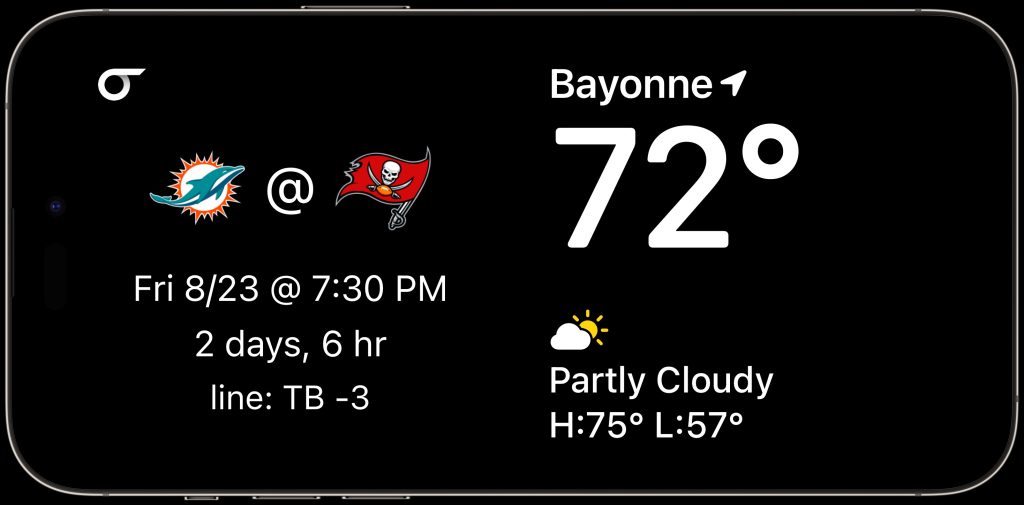
Now, this app won’t win any awards for its creativity when it comes to naming an app. But when it comes to function, it is perfect. I wanted a widget that had no frills, no add ons and just gave me live sports scores. This app does exactly that. You download the free app, set up your favorite teams in the app, and then set up your widget. When you place your widget, you can choose from a few options regarding what team is shown and what data, so I like to customize it to my liking. Even if there is no current live game happening, it will default to the next game coming up and even give you a countdown and pre-game odds! Excited for this during football season!
4. Lookup Dictionary
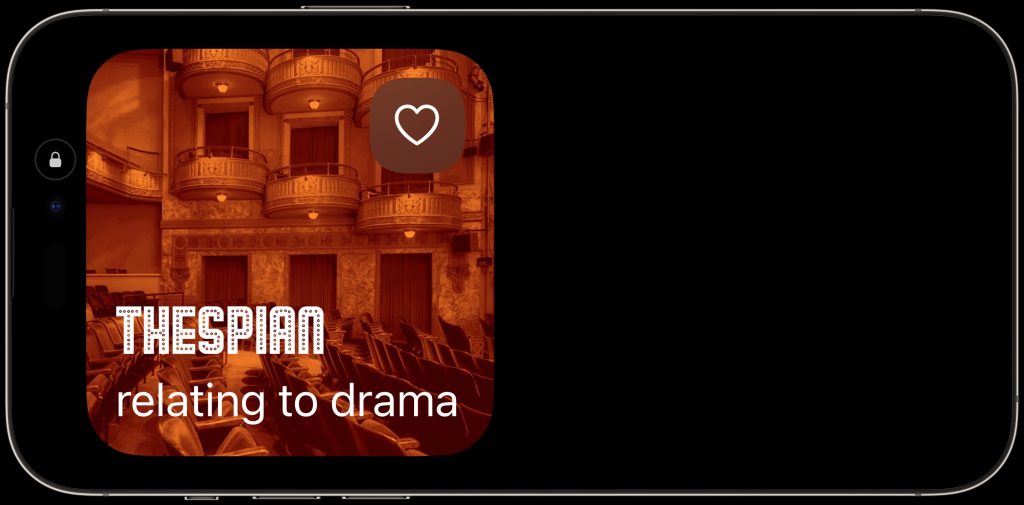
This has to be one of the simplest apps of all time and I love it. I also think that when it comes to these widget-specific apps, the simpler, the better when it comes to feature sets. Most people want the widget app just to be a widget! This app is just a dictionary database that can be used to look up words and their meanings. But the StandBy Mode widget is great for those looking to better their vocab! It gives you a new word of the day and keeps the definitions short so they are easy to remember. Most words have definitions that are shorter than four words. The words change on a daily or even hourly basis if you want to go crazy with it.
6. Countdown
This Countdown app does exactly what it says it does. It is purely there to have a consistent and dynamic way of viewing a countdown. It is very simple to set up and use. You go into the app and input certain dates you are looking forward to or need to be on your mind.
“` The countdown widget allows you to input important dates, and it will display the upcoming date that is closest to the present in the widget. Once that date has passed, the widget will automatically move on to the next upcoming date. You have the option to customize the appearance of the widget including the color, text size, and font. This feature is handy for keeping track of birthdays, trips, and other significant events down to the seconds.
The Vitals app, available on iOS 18, is a new addition that works with your Apple Watch to monitor your key health metrics. It provides a quick overview of five vital health indicators such as heart rate, sleep time, and temperature. If your readings fall within the acceptable range, you’re good to go. However, if they exceed the thresholds, the app offers guidance on what steps to take. The Vitals widget offers a visual representation of your health status, making it easy to see where you stand.
StandBy Mode widgets are becoming increasingly popular, with more options being added regularly. These widgets are compatible with apps that offer regular homescreen widgets, making them versatile and convenient. Many users, like myself, prefer to have their phones in StandBy mode while working at their desks, using it as a modern-day clock with quick access to relevant information. Smart rotation allows the widgets to switch to the most appropriate one based on the user’s needs.
What are your thoughts on StandBy mode? Do you use it, and if so, what widgets do you recommend? Share your opinions and suggestions in the comments below. Transform the following sentence into the passive voice:
“The chef cooked a delicious meal for the guests.”
Answer: “A delicious meal was cooked for the guests by the chef.”












Bearlyfy Strikes Russian Companies with Unique GenieLocker Ransomware Attack

Innovative Ventures: The 8 Startups Investors Can’t Resist from YC Demo Day

The Future of iPhone Cameras: Is a 200 MP Lens Coming Soon?

Celebrating the First iX3 Delivery at BMW’s Debrecen Factory

iPhone 12 Pro Max vs Samsung Note 20 Ultra / Huawei / Xiaomi / OnePlus Battery Life DRAIN Test.

Stealthy Malware: The Hidden Threat Within Telnyx PyPI Package

Harvest of Suspicion: Grave Seasons Murder Mystery Farming Sim Arrives in August

Tech Giants Clash: OpenAI Halts Sora as Meta Faces Legal Setback

Apple’s AI Playlist Playground: Where Music Goes to Die

EU Takes Action Against Instagram and Facebook for Violating Illegal Content Rules

Warning: Facebook Creators Face Monetization Loss for Stealing and Reposting Videos

Facebook Compliance: ICE-tracking Page Removed After US Government Intervention

Facebook’s New Look: A Blend of Instagram’s Style

Facebook and Instagram to Reduce Personalized Ads for European Users

InstaDub: Meta’s AI Translation Tool for Instagram Videos

Reclaim Your Account: Facebook and Instagram Launch New Hub for Account Recovery

Meta discontinues Messenger apps for Windows and macOS

Breaking Updates: Meta Connect 2025 Unveils Latest Developments
iPhone 12 Pro Max vs Samsung Note 20 Ultra / Huawei / Xiaomi / OnePlus Battery Life DRAIN Test.

The BEST Smartphone of 2020 🏆

The Self-Healing Smartphones!

Apple is not what it used to be.

Smartphones are Boring now.

The Fastest Android Phone Ever.

Unboxing the $122,000 Smartphone. 🤯

Are Linux Smartphones about to KILL Android?

15 Smartphone FAILS to ruin your day 😂
-
 Facebook5 months ago
EU Takes Action Against Instagram and Facebook for Violating Illegal Content Rules
-
 Facebook5 months ago
Warning: Facebook Creators Face Monetization Loss for Stealing and Reposting Videos
-
 Facebook5 months ago
Facebook Compliance: ICE-tracking Page Removed After US Government Intervention
-
 Facebook4 months ago
Facebook’s New Look: A Blend of Instagram’s Style
-
 Facebook4 months ago
Facebook and Instagram to Reduce Personalized Ads for European Users
-
 Facebook5 months ago
InstaDub: Meta’s AI Translation Tool for Instagram Videos
-
 Facebook4 months ago
Reclaim Your Account: Facebook and Instagram Launch New Hub for Account Recovery
-
 Apple5 months ago
Meta discontinues Messenger apps for Windows and macOS
