
Tech News
Unlocking the Secrets of iPhone 17: Tips, Tricks, and Hidden Features

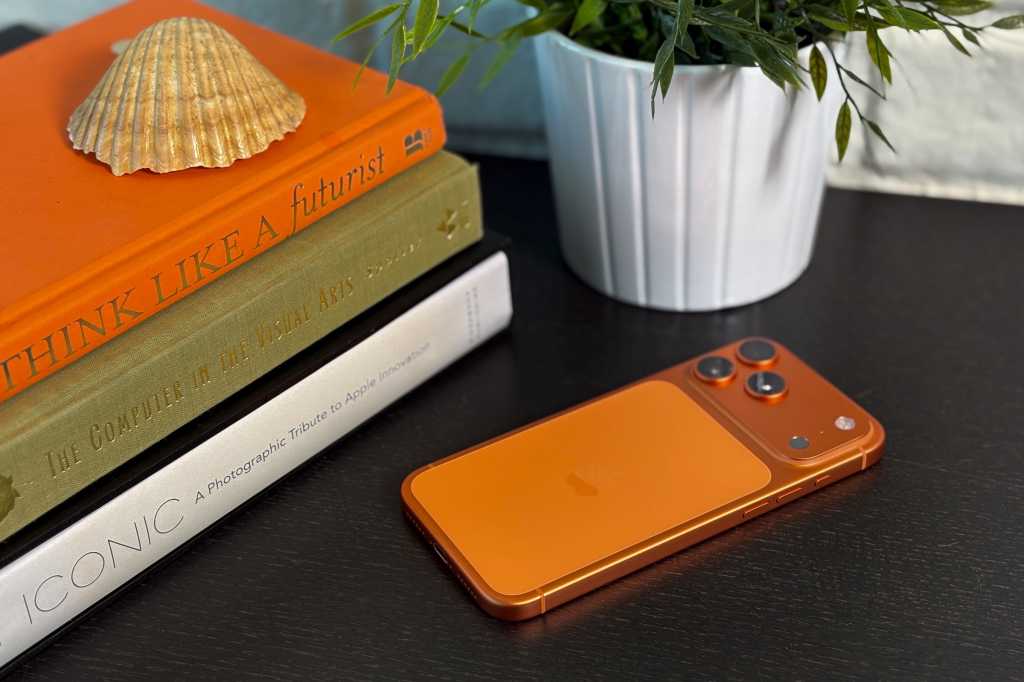
The iPhone 17 series is making waves in the tech world, with features like the long-awaited 120Hz ProMotion Display and innovative designs. The iPhone Air, iPhone 17 Pro, and Pro Max offer professional-grade features such as ProRes RAW and GenLock. The latest iOS 26 user experience introduces a fresh visual design, including Liquid Glass and other enhancements.
Whether you’re upgrading to the iPhone 17 series or a long-time Apple user, this guide offers essential tips and tricks to optimize your iOS experience. From setting charge limits to upgrading video settings, there’s something for everyone. These tips are applicable to all iPhone 17 models and even older models like the iPhone 16 series.
### Customise the lock screen clock
With iOS 26, customizing the lock screen clock has become even more versatile. You can now scale the clock and choose between different font styles and colors. Experiment with the new Glass/Solid toggle for a unique look.
### Spatial Scene lock screen
iOS 26 introduces Spatial Scenes, a 3D effect that can be applied to your lock screen images. Follow simple steps in Settings to create your own Spatial Scene lock screen for a visually stunning experience.
### Spatial Scene in Photos
Experience the Spatial Scene effect on multiple photos in your gallery with ease. Simply tap on an image in the Photos app to view it as a Spatial Scene and enjoy the 3D effect.
### Faster haptics for a better feel
Enhance your iPhone’s haptic feedback by adjusting the Haptic Touch duration in Accessibility settings. Experiment with different duration options to find the perfect feel for your device.
### Hidden keyboard shortcuts
Uncover powerful hidden features of the iOS keyboard, including swipe-typing, accessing capital letters and numbers without toggling keys, and using left and right-justified keyboards for one-handed typing.
### Disable Control Centre on your lock screen
Protect your device from theft by disabling Control Centre access on your lock screen. Follow simple steps in Face ID & Passcode settings to enhance the security of your device.
### Set a custom ringtone
Personalize your device by setting a custom ringtone using audio files from the Files app. Simply download the audio file, share it, and set it as your new ringtone for a unique sound.
### Battery Percentage
Keep track of your device’s battery life by enabling Battery Percentage in Settings. Monitor your charge level easily with the battery icon displaying the percentage.
### Set a Charge Limit
Extend your battery’s lifespan by setting a charge limit in Battery settings. Opt for a lower charge limit, such as 80%, to preserve your battery health over time.
### Enable Adaptive Power Mode
Save battery power by enabling Adaptive Power Mode in Battery settings. Let your device adjust power settings dynamically to optimize battery life.
### Turn on Vehicle Motion Cues
Combat motion sickness while using your phone in a moving vehicle by enabling Vehicle Motion Cues in Accessibility settings. Enjoy a more comfortable experience with motion cues on your screen.
### Make Apple Intelligence… more intelligent
Enhance your Apple Intelligence experience by enabling ChatGPT search and results in iOS settings. Access OpenAI’s ChatGPT features for a smarter AI experience.
### 4K 60fps video by default
Capture high-quality video by default by setting your device to record in 4K at 60fps. Enhance your video recording experience with superior resolution and frame rate options.
### Add a grid and level to your camera
Improve your photography skills by adding a grid and level to your camera settings. Use the grid for better framing and the level for ensuring your camera is perfectly aligned.
### Disable Macro Control
Take control of your macro photography by disabling Macro Control in Camera settings. Avoid the automatic switch to the ultrawide lens and maintain better image quality for your macro shots.
These tips and tricks will help you make the most of your iPhone 17 series and enhance your iOS experience. From customization options to battery management, there’s something for everyone to explore and enjoy.












Microsoft’s Solution: Repairing the Windows Start Menu Search Glitch

Dragon’s Fury: The Lost Legacy of AionGuard

Illuminate Your Yard: Nanoleaf’s 2026 Solar Garden Lights Shine with New Colour Scenes

Cheering on Arcee: The Small but Mighty Open Source AI Model Maker

Maximize Your Productivity with Vertical Browser Tabs

Enhancing iPhone Accessibility: Top 7 Features to Enable in 2026

Hyundai’s Future Ioniq EVs: A Farewell to Pixel Lights?

Amazon’s Announcement: Upgrading Your Kindle and Kindle Fire Devices

Rapid Deployment: China-Linked Storm-1175 Exploits Zero-Days with Medusa Ransomware

EU Takes Action Against Instagram and Facebook for Violating Illegal Content Rules

Warning: Facebook Creators Face Monetization Loss for Stealing and Reposting Videos

Facebook Compliance: ICE-tracking Page Removed After US Government Intervention

Facebook’s New Look: A Blend of Instagram’s Style

Facebook and Instagram to Reduce Personalized Ads for European Users

InstaDub: Meta’s AI Translation Tool for Instagram Videos

Reclaim Your Account: Facebook and Instagram Launch New Hub for Account Recovery

Meta discontinues Messenger apps for Windows and macOS

Breaking Updates: Meta Connect 2025 Unveils Latest Developments

Galaxy Note 20 Ultra Review.

I bought every Galaxy Note ever.

Samsung and Google are at War.

OnePlus 7 Pro in 2020 – Wow.

Poco X3 – The Shady Truth.

Huawei is replacing Android.

14 MEGA Smartphone Fails we’ll never forget.

Why Samsung’s Transparent Phone will fail.

6G – Explained!
-
 Facebook6 months ago
EU Takes Action Against Instagram and Facebook for Violating Illegal Content Rules
-
 Facebook6 months ago
Warning: Facebook Creators Face Monetization Loss for Stealing and Reposting Videos
-
 Facebook6 months ago
Facebook Compliance: ICE-tracking Page Removed After US Government Intervention
-
 Facebook4 months ago
Facebook’s New Look: A Blend of Instagram’s Style
-
 Facebook4 months ago
Facebook and Instagram to Reduce Personalized Ads for European Users
-
 Facebook6 months ago
InstaDub: Meta’s AI Translation Tool for Instagram Videos
-
 Facebook4 months ago
Reclaim Your Account: Facebook and Instagram Launch New Hub for Account Recovery
-
 Apple6 months ago
Meta discontinues Messenger apps for Windows and macOS
