
Gadgets
Unlocking the Secrets of the Google Pixel: 10 Tips & Tricks for Hidden Settings & Features

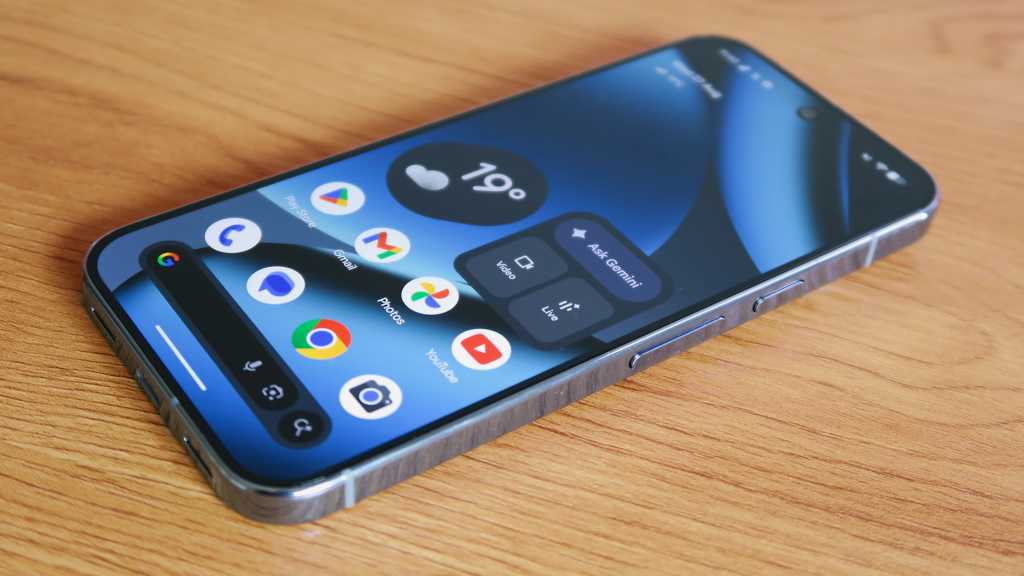
Google has recently unveiled its latest range of Pixel phones for 2025, packed with impressive features that are sure to enhance your smartphone experience.
Whether you’re upgrading to a Pixel device or switching to Pixel for the first time, here are some tips and tricks to help you make the most out of the Android 16-based experience offered by the Pixel 10 series.
Most of these tips apply to the entire Pixel 10 line, including the Pixel 10, Pixel 10 Pro, Pixel 10 Pro XL, and Pixel 10 Pro Fold. However, there are a few upgrades exclusive to the new Pro models. Read on for a detailed overview.
Activate or Deactivate Pro Res Zoom
If you have purchased the Pixel 10 Pro or 10 Pro XL, one of the significant camera enhancements is Pro Res Zoom. This feature boosts the maximum telephoto capture magnification from 30x to 100x, building on the Super Res Zoom of its predecessors.
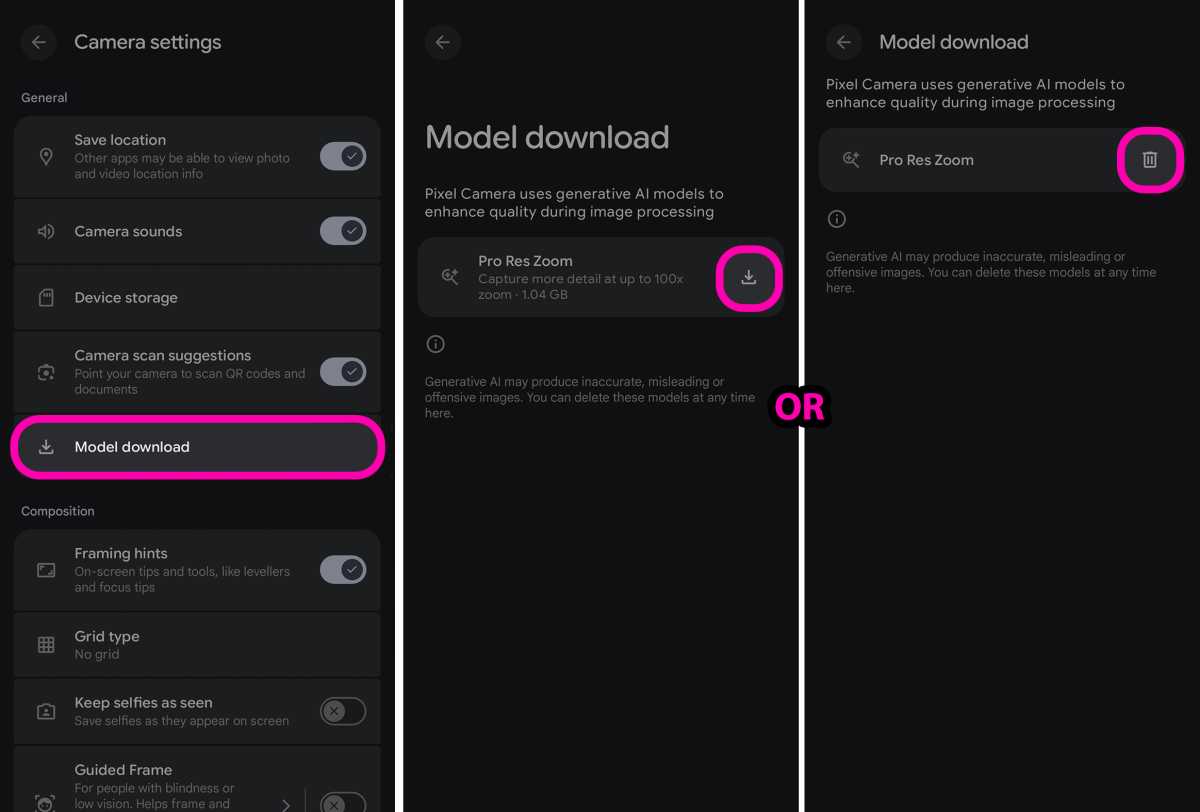
If Pro Res Zoom is not enabled by default on your Pixel device, you can follow these steps to activate or deactivate it:
HOW? To enable Pro Res Zoom, open the Camera app and tap on the Camera Settings icon (located in the bottom-left of the viewfinder in portrait mode). Then, tap the icon with three dots in the top-right corner, select Model download, and download the Pro Res Zoom feature. If you want to disable Pro Res Zoom, tap the trash can icon in the Model download menu and uninstall it.
Keep in mind that if the 100x zoom option doesn’t appear immediately after downloading the model, you may need to close the Camera app, reopen it, and try zooming in again.
Design a Calling Card
As part of Material 3 Expressive, Google has introduced a new feature called Calling Cards on the Pixel 10 series. Similar to iOS’ Contact Posters, Calling Cards allow you to create personalized full-screen posters for key contacts in your address book.
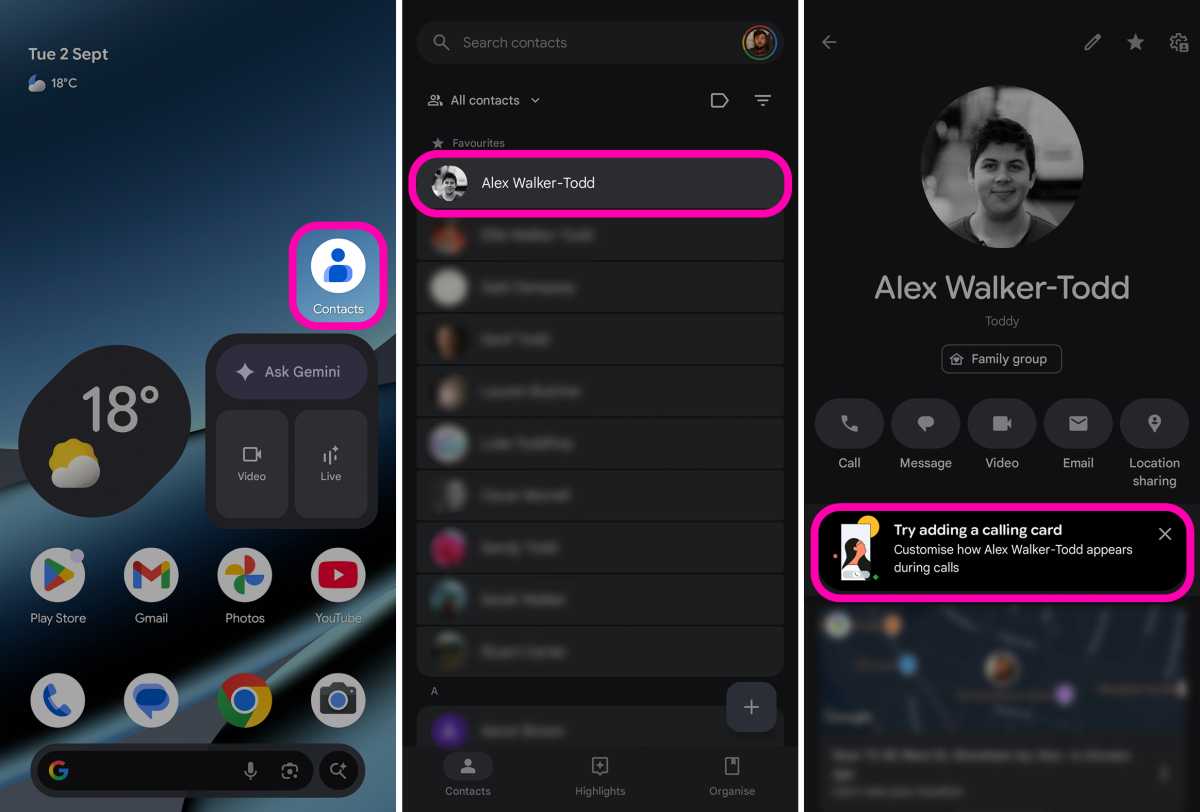
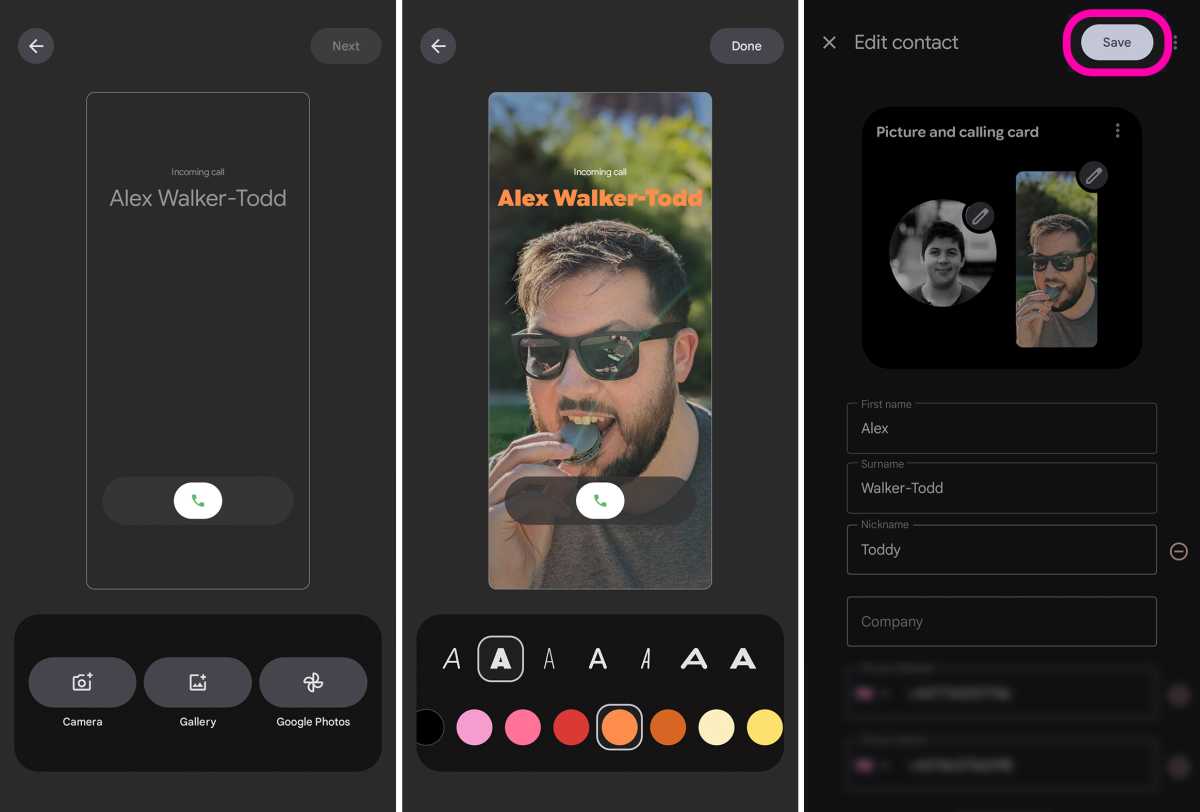
To create a calling card for a contact, open the Contacts app, select a contact, and tap on “Try adding a calling card.” Customize the card with a photo, font styles, and colors, and save it to the contact’s profile.
If the option to add a calling card doesn’t appear, tap the pencil icon in the Contacts app or follow the additional steps mentioned in the original instructions.
Verify AI-Altered Images with Content Credentials
Google has incorporated generative AI-based image capture and editing tools into the Pixel imaging experience. To ensure image authenticity and combat misinformation, Google has added image provenance features within Google Photos and photos taken with the Pixel 10 camera.
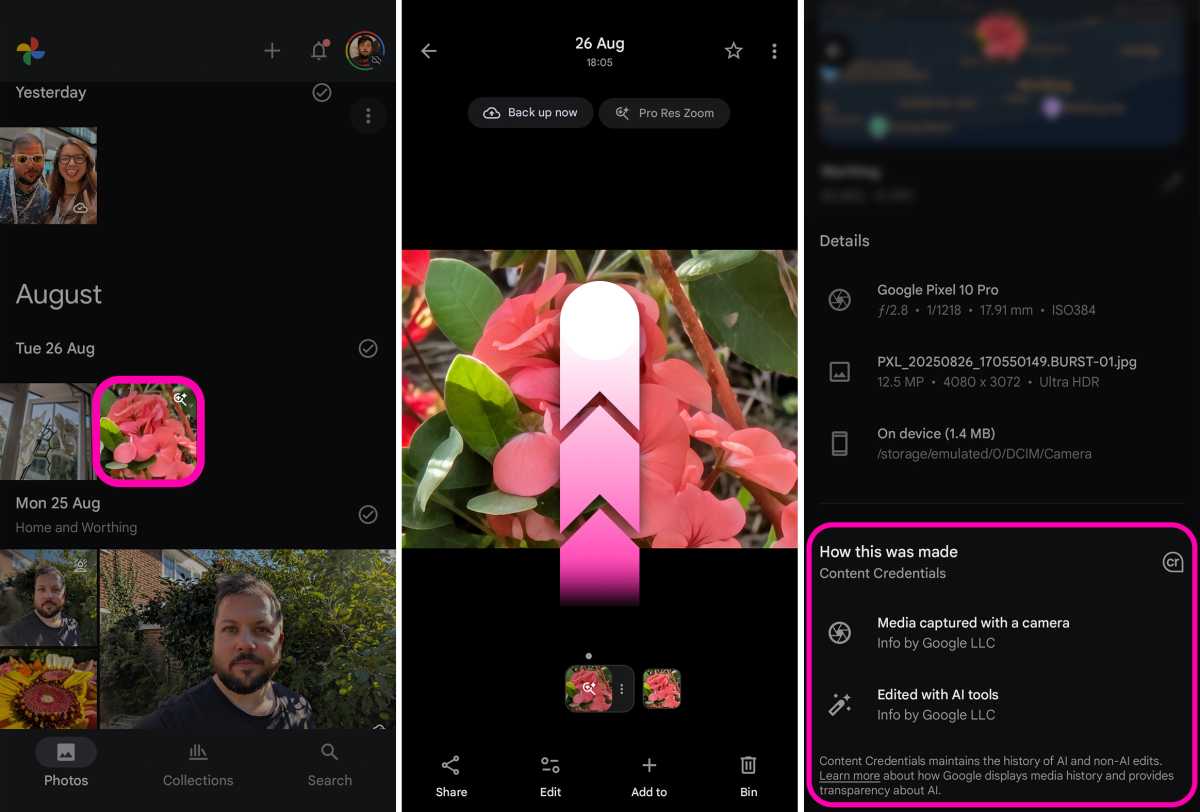
Foundry | Alex Walker-Todd
To check an image’s content credentials, open Google Photos, select an image, and swipe up to view details about the image, including how it was created and edited using AI tools.
Enhance Recordings with AI-Generated Music
The Recorder app on your Pixel 10 now allows you to add AI-generated music to your recordings, adding a unique touch to your voice notes. Simply open the Recorder app, select a recording, and choose the music vibe you want to add.
Follow the steps in the app to select a vibe, create a new vibe, and apply it to your recording. You can listen to the newly soundtracked recording and provide feedback to the AI system. Once you’re satisfied, save the recording with the added music.
Listen to Web Pages
The “Listen to this page” feature on your Pixel allows you to listen to web pages for a convenient and hands-free experience. You can access this feature in the Chrome browser by tapping the three dots and selecting “Listen to this page.”
Enjoy the narration while the phone treats it like any other audio playback, allowing you to listen with headphones and control playback seamlessly.
Explore Enhanced Now Playing
The Now Playing feature on Pixel devices can now automatically display relevant album art, enhancing the music identification experience. To enable Enhanced Now Playing, navigate to Settings, select Sound and vibration, and toggle on the Enhanced Now Playing option.
Activate Advanced Protection
Google’s Pixel devices offer Advanced Protection features, including theft detection lock and Android Safe Browsing. To enable Advanced Protection, go to Settings, select Security and privacy, and toggle on the Device protection option.
Customize the Power Button
You can reassign the functionality of the power button on your Pixel device to summon Google Gemini by default. To switch back to the original power key functionality, go to Settings, select System, then Gestures, and choose Press and hold power button to set it to Power menu.
Optimize Display Resolution & Refresh Rate
Take advantage of the impressive displays on Pixel devices by adjusting the resolution and refresh rate settings for an enhanced viewing experience. Open Settings, go to Display and touch, and customize the Screen resolution and Smooth display options to suit your preferences.











Maximizing MacBook Battery Life: Tips for Charging Slowly and Setting Charge Limits

Lost Legacy: The Disappearance of AC Schnitzer and the Changing Automotive Landscape

Cyber Warfare: The Battlefront of the Digital Age

Monster Hunter Stories 3: The Challenge of Twisted Reflection

Revolutionizing Cash-Pay Clinic Prescribing: VITL Secures $7.5M Amid GLP-1 Boom

Balancing Act: The Decision to Shut Down Sora

Exclusive Arrival: Cupra Born VZ Lands in Australia – But There’s a Twist!

iPhone 12 Pro Max vs Samsung Note 20 Ultra / Huawei Mate 40 Pro Camera Test Comparison.

ClickFix: The New Threat to macOS Security

EU Takes Action Against Instagram and Facebook for Violating Illegal Content Rules

Warning: Facebook Creators Face Monetization Loss for Stealing and Reposting Videos

Facebook Compliance: ICE-tracking Page Removed After US Government Intervention

Facebook’s New Look: A Blend of Instagram’s Style

Facebook and Instagram to Reduce Personalized Ads for European Users

InstaDub: Meta’s AI Translation Tool for Instagram Videos

Reclaim Your Account: Facebook and Instagram Launch New Hub for Account Recovery

Meta discontinues Messenger apps for Windows and macOS

Breaking Updates: Meta Connect 2025 Unveils Latest Developments
iPhone 12 Pro Max vs Samsung Note 20 Ultra / Huawei Mate 40 Pro Camera Test Comparison.

iPhone 12 Pro Max vs Samsung Note 20 Ultra / Huawei / Xiaomi / OnePlus Battery Life DRAIN Test.

The BEST Smartphone of 2020 🏆

The Self-Healing Smartphones!

Apple is not what it used to be.

Smartphones are Boring now.

The Fastest Android Phone Ever.

Unboxing the $122,000 Smartphone. 🤯

Are Linux Smartphones about to KILL Android?
-
 Facebook5 months ago
EU Takes Action Against Instagram and Facebook for Violating Illegal Content Rules
-
 Facebook5 months ago
Warning: Facebook Creators Face Monetization Loss for Stealing and Reposting Videos
-
 Facebook6 months ago
Facebook Compliance: ICE-tracking Page Removed After US Government Intervention
-
 Facebook4 months ago
Facebook’s New Look: A Blend of Instagram’s Style
-
 Facebook4 months ago
Facebook and Instagram to Reduce Personalized Ads for European Users
-
 Facebook6 months ago
InstaDub: Meta’s AI Translation Tool for Instagram Videos
-
 Facebook4 months ago
Reclaim Your Account: Facebook and Instagram Launch New Hub for Account Recovery
-
 Apple5 months ago
Meta discontinues Messenger apps for Windows and macOS
