
Mobile Tech
Why I Ditched My Physical Wallet for Apple Wallet’s Features

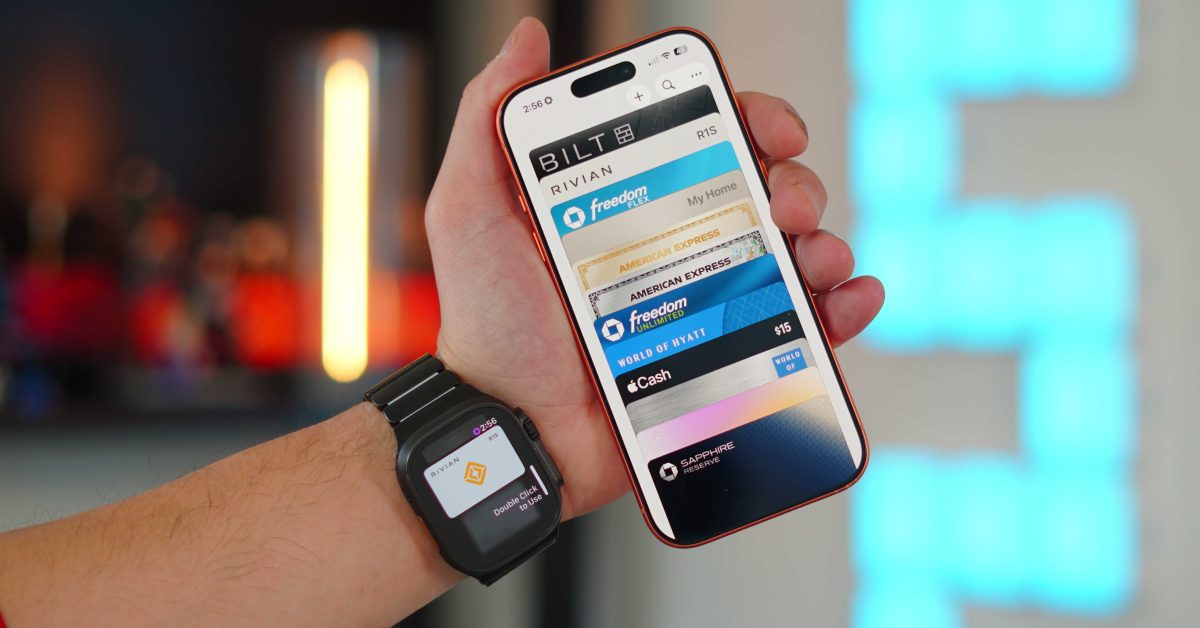
Apple Cash & Tap to Cash
Apple Cash is Apple’s peer-to-peer payment system that allows you to send and receive money through iMessage. It’s a convenient way to split bills with friends or pay someone back quickly. You can also use Apple Cash to make purchases in stores, apps, and on the web. To set up Apple Cash:
- Go to Settings > Wallet & Apple Pay
- Tap on Apple Cash
- Follow the on-screen instructions to set up Apple Cash
Once you have Apple Cash set up, you can easily send money to friends by using iMessage and tapping on the Apple Cash icon. It’s a seamless and secure way to handle payments.
Another cool feature in the Apple Wallet app is Tap to Pay. This feature allows you to use your iPhone to pay at stores that accept contactless payments. Simply hold your iPhone near the contactless reader and authenticate with Face ID or Touch ID to complete the transaction. It’s a quick and easy way to pay without needing to take out your physical wallet.

Transforming Apple Cash & Tap into Cash
When you access your Apple Wallet, you may notice a default black card called Apple Cash, even if you haven’t added a credit card. Essentially, Apple Cash functions as a debit card that can be linked to your bank account, allowing you to transfer funds to and from the Apple Cash card. Additionally, if you have an Apple Credit Card, your daily cash back rewards are deposited into your Apple Cash account. This card not only serves as a replacement for peer-to-peer payment apps like Venmo or Cash App but also enables you to use your iPhone and Apple Cash as a payment terminal. You can now make payments to other iPhone users by simply tapping your iPhones together. Here’s how to set it up:
First, set up Apple Cash:
- Go to Settings > Wallet & Apple Pay > Apple Cash
- Enable Apple Cash
- Verify your identity if prompted
- Link your bank account
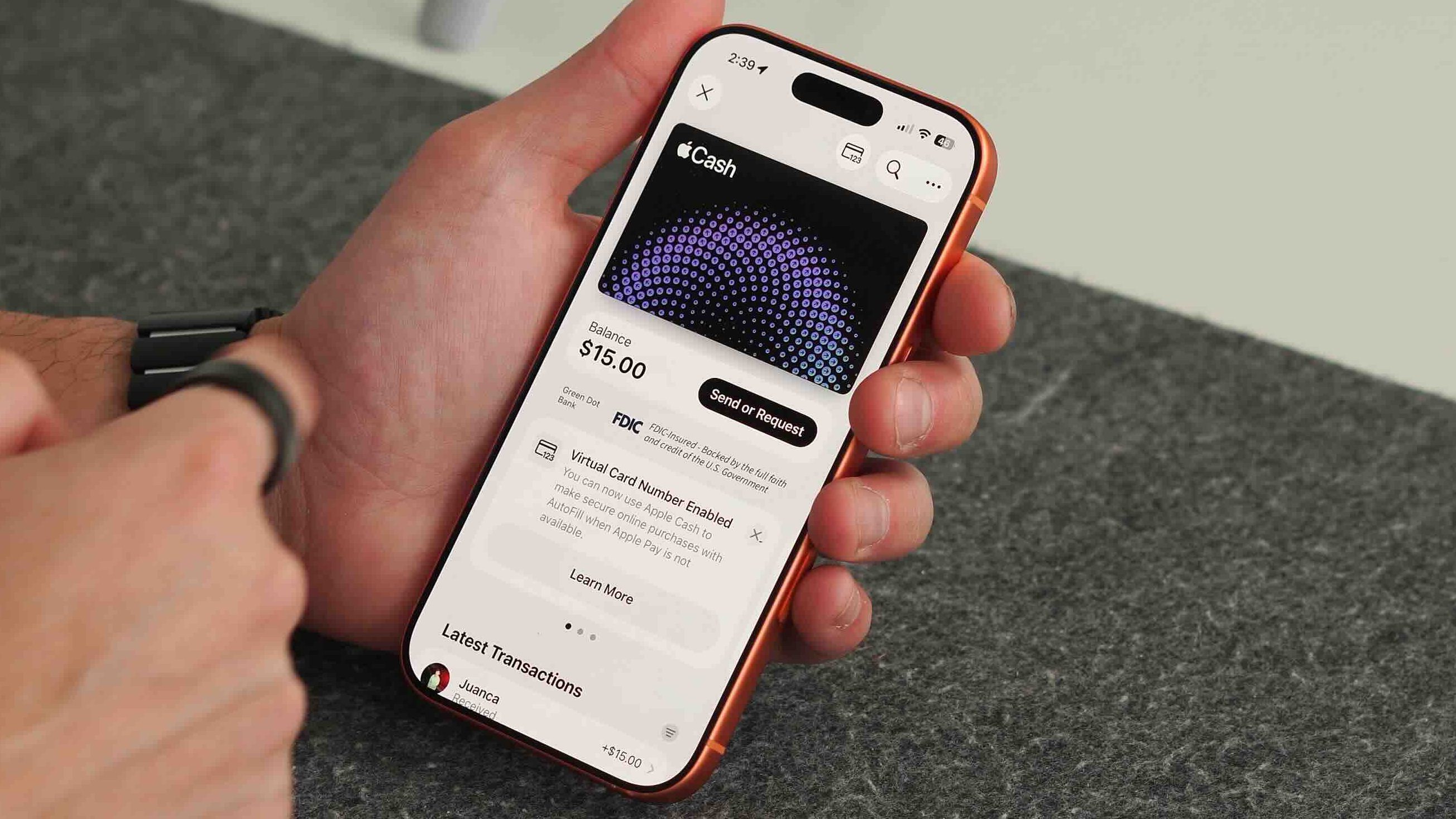
To use Tap to Cash:
- Open Wallet > Apple Cash > Send or Request
- Select Tap to Cash
- Hold your phones near each other
- Confirm the transaction with Face ID
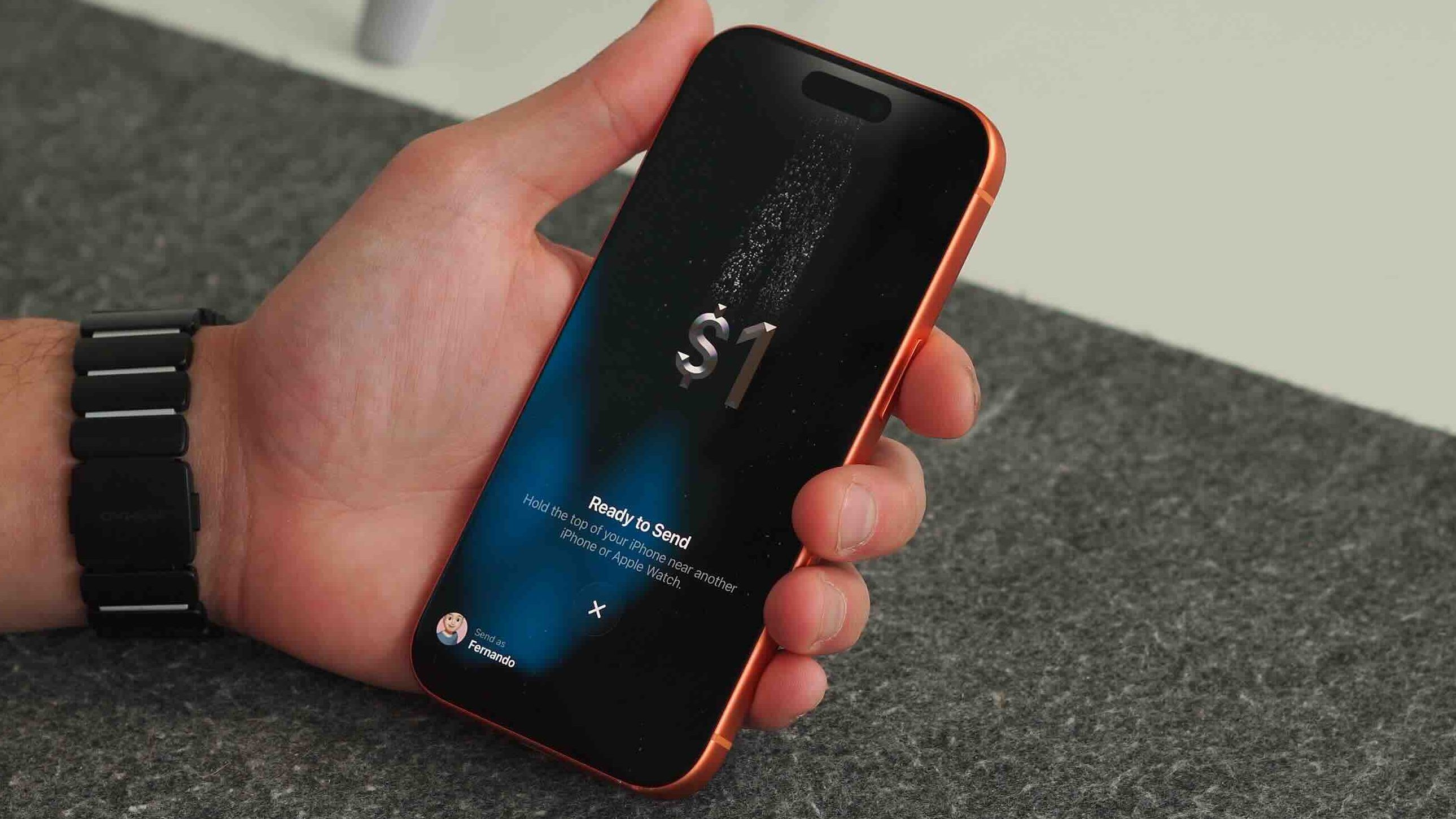
During the transaction, you’ll see a captivating animation that simulates money moving from one phone to another. This feature offers incredible convenience to all iPhone users.
Storing Physical Card Information
One of the noteworthy additions in iOS 26 is the ability to store your physical card number in the Wallet app. While Apple Pay uses tokenized numbers for transactions, you can now securely store your actual card details for manual entry when needed. Here’s how to do it:
- Open Wallet and tap your card
- Tap (…) > Card Details > Card Information
- Select Add Physical Card Information
- Scan your card or enter the details manually
You can now access your physical card information securely within your Apple Wallet, safeguarded by biometric authentication.
Smart Pass Suggestions
The Apple Wallet goes beyond storing credit cards; it can also hold IDs, loyalty cards, passes, and boarding tickets. With Smart Pass suggestions, the Wallet can automatically display the relevant pass or card on your lock screen based on time and location, eliminating the need to search through apps or emails. Here’s how to set it up:
- Go to Settings > Wallet & Apple Pay
- Ensure Location Access is enabled for Wallet
- Enable Lock Screen access
- Add passes via Apple Pay checkout, airline apps, or email
This feature proved incredibly useful for me recently when my family’s boarding passes appeared on the lock screen as we approached the gate, saving time and reducing stress.
Final Thoughts
The Apple Wallet is on the verge of replacing my physical wallet entirely, except for the lack of support for digital IDs in my state, New Jersey. Once digital IDs become available in New Jersey, I can bid farewell to my physical wallet. Do you use the Apple Wallet, or do you still prefer traditional wallets and credit cards? Share your thoughts below!
Best Deals


FTC: We use income earning auto affiliate links. More.

Transform the following sentence:
Original: The cat jumped over the fence.
Transformed: Over the fence, the cat jumped. Transform the following:
“The weather is nice today”
to
“The weather today is pleasant.”











iPhone 12 vs iPhone 12 Pro / 11 Pro Max / 11 Pro / 11 / XR / SE Battery Life DRAIN Test.

TeamPCP Releases Telnyx Versions on PyPI, Conceals Malicious Stealer in WAV Files

The Sunday Gazette: Gaming News and Reviews

Y Combinator Graduate Glimpse Secures $35M Funding Round with a16z Leading Investment

Upgrade to iOS 26.4: The Latest and Greatest Features

Koenigsegg Gemera Hits the Production Line: A 6-Year Journey from Unveiling to Reality

Director Patel’s Email Inbox Hacked by FBI, Investigation Underway

Revolutionizing Emergency Response: The Future of Hybrid Vehicles

The Battle for Fairness: Apple’s Ongoing Struggle with App Store Antitrust

EU Takes Action Against Instagram and Facebook for Violating Illegal Content Rules

Warning: Facebook Creators Face Monetization Loss for Stealing and Reposting Videos

Facebook Compliance: ICE-tracking Page Removed After US Government Intervention

Facebook’s New Look: A Blend of Instagram’s Style

Facebook and Instagram to Reduce Personalized Ads for European Users

InstaDub: Meta’s AI Translation Tool for Instagram Videos

Reclaim Your Account: Facebook and Instagram Launch New Hub for Account Recovery

Meta discontinues Messenger apps for Windows and macOS

Breaking Updates: Meta Connect 2025 Unveils Latest Developments
iPhone 12 vs iPhone 12 Pro / 11 Pro Max / 11 Pro / 11 / XR / SE Battery Life DRAIN Test.

19 Smartphone Gadgets that Blew me Away.

iPhone 12 Pro Max Unboxing & Review!

iPhone 12 Pro Max vs Samsung Note 20 Ultra / Huawei Mate 40 Pro Camera Test Comparison.

iPhone 12 Pro Max vs Samsung Note 20 Ultra / Huawei / Xiaomi / OnePlus Battery Life DRAIN Test.

The BEST Smartphone of 2020 🏆

The Self-Healing Smartphones!

Apple is not what it used to be.

Smartphones are Boring now.
-
 Facebook5 months ago
EU Takes Action Against Instagram and Facebook for Violating Illegal Content Rules
-
 Facebook6 months ago
Warning: Facebook Creators Face Monetization Loss for Stealing and Reposting Videos
-
 Facebook6 months ago
Facebook Compliance: ICE-tracking Page Removed After US Government Intervention
-
 Facebook4 months ago
Facebook’s New Look: A Blend of Instagram’s Style
-
 Facebook4 months ago
Facebook and Instagram to Reduce Personalized Ads for European Users
-
 Facebook6 months ago
InstaDub: Meta’s AI Translation Tool for Instagram Videos
-
 Facebook4 months ago
Reclaim Your Account: Facebook and Instagram Launch New Hub for Account Recovery
-
 Apple5 months ago
Meta discontinues Messenger apps for Windows and macOS
