
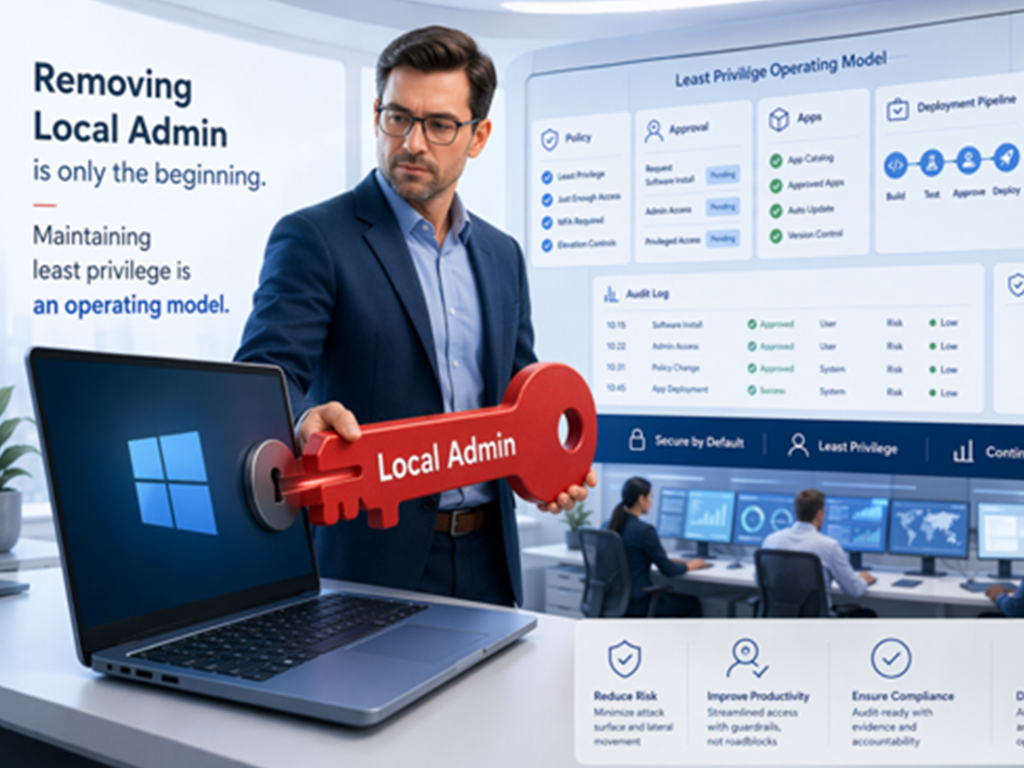
When a user needs a tool urgently and no one is sure how to obtain it, chaos ensues. Scripts fail to run, driver updates are blocked, and debugging utilities are missing. Helpdesk tickets pile up, exceptions spread, and within days, the new control is no longer seen as a security enhancement but rather a hindrance that slows everyone down.
Teams then face the challenge of not just removing local admin rights as a one-time change but also establishing an operating model to ensure they remain removed.
This article delves into Windows endpoints managed with Microsoft Intune, where Microsoft Intune Endpoint Privilege Management (EPM) allows organizations to keep users as standard users by default while still permitting approved tasks to run with elevation through elevation settings policies and elevation rules policies.
Least privilege is an ongoing effort
Revoking broad local admin rights is a significant milestone, but the real challenge lies in creating a process that allows legitimate elevations without hindering work. EPM bridges this gap by enabling approved files and scripts to run elevated under policy control, with auditing and reporting capabilities.
EPM typically uses a virtual account isolated from the user’s profile for most elevation types, except for Elevate as Current User, which runs the elevated process under the user’s account to maintain compatibility with certain tools.
In a mature least privilege design, user admin rights, the local Administrators group, and a separate local administrator account for recovery are treated distinctly to achieve controlled, auditable elevation without compromising security.
EPM enhances privilege control, but it’s not a standalone solution
EPM serves as the privilege control layer, not the entirety of a least privilege program. When utilized effectively, it facilitates transitioning users to standard access without impeding regular work. However, mismanagement can lead to an influx of support tickets and workarounds.
For successful least privilege implementation at scale, a comprehensive operating model is needed to complement EPM’s role in determining who can elevate what and under what conditions.
Microsoft positions EPM as part of a broader Zero Trust approach to endpoint security, emphasizing the need for a multi-faceted security strategy.
Considerations for licensing and availability
Clear understanding of licensing terms is crucial for implementing least privilege, as entitlement and rollout timelines may differ.
Microsoft’s announcement regarding the inclusion of Endpoint Privilege Management, Enterprise Application Management, and Microsoft Cloud PKI in Microsoft 365 E5 indicates a phased rollout starting in CY26 Q3. Customers are advised to verify availability in their tenant through the Microsoft licensing documentation before planning implementation.
Features may be introduced in Microsoft 365 E5 without immediate deployment across all tenants, highlighting the importance of verifying availability for each specific tenant.
Implementation approach: discovery and incremental expansion
Successful least privilege rollouts begin with observing user behavior rather than imposing rigid rules upfront.
In Intune, EPM reporting offers insights through the Overview and Reports tabs, allowing for pattern analysis to inform rule creation. Pilot programs should run sufficiently long to capture meaningful patterns for informed decision-making.
Recommended rollout strategy:
- Enable EPM for a small Windows pilot.
- Start with conservative defaults and gather reporting data.
- Analyze user elevation patterns.
- Establish rules for common, legitimate cases first.
- Expand deployment gradually in phases.
This approach reduces user friction and ensures that rule creation is based on actual user behavior rather than assumptions.
Designing elevation paths based on risk assessment
Choosing the appropriate elevation type in EPM is crucial for effective privilege management.
Automatic elevation is suitable for trusted, frequent actions, while user confirmed elevation is ideal for common but lower-risk tasks. Support approved elevation should be reserved for sensitive or unusual actions, with Deny used for files that should never run elevated.
Effective rule design ensures that routine tasks are streamlined, risky actions are closely monitored, and unsupported activities are prevented.
Opt for robust rule design
Clear and precise rule design is essential to avoid operational challenges.
Microsoft recommends using file hash rules for automatic elevation to ensure the intended file is executed. For automatic elevation, a hash is mandatory, providing the highest level of assurance.
Enhancing User Confirmation and Elevation with Certificates
When it comes to user confirmation and elevation rules, having a hash is optional. Instead, you can opt for using a certificate. However, for automatic elevation rules, a file hash is required. Certificate rules can be beneficial but should be supplemented with other attributes like product name, internal name, and description. It’s essential that file paths lead to locations that standard users cannot modify.
Microsoft advises against relying solely on a certificate and file name, as standard users who can write to the directory might rename a file signed by the same certificate to match the rule. This concern is mitigated if the file is in a write-protected directory.
It’s crucial to avoid using a generic “publisher certificate plus name” approach for guidance. Instead, aim for the narrowest and most reliable rule that fits the specific scenario. Treat broad matches as exceptions rather than defaults.
The Significance of “Elevate as Current User”
The feature known as Elevate as Current User plays a vital role in certain scenarios. While most EPM elevation types run through a virtual account for isolation, some applications struggle under this model, particularly developer tools, installers, and utilities that rely on user-specific settings. Elevate as Current User allows the elevated process to run under the signed-in user’s account.
While this mode improves compatibility, it also broadens the attack surface and reduces isolation from user data. It should be used judiciously, especially when the virtual account model disrupts the application. In such cases, ensure the rule is tightly scoped.
Implementing Support-Approved Elevation with a Workflow
Support-approved elevation isn’t merely a setting; it’s a complete helpdesk workflow. Users can request elevation from the device, providing a business reason. An Intune admin with the necessary Endpoint Privilege Management permissions reviews and acts on these requests within their configured scope. Before rolling out this workflow, it’s essential to have answers to key questions like who reviews requests, expected response times, scope of requests, and permissions for administrators.
Reducing Elevation Demand through Improved App Delivery
A significant portion of elevation requests stem from poor app delivery processes rather than actual elevation issues. Windows Package Manager (WinGet) and Microsoft Intune Enterprise Application Management serve different purposes and should be used accordingly. By leveraging these tools strategically, routine app demands can be kept out of the privilege exception queue.
Maintaining Least Privilege as an Ongoing Service
Least privilege isn’t a one-time declaration but a continuous review process. EPM reporting provides visibility into managed and unmanaged elevation, enabling regular operational reviews. Focus on identifying what should be solved without elevation and refining existing rules to be more precise. This ongoing routine prevents regression into broad local admin rights or excessive support friction.
Measuring Security and Productivity Hand in Hand
Effective least privilege programs consider both security and operational metrics. While reducing security risks is crucial, operational measures like improved software delivery and streamlined request reviews are equally important. Balancing these aspects ensures that security enhancements don’t inadvertently lead to increased user friction or workarounds.
Embracing Least Privilege for Controlled Elevation
The ultimate goal is not zero elevation but rather controlled, visible, and measurable elevation on Windows devices managed with Microsoft Intune. By default, users remain standard, and approved work is elevated through the appropriate channels. Strong rules safeguard the system, while reporting provides insights into actual system behavior. Least privilege then becomes an integral part of the endpoint platform’s functionality.
About the Author
Nikolay Milyaev, the Mission Critical Cloud Solution Architect at Microsoft, brings nearly two decades of experience in enterprise security and cloud architecture. His expertise lies in Microsoft Defender XDR, Intune, Windows 365, and secure AI adoption. Nikolay focuses on practical cyber defense, cloud security, and scalable security operations approaches.
For more information, you can reach out to Nikolay via email at Email Address Hidden or visit the Microsoft website.
Transform the following sentence into a question:
“I am going to the store.”
Question: Are you going to the store?