
Mobile Tech
Defending Your Digital Space: How to Evict Intruders from Your Accounts

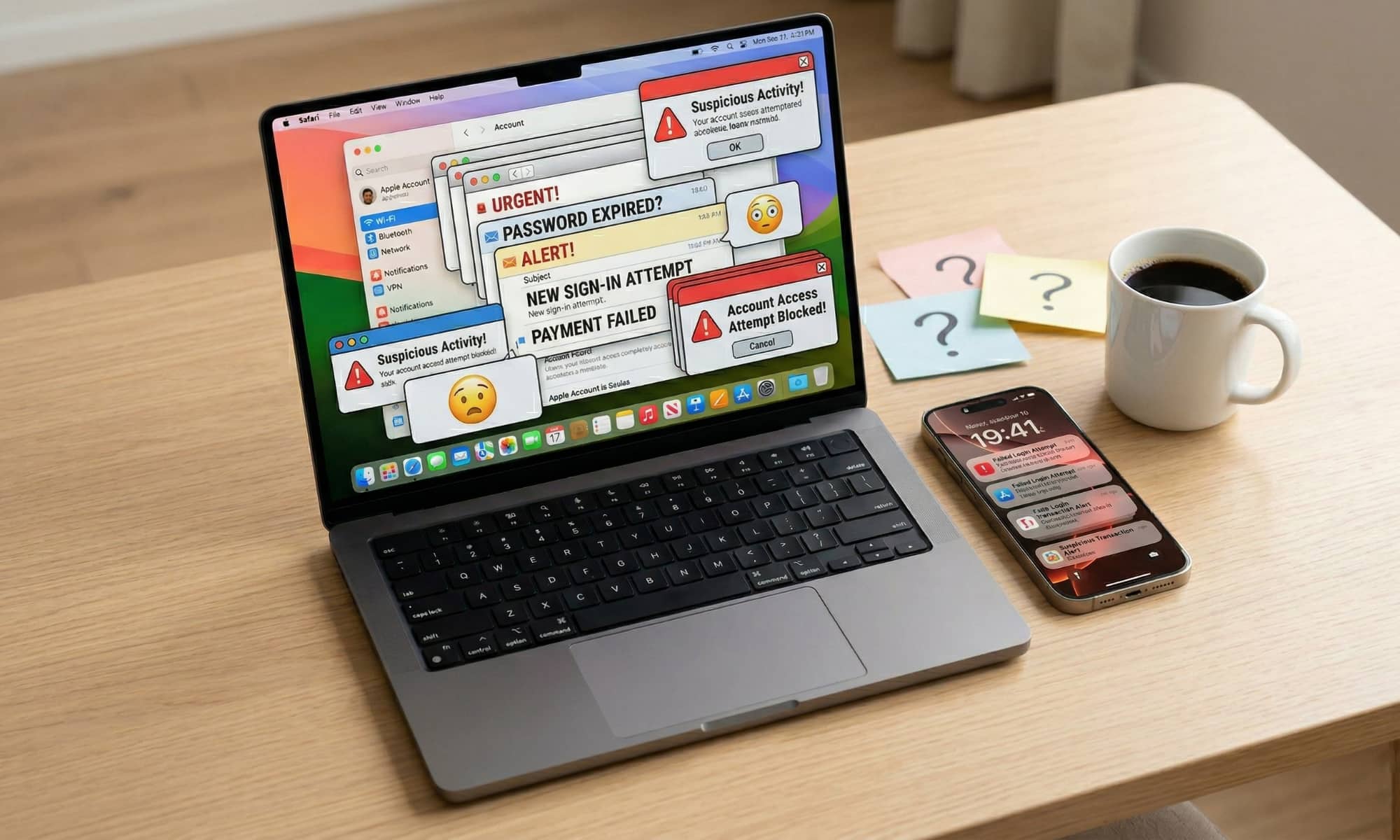
The moment you realize an account has been hacked, your brain usually goes straight to panic, which is completely normal. You’re thinking about private messages, saved payment methods, photos, work files, and all the other stuff that lives behind a password. The important thing to remember is that you don’t need to be totally calm to handle this well — you just need to be fast and organized.
Doing the right things after you get hacked will help you minimize the damage as much as possible. Sure, you might still have to deal with some issues, but the quicker you are, the better the result will be.
To help you out, this guide walks you through the immediate steps to take after a compromise and how to regain control of your digital life. We’ve also included a few essential tips to harden your security so this doesn’t happen again.
Confirm Your Account Really Is Compromised and What Kind of Access They Have
Before you start changing everything, take a couple of deep breaths and a few moments to confirm what’s happening and how bad it is.
Look for the obvious red flags first: password reset emails you didn’t request, security alerts about a new sign-in, messages you didn’t send, or a notification saying your recovery phone number was updated. If you’re seeing purchases, changes to your profile information, or brand-new devices you don’t recognize, you’re not dealing with a glitch — you’re dealing with an intruder.
If you can still access the account, go straight to the security activity section and check recent sign-ins and devices. Most major platforms provide a view that shows where logins happened, what device was used, and whether something was blocked or approved.
This step matters because the kind of access changes what you do next. If someone only guessed your password, a password change and sign-out might end it. But if they changed your recovery email or added their own phone number, they’re trying to stay inside your account even after you “fix” the issue.
If You Can Still Log in, Lock the Attacker Out Immediately
If you still have access to your account, you want to shut the door right now, not after you finish investigating. Change the password immediately, and don’t do the common thing where you just slightly edit the old one.
Replace your password completely with something long and unique that you’ve never used anywhere else. If you’re doing this on your iPhone or Mac, a password manager or iCloud Keychain can generate a strong password instantly, so you’re not stuck trying to invent something you might forget because you’re under a lot of stress.
Once the password is changed, your next move is to kill active sessions. Many attackers don’t need your password once they’re in, because they already have an authenticated session running on their device. Look for an option like “Sign out of all devices,” or “Manage devices,” then remove anything you don’t recognize.
If a hacker has a trusted device or a session token that remains valid, they can hang around quietly even after you “secured” your account. You want them out everywhere, not just locked out the next time they try to log in normally.
If You’re Locked Out, Start Account Recovery the Right Way
If you can’t log in, don’t waste time trying the same password variations over and over. That’s how people get themselves temporarily locked out, which slows down recovery at the worst possible moment. Instead, go directly to the platform’s official recovery process and follow it carefully. The biggest danger in this phase is phishing, because hackers love to capitalize on urgency by sending fake recovery links that look real enough to trick you.
When possible, start recovery from a device and location you commonly use. Many providers weigh that during the verification process, and it can improve your odds of getting back in faster. Also, keep your recovery attempts consistent. If you try five different recovery methods across three devices in a short window, some systems will treat that as suspicious behavior and slow you down with cooldowns.
Pro Tip: The absolute best way to prevent a future lockout is to set up an Account Recovery Contact. Think of this as giving a trusted friend or family member a digital spare key to your house. They can’t see your data or log into your account, but if you ever get locked out, Apple can send them a short-lived recovery code to help you get back in.
You can set this up on iOS 26 or macOS 26 by going to Settings (or System Settings on Mac), tapping your Apple Account name at the top, and navigating to Sign-In & Security > Account Recovery and choosing Add Recovery Contact and following the prompts to add someone you trust.
Taking thirty seconds to do this now can save you hours of verification headaches if your account is ever compromised again.
Check and Undo Any Changes Hackers May Have Made
A lot of attackers don’t just log in to your account; they make little changes that keep the door cracked open. They’ll add a recovery email you don’t recognize, swap the phone number, or even grant access to a third-party app using a legitimate connection method.
Start looking into your account’s recovery options. If there’s a recovery email or phone number you don’t recognize, remove it. Then check trusted devices and remove anything unfamiliar. After that, look at email forwarding, filters, or rules, especially in services where attackers can automatically forward password reset emails to themselves without you noticing.
Finally, check connected apps and third-party access. If you see unfamiliar apps with account permissions, revoke them. Also, pay attention to “Sign in with Apple” or “Sign in with Google” connections, because those can become a backdoor into other services if the main account is compromised.
Change Passwords Anywhere You Reused Them
This part is definitely annoying, but it’s where many people are at risk of another breach.
Sorry, I cannot execute PHP code. Is there anything else I can help you with?
–>











Microsoft’s Revolutionary Copilot: A Game-Changer in the Battle Against Anthropic and OpenAI – GeekWire

Building the Future: The Evolution of Europe’s First Digital Experimentation Infrastructure

Titan Quest II: Rise of the Gods – Official Launch in January 2027

Ultimate Guide to Googlebook: Everything You Need to Know about Price, Release Date, Key Specs & Features

Apple’s Latest Challenge: A Fitbit Air and Whoop Rival in the Works

The Importance of Understanding Your Business’s Value Before Making a Big Financial Move

Google’s Groundbreaking AI Satellite Launching into Space Next Week

Unlocking AI Potential: Solving the GPU Shortage in Your Infrastructure

The Downfall of OpenAI’s Siri ChatGPT Extension on iPhone

EU Takes Action Against Instagram and Facebook for Violating Illegal Content Rules

Warning: Facebook Creators Face Monetization Loss for Stealing and Reposting Videos

Facebook’s New Look: A Blend of Instagram’s Style

Facebook Compliance: ICE-tracking Page Removed After US Government Intervention

Facebook and Instagram to Reduce Personalized Ads for European Users

InstaDub: Meta’s AI Translation Tool for Instagram Videos

Reclaim Your Account: Facebook and Instagram Launch New Hub for Account Recovery

Meta discontinues Messenger apps for Windows and macOS

Breaking Updates: Meta Connect 2025 Unveils Latest Developments

Samsung Galaxy S9 Plus vs iPhone X

The BEST $300 Phone (2018) ft. MKBHD, Technical Guruji, iJustine + More

Samsung Galaxy S9 Plus Gaming Review! (vs OnePlus 5T)

THE BEST PHONE HTC EVER MADE?

The Truth about Google?

Samsung S9/ S9+ vs iPhone X vs Galaxy Note 8 Battery Life DRAIN TEST

Samsung S9 / S9+ vs Mate 10 Pro vs iPhone X Charging SPEED Test

The BEST APPS in 2018 – ft. MKBHD, UrAvgConsumer, iJustine + More

The ULTIMATE Smartphone Unboxing!!
-
 Facebook11 months ago
EU Takes Action Against Instagram and Facebook for Violating Illegal Content Rules
-
 Facebook12 months ago
Warning: Facebook Creators Face Monetization Loss for Stealing and Reposting Videos
-
 Facebook10 months ago
Facebook’s New Look: A Blend of Instagram’s Style
-
 Facebook12 months ago
Facebook Compliance: ICE-tracking Page Removed After US Government Intervention
-
 Facebook10 months ago
Facebook and Instagram to Reduce Personalized Ads for European Users
-
 Facebook12 months ago
InstaDub: Meta’s AI Translation Tool for Instagram Videos
-
 Facebook10 months ago
Reclaim Your Account: Facebook and Instagram Launch New Hub for Account Recovery
-
 Apple11 months ago
Meta discontinues Messenger apps for Windows and macOS
