
Mobile Tech
Clearing Apple Intelligence: A Guide to Freeing Up SSD Space on Your Mac

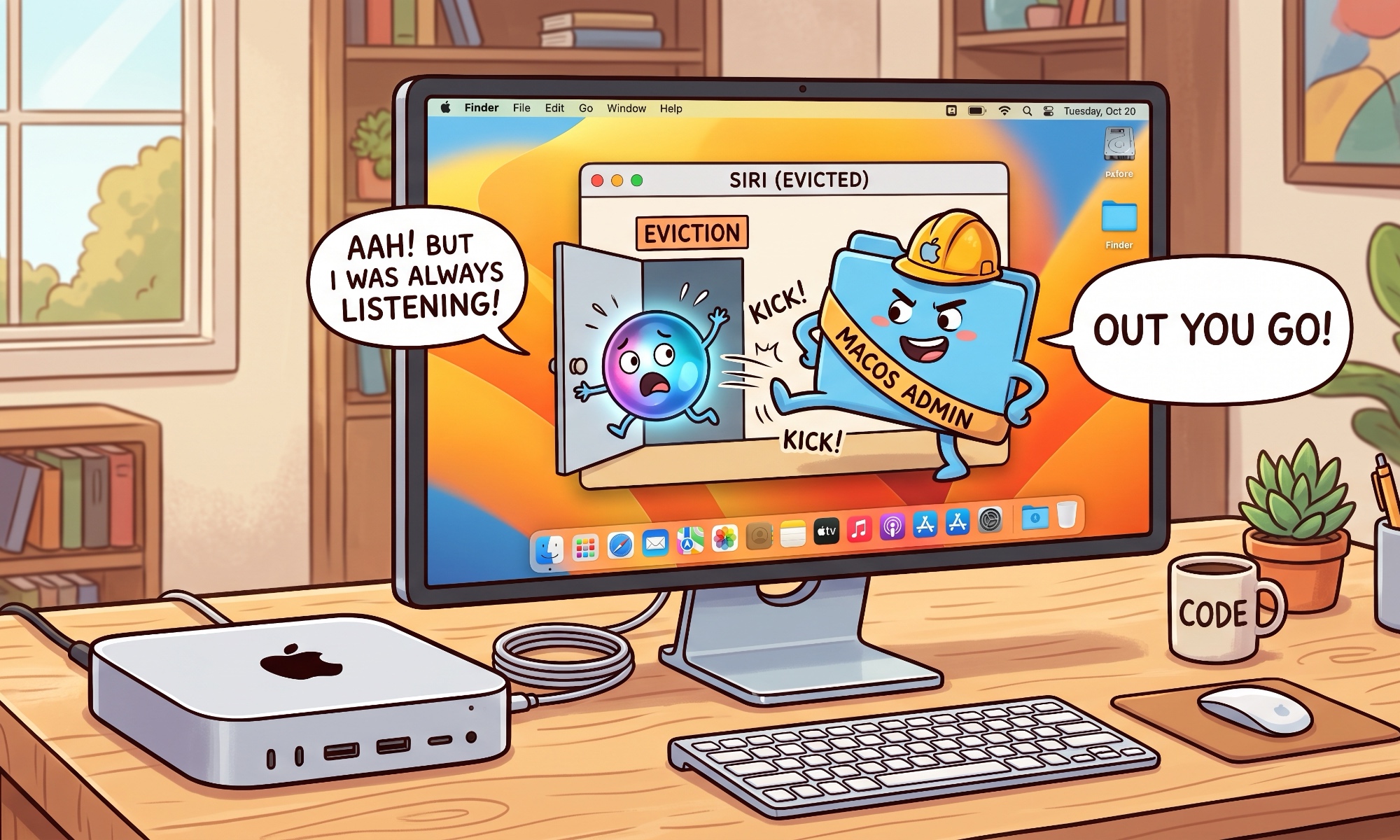
macOS 27 Golden Gate: The Impact of Apple Intelligence on Your Mac’s Storage Space
With the release of macOS 27 Golden Gate, Apple has finally introduced the long-awaited Apple Intelligence features to Siri, along with a host of other new functionalities. However, this power comes at a price – your Mac’s storage space.
Officially, Apple Intelligence on macOS 27 consumes approximately 10 GB to 12 GB of storage space, but some users have reported even higher usage. This can be a concern for individuals with Macs equipped with smaller SSDs, such as the 256 GB Mac mini or MacBook Neo.
The primary culprit behind this storage consumption is the artificial intelligence models that Apple stores on your Mac’s SSD. Unlike many other AI systems that rely on off-device processing in data centers, Apple’s AI processing is primarily done locally, utilizing the machine’s resources for various tasks.
While Apple’s approach offers enhanced privacy compared to other AI systems, it does come at the expense of SSD storage space. Unfortunately, there is no direct way to completely disable Apple Intelligence on your Mac, even if you turn off Siri.
Fortunately, a solution is available in the form of a utility designed to help Mac users reclaim the storage space occupied by Apple’s AI models. However, users should exercise caution and fully understand the implications of using such a tool before proceeding.
One notable tool gaining attention from Mac users is “RemoveMacAI,” an open-source utility developed by Om Lahore. This tool disables Apple Intelligence in macOS 27, deletes the downloaded AI models, and prevents them from being automatically re-downloaded.
According to the developer, macOS 27 no longer provides a single toggle to disable Apple Intelligence, requiring users to navigate through various settings to turn off different components. RemoveMacAI simplifies this process by utilizing a configuration profile to disable Apple’s asset management service and remove the AI models from the system.
“I wrote RemoveMacAI to do all of it in one go. It turns off Siri, Writing Tools, Genmoji, Image Playground, the ChatGPT extension, and all the summaries, then it deletes the models and stops macOS from downloading them again. Dictation still works because it’s a separate setting.”
By redirecting attempts to download the removed models to a closed local port, RemoveMacAI prevents the models from being restored automatically. Importantly, this process does not require disabling System Integrity Protection (SIP) or manually deleting files from protected system locations.
While the tool can potentially free up 10 GB to 12 GB of storage space, the actual amount reclaimed may vary depending on the specific models present on your Mac. Some users have reported recovering even more space by using RemoveMacAI.
It’s essential to note that removing the Apple models also disables access to various Siri AI-related features, including Genmoji, Image Playground, Writing Tools, and more. However, for users with limited SSD space who do not utilize these features, it may be a worthwhile trade-off.
Despite its benefits, users should be aware that some of the configuration-profile restriction keys utilized by RemoveMacAI were deprecated by Apple in macOS 26.4. While they currently work in macOS 27.0.1, future updates could potentially affect their functionality.
The popularity of the RemoveMacAI tool among Mac users has sparked discussions online, highlighting the importance of reclaiming storage space occupied by Apple’s AI models. Before using the tool, users should carefully consider its implications and ensure they understand the process fully.











Clearing Apple Intelligence: A Guide to Freeing Up SSD Space on Your Mac

10 Android Apps you NEED to try in 2017 / 2018

Reviving the Classic: The Citroen 2CV E-Nostalgia Budget EV

Stockholm Slaughter: A Deliciously Disturbing Cannibal Dungeon Crawler

EnGenius ECW515 Access Point: A Comprehensive Review

The Entrepreneur’s Handbook to TechCrunch Disrupt 2026: A Comprehensive Guide for Success

Apple Opens Doors for iPhone Duo App Developers

Unveiling the Alfa Romeo Cuorerosso: A Glimpse into the Future of 4-Door GT Design

Blame Game: A Crimson Desert Exec Blames Critics for Low Review Scores

EU Takes Action Against Instagram and Facebook for Violating Illegal Content Rules

Warning: Facebook Creators Face Monetization Loss for Stealing and Reposting Videos

Facebook’s New Look: A Blend of Instagram’s Style

Facebook Compliance: ICE-tracking Page Removed After US Government Intervention

Facebook and Instagram to Reduce Personalized Ads for European Users

InstaDub: Meta’s AI Translation Tool for Instagram Videos

Reclaim Your Account: Facebook and Instagram Launch New Hub for Account Recovery

Meta discontinues Messenger apps for Windows and macOS

Breaking Updates: Meta Connect 2025 Unveils Latest Developments
10 Android Apps you NEED to try in 2017 / 2018

The Most Bizarre Smartphone we’ve seen all year.

Best Tech under $2000 – December 2017 / January 2018!

This could be your next Smartphone.

Top 10 most INSANE Limited Edition Smartphones!

How Smart is the AI-Powered Huawei Mate 10 – with EMUI 8.0?

I used a 2012 Smartphone in 2018 – Here’s what happened.

How to send ANY file Anywhere!

NEW Oneplus 5T Sandstone White Unboxing – The Ultimate Oneplus 5T?
-
 Facebook12 months ago
EU Takes Action Against Instagram and Facebook for Violating Illegal Content Rules
-
 Facebook12 months ago
Warning: Facebook Creators Face Monetization Loss for Stealing and Reposting Videos
-
 Facebook10 months ago
Facebook’s New Look: A Blend of Instagram’s Style
-
 Facebook12 months ago
Facebook Compliance: ICE-tracking Page Removed After US Government Intervention
-
 Facebook10 months ago
Facebook and Instagram to Reduce Personalized Ads for European Users
-
 Facebook12 months ago
InstaDub: Meta’s AI Translation Tool for Instagram Videos
-
 Facebook10 months ago
Reclaim Your Account: Facebook and Instagram Launch New Hub for Account Recovery
-
 Apple12 months ago
Meta discontinues Messenger apps for Windows and macOS