
Tech News
5 Ways to Protect Your Privacy on Your Android Device


Summary generated by Smart Answers AI
To summarize:
- Tech Advisor exposes how Android apps surreptitiously gather personal data through hidden trackers to create detailed user profiles for advertising purposes.
- Users can safeguard their privacy by disabling advertising IDs, limiting app permissions for location and microphone access, and utilizing anti-tracking tools like DuckDuckGo.
- System-wide solutions include using ad-blocking DNS services and Android’s new Private Space feature to segregate data-hungry apps while maintaining functionality.
Whether your Android smartphone is in your pocket, on your nightstand, or seemingly idle on your desk, it’s always active. Even when the screen is off, many apps are actively sending data back to their servers in the background, often taking personal data without your knowledge.
The prevalence of data collection in the Android ecosystem extends beyond phones to tablets as well. It’s not always malicious hackers but seemingly harmless apps like flashlight apps, games, or weather services that infringe on your privacy. Granting permission to an app has never been more risky or challenging.
The good news is that you have defenses against this invasion of privacy. This guide will highlight the permissions that require special attention, how to prevent covert background access, and how to systematically reduce tracking on your smartphone.
The invisible data vacuum cleaners: what apps are truly after
Dominik Tomaszewski / Foundry
Many users mistakenly believe that an app only collects data when it’s actively in use. However, the reality is quite different: many apps contain invisible trackers (third-party modules) that gather information in the background to create detailed user profiles for the advertising industry. This issue may be familiar to you from your web browser.
Some of the most commonly collected, yet often unnoticed, data includes:
- Location history: Where you work, sleep, shop, etc.
- Device information: Your mobile phone brand, model, battery level, etc.
- Usage behavior: Other apps you have installed, when you use them, etc.
The most critical permissions and how to limit them
During quick installations, users often grant apps permissions they don’t actually need to function. Why does a simple notes app require access to your location? Why would an offline game need access to your contacts?
Focus on these three sensitive areas:
1. Location (GPS)
Many apps track your location continuously, draining your battery and potentially creating a detailed movement profile. Solution: Change the permission from ‘Always allow’ to ‘Access only while using the app’ or revoke it completely.
2. Microphone and camera
Many users worry about their phone listening in. On Android, a small green dot indicates when the microphone or camera is active. Only grant access to apps that truly require it, like messaging or phone apps.
3. Contacts and call logs
Granting access to your address book means sharing your details and those of your contacts with the app developer. Be cautious in this area.
Preventing data leakage on your smartphone
Chris Martin / Foundry
You can significantly reduce data flow on your smartphone with a few simple steps. Take a few minutes to conduct this systematic check.
Note: Menu structures may vary by smartphone manufacturer. If unsure, use the search function in the Settings menu to quickly find terms like ‘Permissions’ or ‘Battery usage’.
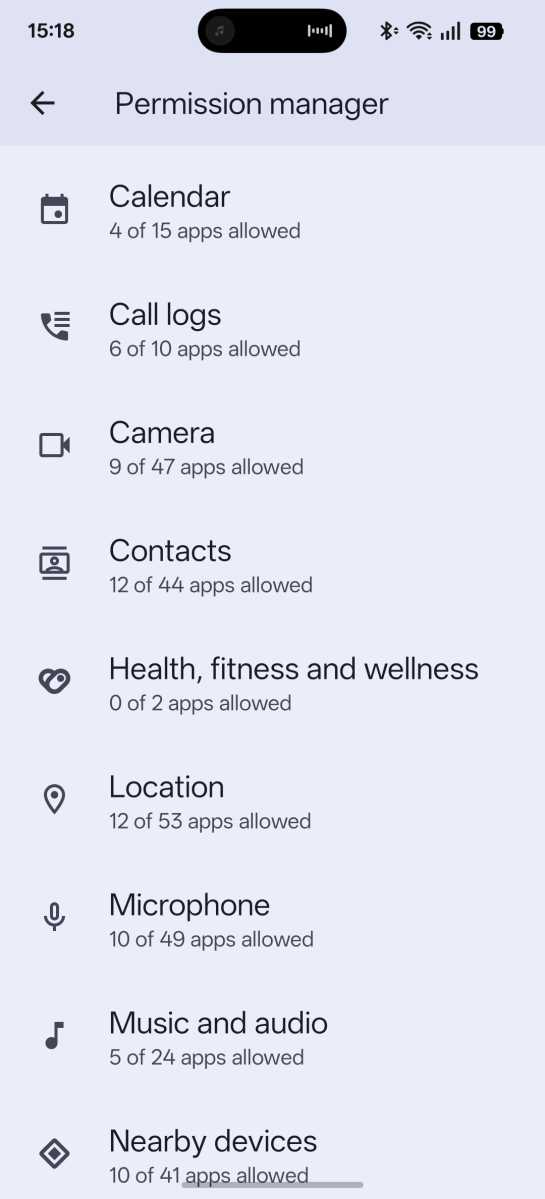
Step 1: Clean up the permissions manager
You can easily see which apps have access to what.
- Open your phone’s settings.
- Tap on Apps (or ‘App Management’) and then Permissions (or ‘Permissions Manager’).
- Review categories like Location, Camera, or Microphone.
- For any unnecessary apps, select ‘Don’t allow’.
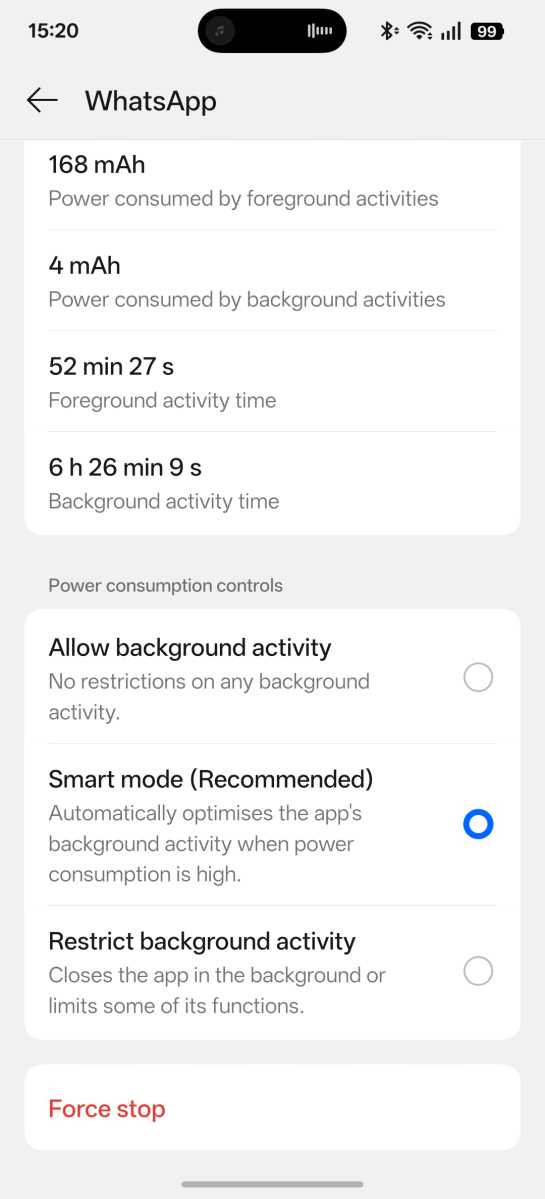
Step 2: Limit background activity
Prevent apps from running in the background and sending data covertly.
- Go to Apps in Settings, then select ‘App battery usage’.
- Choose a data-intensive app (e.g., Facebook or a free game).
- Select ‘Restricted’ or turn off ‘Allow background use’.
Chris Martin / Foundry
Step 3: Prevent ad tracking
Previously, Android assigned a unique advertising ID to each device. On current devices, this feature has been removed from system settings. Here’s how to stop tracking:
- For older devices: Search for ‘Advertising ID’ in Settings, then select ‘Delete Advertising ID’.
- Global solution: Google has shifted ad control online. Log into your Google account on a browser, go to ‘Data & Privacy’, and turn off ‘My Ad Center’ under ‘Personalized ads’.
- Isolate sensitive apps: On newer devices, use ‘Private Space’ or ‘Confidential Profile’ features. This moves data-heavy apps to a separate, password-protected area, isolating them from the system and preventing background data collection.
Tech Bodyguard: Block trackers system-wide
To further reduce tracking in the Android ecosystem, consider disabling tracking for the entire smartphone instead of individual apps.
- Use anti-tracking apps: Tools like DuckDuckGo offer ‘App Tracking Protection’ to block connections to known advertising and tracking networks.
- Use ad-blocking DNS services: Apps like Blokada or private DNS servers intercept tracking requests from apps and browsers, preventing data from leaving your device.
Bonus tip: Opt for data-efficient alternatives
Many popular apps consume a lot of data. Consider using open-source alternatives without trackers. F-Droid offers privacy-friendly applications, from calendars to messengers, without compromising your data.
Conclusion
Your Android device doesn’t have to be a data hog. By reviewing permissions, limiting access like location and microphone, restricting background activities, and deleting your advertising ID, you can regain your privacy.
Exercise caution when revoking permissions as overly strict restrictions can cause malfunctions. Striking a balance allows you to protect your data without sacrificing the convenience of your smartphone.
This article was originally published on PC-WELT and has been translated and adapted from German.











GrayKey Tool Outsmarts iPhone’s 72-Hour Inactivity Reboot

Unleashing Power: The Mercedes-AMG GT 63 Pro Hits Malaysian Roads at RM 2.09 million

Revised Game++: Conquering Bugs and Keeping Pants Intact

Power Players: Europe’s Top AI Influencers

Beware: The Secret iOS 27 Setting That’s Sapping Your Battery Life

Concept Smartphones that are better than Real Smartphones

Unwrapping the Power: A Digital Look at BMW’s Electric M3 Body Wrap

Shadow Ops: Covert Extraction

Mastering the Fundamentals of Business Auditing

EU Takes Action Against Instagram and Facebook for Violating Illegal Content Rules

Warning: Facebook Creators Face Monetization Loss for Stealing and Reposting Videos

Facebook’s New Look: A Blend of Instagram’s Style

Facebook Compliance: ICE-tracking Page Removed After US Government Intervention

Facebook and Instagram to Reduce Personalized Ads for European Users

InstaDub: Meta’s AI Translation Tool for Instagram Videos

Reclaim Your Account: Facebook and Instagram Launch New Hub for Account Recovery

Meta discontinues Messenger apps for Windows and macOS

Breaking Updates: Meta Connect 2025 Unveils Latest Developments
Concept Smartphones that are better than Real Smartphones

Samsung Galaxy SII Unboxing!

The SECRET to Maximise Smartphone Battery Life?

We Designed the Ultimate Gaming Smartphone of 2018!

Using the Cheapest Smartphone in the World.

Samsung Galaxy S9+ Unboxing! (Clone)

Unboxing the First Ever Samsung Galaxy S!!

Huawei P Smart – Huawei’s new Killer Budget Smartphone!

MYSTERY Package from Xiaomi – HUGE UNBOXING!
-
 Facebook11 months ago
EU Takes Action Against Instagram and Facebook for Violating Illegal Content Rules
-
 Facebook12 months ago
Warning: Facebook Creators Face Monetization Loss for Stealing and Reposting Videos
-
 Facebook10 months ago
Facebook’s New Look: A Blend of Instagram’s Style
-
 Facebook12 months ago
Facebook Compliance: ICE-tracking Page Removed After US Government Intervention
-
 Facebook10 months ago
Facebook and Instagram to Reduce Personalized Ads for European Users
-
 Facebook12 months ago
InstaDub: Meta’s AI Translation Tool for Instagram Videos
-
 Facebook10 months ago
Reclaim Your Account: Facebook and Instagram Launch New Hub for Account Recovery
-
 Apple12 months ago
Meta discontinues Messenger apps for Windows and macOS
