
Mobile Tech
Mastering the art of smartphone photography: Tips and techniques to enhance your skills

These days, thanks to smartphones, almost everyone has a camera with them and that’s mostly a good thing. At any time, you can capture memories with family and friends, painterly sunsets and crazy spontaneous moments. The problem is most of us have endless bland photos in our camera rolls because we simply don’t know how to take great shots.
When you’re on vacation or gathering with friends and family, a good photo will provide memories you can proudly share and go back to time and again. And if you’re active on social media, they’re crucial. In this article, I’ll show you how to set yourself up for photo success with the optimal settings and simple but effective composition tips from myself and a pro photographer. And if you’re interested in going further, I’ll highlight several third-party apps that provide even greater manual control. Note that this is focused only on taking photos — I’ll cover video in a future article.
Take advantage of your smartphone’s camera setup
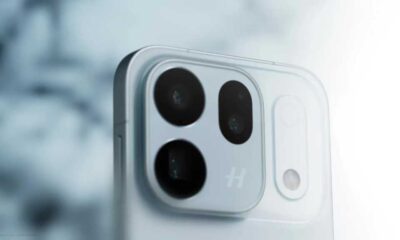
Most smartphones have two or more cameras, each with different lenses, sensors and resolution. They’re usually called the wide (or main), telephoto and ultrawide cameras. These work seamlessly together: You can simply pinch to zoom on the viewfinder to fit your subject into the scene and your phone will switch between the lenses automatically.
Most smartphones offer shortcuts on their viewfinders for you to quickly jump between these, and you’ll usually see numbers like 0.5x, 1x, 2x and 5x to denote the levels of zoom. Ideally, you should use each camera at its optimal setting and avoid in-between digital zooms (like 2.7x) that reduce quality.
You should also know which camera is best for a given subject. People shots are best done with the main or telephoto cameras as those focal lengths flatter the subject and reduce distortion. They also allow for naturally blurred backgrounds and “bokeh” that helps your subject stand out. Since it creates weird warping around the edges of photos, the ultrawide camera is best reserved for landscape shots. Lastly, the telephoto lens is best for distant scenes, but avoid the most extreme settings (above 10x on most cameras) as your photos may become blurry or pixelated.
When it comes to your phone’s portrait mode, there are caveats. While it does create a soft blurred background and “bokeh,” it does so using computational tricks. That can create issues like pixelation around your subject or an overly artificial look. To get natural blur, switch to the main or the telephoto camera, increase the zoom level and move farther away from your subject to frame them.
Finally, this should go without saying, but clean your lens. Whenever you set your phone down, the camera can pick up grease or dirt that will ruin your photos. If you don’t have a microfiber cloth, clean it with any soft cotton fabric — just avoid tissue as it’s rougher than it looks and can mar your lens.
Nail your settings
Exposure is the only adjustment you need
(Steve Dent for Engadget)
One big plus with smartphones over dedicated cameras is that they have bigger, sharper displays. To start, boost your screen brightness when taking photos so you can easily see your subject and compose your shot.
Take a few extra seconds to decide whether to snap a vertical (portrait) or horizontal (landscape) photo, depending on the subject. Get in the habit of holding your phone in a way that keeps your fingers away from the lenses, as that’s another great way to ruin a shot.
Most recent iPhone and Android models automatically focus on a subject quickly and accurately. However, if multiple people are in a shot, the AI may focus on the wrong person, so be sure to tap on the correct one.
Exposure, or the brightness or dimness of a subject, is typically selected automatically by your phone.
Most devices automatically average the levels across multiple faces to ensure all people in a shot are well-exposed. This feature helps in producing balanced and well-lit photos without the need for manual adjustments. To keep your framing interesting, it is best to avoid simply cutting a landscape in half between the sky and the ground. Instead, consider using the rule of thirds by dividing the screen into thirds using the grid feature on your smartphone camera. This can help you place your primary subject and other elements near where the grid lines intersect, creating a more visually appealing composition. Additionally, consider using diagonal lines, curved paths, or converging lines in architecture to add interest to your photos. Experiment with different lighting contrasts, shadows, and exposure settings to create dramatic effects. Finally, consider using apps like VSCO, Lightroom Mobile, or Halide Mark II to further enhance and edit your smartphone photos.
Enhance Your Photography Skills with Halide Mark II
Looking to take your smartphone photography to the next level? Halide Mark II is the perfect tool for you. This app not only offers a manual mode but also includes features like color zebras and waveforms to assist you in getting the perfect exposure for your photos. While Halide Mark II does come at a price of $60 for a one-time purchase or $20 yearly, the investment is well worth it for the advanced capabilities it provides.
Mastering the Basics Before Diving into Photography Apps
Before delving into the world of photography apps, it’s essential to master the basics of photography. Practice using your smartphone’s camera in various situations until you feel confident in capturing great shots. This involves understanding and optimizing your camera settings for different scenarios, ensuring consistent and accurate exposure, and perfecting your composition skills.
Once you have a solid foundation in photography, apps like Lightroom Mobile can help elevate your photos to a professional level. Think of it as progressing from watercolors to oil paint for an artist – these apps allow for more advanced editing and creative control over your images.
Transform the following sentence into the passive voice:
“The chef prepared the meal.”
The meal was prepared by the chef.












AirPods Enhancements: The Long-Awaited Update

The Evolution of the ALPINA X5: From Secret Prototype to BMW X5 4.6iS

Microsoft’s Revolutionary Copilot: A Game-Changer in the Battle Against Anthropic and OpenAI – GeekWire

Building the Future: The Evolution of Europe’s First Digital Experimentation Infrastructure

Titan Quest II: Rise of the Gods – Official Launch in January 2027

Ultimate Guide to Googlebook: Everything You Need to Know about Price, Release Date, Key Specs & Features

Apple’s Latest Challenge: A Fitbit Air and Whoop Rival in the Works

The Importance of Understanding Your Business’s Value Before Making a Big Financial Move

Google’s Groundbreaking AI Satellite Launching into Space Next Week

EU Takes Action Against Instagram and Facebook for Violating Illegal Content Rules

Warning: Facebook Creators Face Monetization Loss for Stealing and Reposting Videos

Facebook’s New Look: A Blend of Instagram’s Style

Facebook Compliance: ICE-tracking Page Removed After US Government Intervention

Facebook and Instagram to Reduce Personalized Ads for European Users

InstaDub: Meta’s AI Translation Tool for Instagram Videos

Reclaim Your Account: Facebook and Instagram Launch New Hub for Account Recovery

Meta discontinues Messenger apps for Windows and macOS

Breaking Updates: Meta Connect 2025 Unveils Latest Developments

Samsung Galaxy S9 Plus vs iPhone X

The BEST $300 Phone (2018) ft. MKBHD, Technical Guruji, iJustine + More

Samsung Galaxy S9 Plus Gaming Review! (vs OnePlus 5T)

THE BEST PHONE HTC EVER MADE?

The Truth about Google?

Samsung S9/ S9+ vs iPhone X vs Galaxy Note 8 Battery Life DRAIN TEST

Samsung S9 / S9+ vs Mate 10 Pro vs iPhone X Charging SPEED Test

The BEST APPS in 2018 – ft. MKBHD, UrAvgConsumer, iJustine + More

The ULTIMATE Smartphone Unboxing!!
-
 Facebook11 months ago
EU Takes Action Against Instagram and Facebook for Violating Illegal Content Rules
-
 Facebook12 months ago
Warning: Facebook Creators Face Monetization Loss for Stealing and Reposting Videos
-
 Facebook10 months ago
Facebook’s New Look: A Blend of Instagram’s Style
-
 Facebook12 months ago
Facebook Compliance: ICE-tracking Page Removed After US Government Intervention
-
 Facebook10 months ago
Facebook and Instagram to Reduce Personalized Ads for European Users
-
 Facebook12 months ago
InstaDub: Meta’s AI Translation Tool for Instagram Videos
-
 Facebook10 months ago
Reclaim Your Account: Facebook and Instagram Launch New Hub for Account Recovery
-
 Apple11 months ago
Meta discontinues Messenger apps for Windows and macOS
