
Mobile Tech
Unlocking the Power: A Step-by-Step Guide to Reverse-Charging Your MacBook with Your iPhone in an Emergency

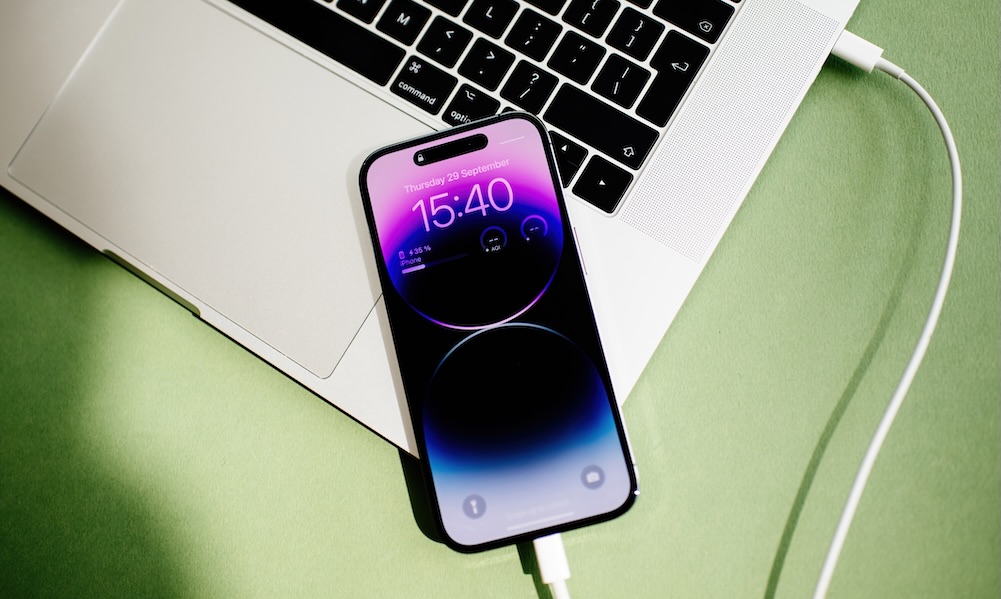
For those who own a modern iPhone and MacBook, there’s a handy trick you should know about. This trick specifically caters to iPhones with a USB-C port, which includes all models released since 2023 when the iPhone 15 replaced the older Lightning connector.
Since 2015, every modern MacBook has been equipped with USB-C ports, whether standard USB-C or versatile Thunderbolt/USB-4 ports. Chances are high that your current MacBook is less than eleven years old, making it compatible with this trick.
Picture this scenario: your MacBook is running low on battery, and you urgently need it to complete a task before a deadline. Unfortunately, you realize that you’ve left your charger behind. But don’t panic if you have your iPhone and a USB-C to USB-C cable because your iPhone can actually revive your drained MacBook.
It’s important to note that your iPhone won’t charge your MacBook in the traditional sense. This method will consume a significant portion of your phone’s battery. However, all it takes is a small amount of power to keep your MacBook operational, and your iPhone can provide that.
MacBooks typically come with a minimum of a 30W power adapter, with some models requiring up to 140W. In comparison, the iPhone has a maximum power output of 4.5W, so don’t expect a full charging solution. This method should be considered a last resort, as it’s not officially endorsed by Apple and its effectiveness may vary based on the iPhone and MacBook models used.
You may have better luck powering a MacBook Neo or MacBook Air compared to a 16-inch MacBook Pro, but there’s no harm in attempting it either way. This process won’t harm your iPhone or MacBook; at worst, nothing will happen at all.
The reason this trick can work lies in the USB Power Delivery (USB PD) protocol, where the power source isn’t predetermined in most USB-C charging connections. When you connect your iPhone to your MacBook, they negotiate who will be the power provider, with the MacBook typically winning and charging the iPhone.
Here’s a step-by-step guide to how we successfully used an iPhone 17 Pro to power an M3 MacBook Pro:
- Turn off your MacBook (not just Sleep mode).
- Connect the USB-C cable to the iPhone first.
- Plug the other end of the cable into your MacBook.
In our case, the MacBook was powered off with the screen open. After connecting the USB-C cable to the MacBook (which was already at 90% charge), it immediately powered on. The battery icon on the screen indicated that the MacBook was charging, albeit slowly, and connected to a “slow charger.” Disconnecting the cable from either the iPhone or MacBook would reset the connection. To resume using the iPhone as the power source, the computer had to be shut down.
It’s crucial to remember that reverse-charging a MacBook with your iPhone should only be used as a last resort. Expect a significant drain on your iPhone’s battery for minimal, gradual gains. While iPhones can also charge AirPods and Apple Watch via USB-C (not wirelessly), using reverse charging with your iPhone should be reserved for emergencies rather than routine practice.













Apple’s Testimony: The Case for Removing ICEBlocks

Tesla’s Groundbreaking Feature: Use at Your Own Risk

NO GAME NO LIFE: Grasshopper Manufacture’s Indie Leap

Strengthening Ties: GEC Enhances Ireland-UK Startup Network in the Midst of EU Discussions

Unbeatable Deal: The AirPods Pro 3 for Only $179

Breaking News: Exclusive Details on the Latest Fitbit Edge Features

Apple Store Security Alert: HK Police Demand Fix for $3.8M Fraud Loophole

Faraday Future FF 91 – 1050 Horsepower Madness!

Massive Recall: Thousands of Toyota Land Cruiser SUVs Pulled from UAE Roads

EU Takes Action Against Instagram and Facebook for Violating Illegal Content Rules

Warning: Facebook Creators Face Monetization Loss for Stealing and Reposting Videos

Facebook’s New Look: A Blend of Instagram’s Style

Facebook Compliance: ICE-tracking Page Removed After US Government Intervention

Facebook and Instagram to Reduce Personalized Ads for European Users

InstaDub: Meta’s AI Translation Tool for Instagram Videos

Reclaim Your Account: Facebook and Instagram Launch New Hub for Account Recovery

Meta discontinues Messenger apps for Windows and macOS

Breaking Updates: Meta Connect 2025 Unveils Latest Developments
Faraday Future FF 91 – 1050 Horsepower Madness!

The Truth about the OnePlus 5T – REAL Review.

Concept Smartphones that are better than Real Smartphones

Samsung Galaxy SII Unboxing!

The SECRET to Maximise Smartphone Battery Life?

We Designed the Ultimate Gaming Smartphone of 2018!

Using the Cheapest Smartphone in the World.

Samsung Galaxy S9+ Unboxing! (Clone)

Unboxing the First Ever Samsung Galaxy S!!
-
 Facebook12 months ago
EU Takes Action Against Instagram and Facebook for Violating Illegal Content Rules
-
 Facebook12 months ago
Warning: Facebook Creators Face Monetization Loss for Stealing and Reposting Videos
-
 Facebook10 months ago
Facebook’s New Look: A Blend of Instagram’s Style
-
 Facebook12 months ago
Facebook Compliance: ICE-tracking Page Removed After US Government Intervention
-
 Facebook10 months ago
Facebook and Instagram to Reduce Personalized Ads for European Users
-
 Facebook12 months ago
InstaDub: Meta’s AI Translation Tool for Instagram Videos
-
 Facebook10 months ago
Reclaim Your Account: Facebook and Instagram Launch New Hub for Account Recovery
-
 Apple12 months ago
Meta discontinues Messenger apps for Windows and macOS