
Security
“Mastering the New Windows 11 Start Menu: A Step-by-Step Guide”

Windows 11 is introducing a significant redesign of the Start menu, set to be released to all users during the November 11 Patch Tuesday update.
The revamped Start menu now features a scrollable design, allowing users to navigate through their apps seamlessly in one location.
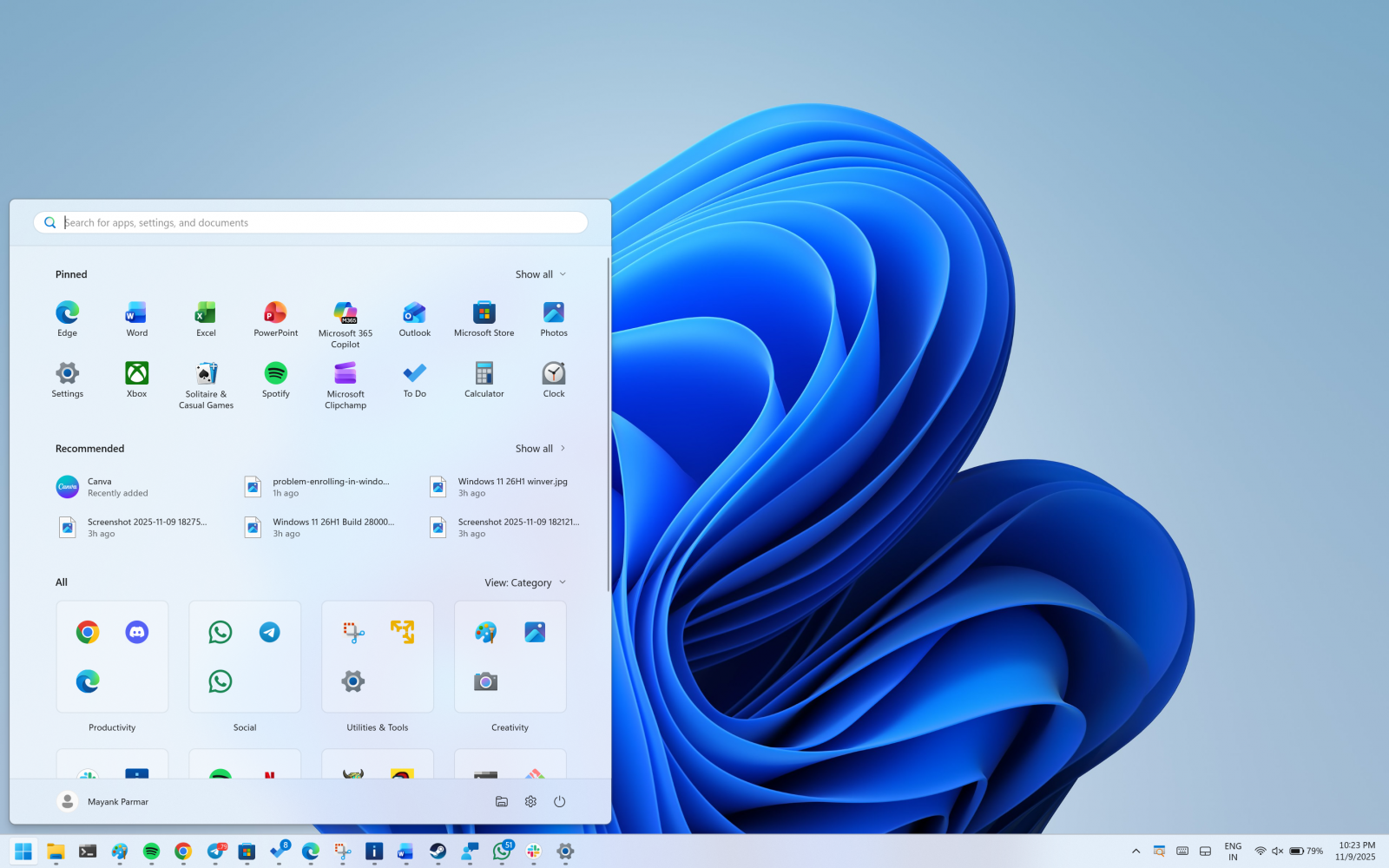
With the new design, the “All” section is prominently displayed on the main screen, eliminating the need to switch to a separate page.

Previously, users had to click on “All apps” to access the list of installed applications. Now, the “All” section is conveniently located on the homepage.
The Start menu offers two UI options for the All apps list
By default, Microsoft has implemented a categorized view that groups apps by type, prioritizing frequently used apps within each group.
Categories are generated locally and managed through a local JSON file. A category is formed when it contains at least three apps, with smaller groups being labeled as “Other.”

In addition to the categorized view, there is a grid view that maintains the traditional A to Z app order but offers a wider layout for enhanced app visibility.
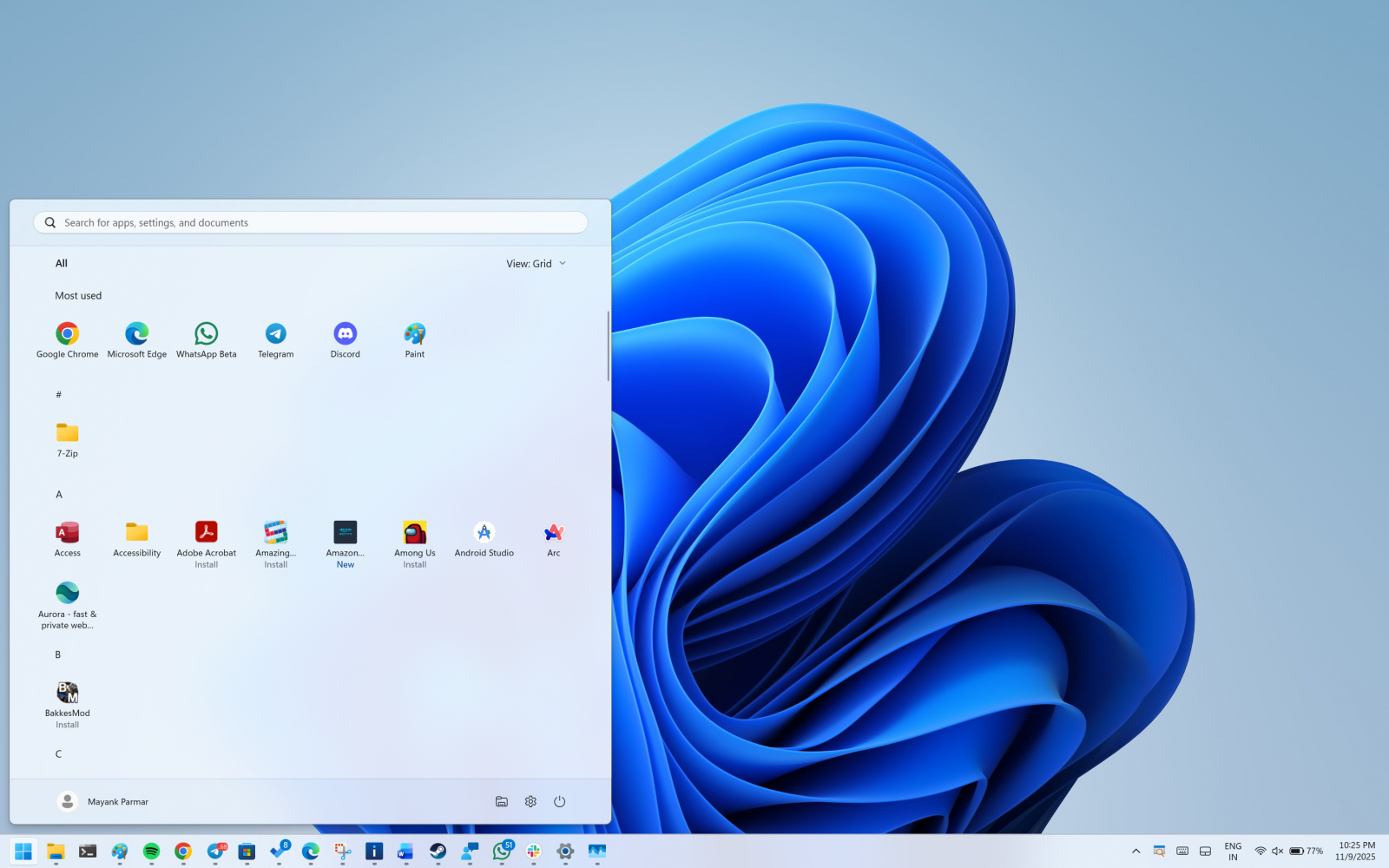
Windows now remembers the last-used view preference, defaulting to the categorized view post-update unless manually changed.
The adaptive nature of the new Start menu UI
The Start menu dynamically adjusts its size to fit the screen, displaying a larger menu by default on larger screens. This configuration accommodates up to eight columns of pinned apps, six recommendations, and four columns in the “All” categories on larger screens.
On smaller screens, the layout features six columns of pinned apps, four recommendations, and three columns in the “All” categories. Furthermore, if only a few apps are pinned, the Pinned area condenses to a single row.
Customizing the Start menu experience
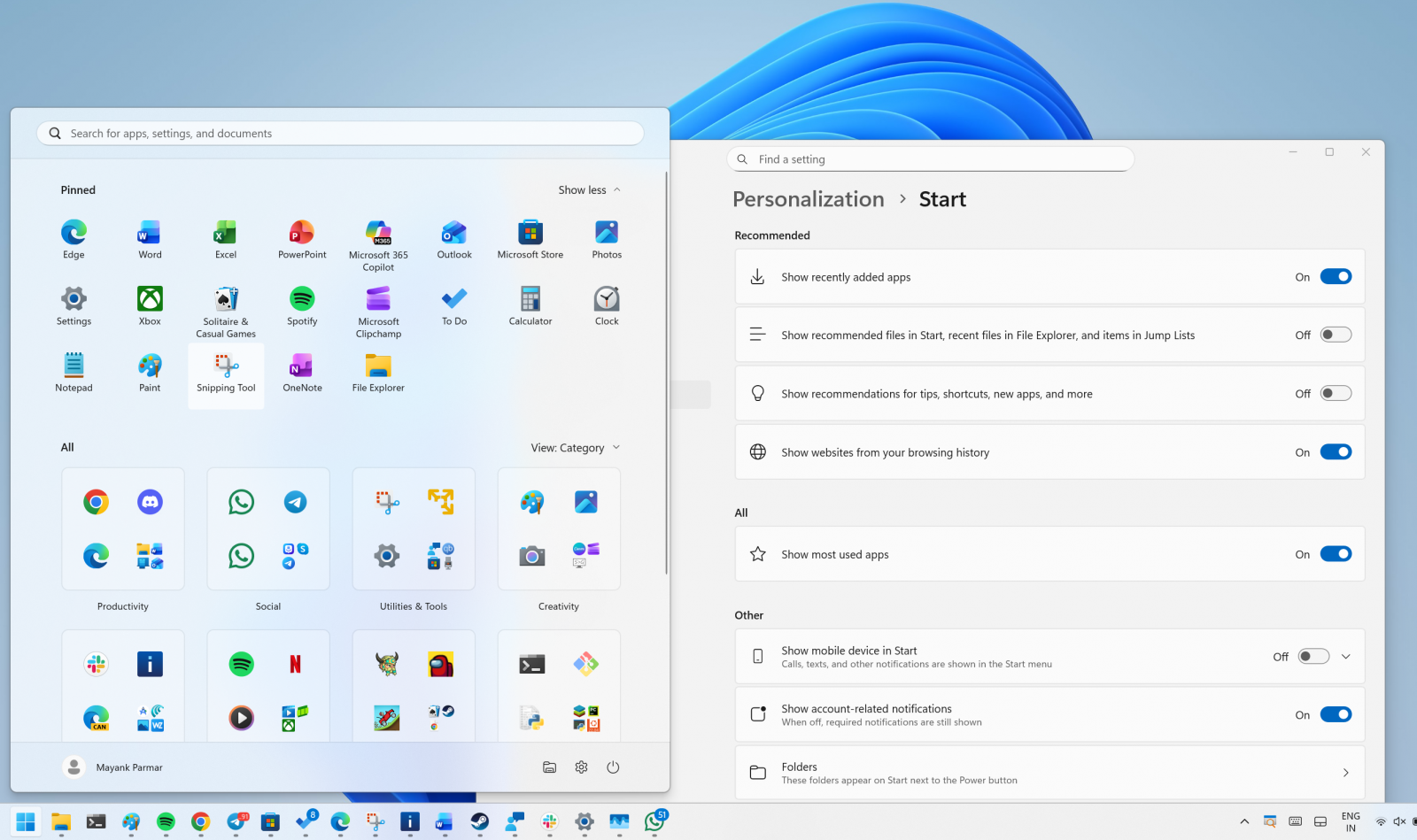
To tailor the Start menu to your preferences, users can disable the Recommended feed by navigating to Settings > Personalization > Start and toggling off options such as recently added apps, recommended files, websites from history, and tips.
When recommendations are disabled, the section automatically hides to prioritize the display of installed apps.
Enhancements and future improvements
The new Start menu presents a significant improvement, offering a more efficient user experience. However, some users may encounter issues with the menu occupying a substantial portion of the screen on lower-resolution PCs.
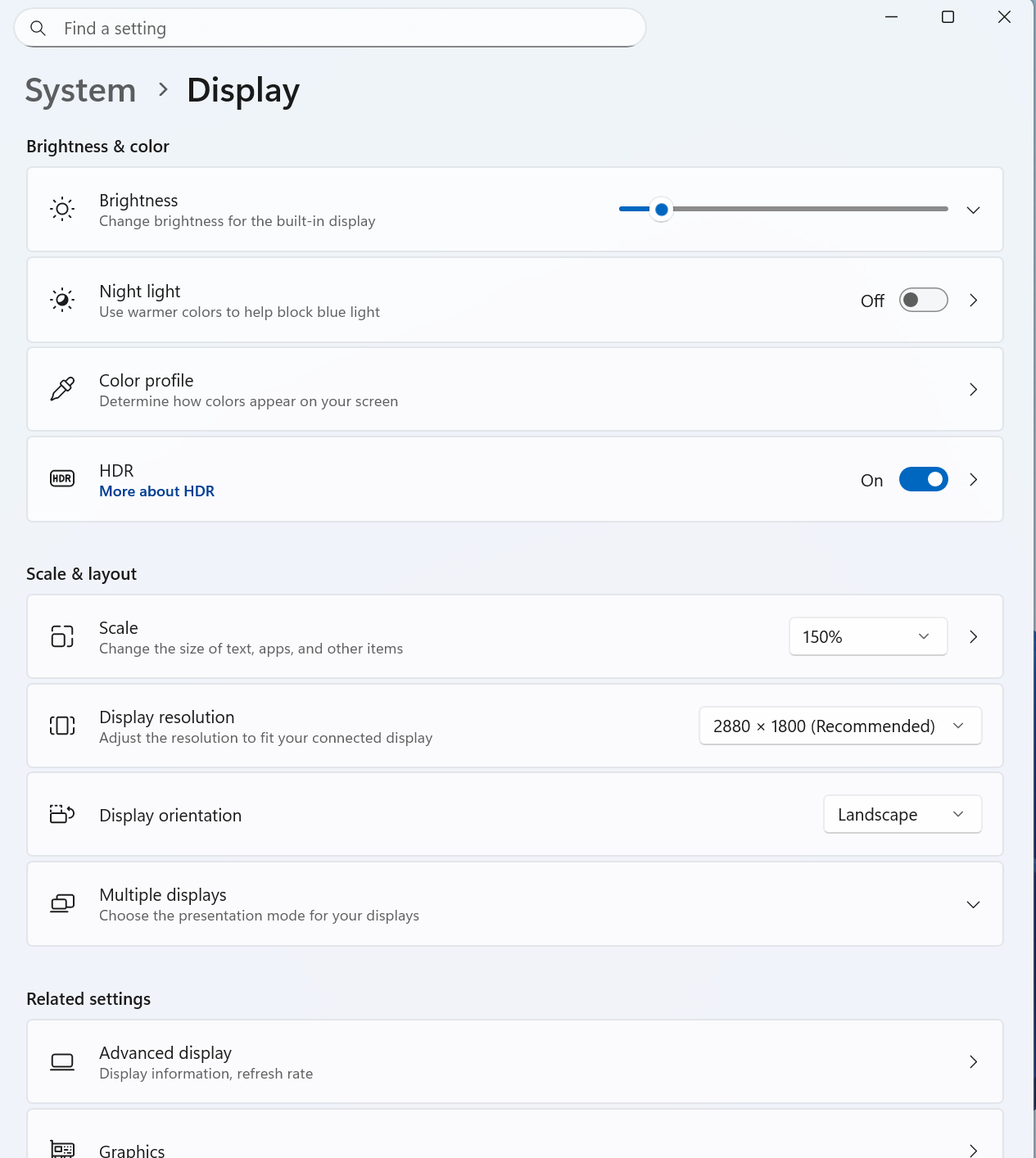
To address this, adjusting the scale settings under Settings > System > Display is recommended. Additionally, allowing users to create custom categories could further enhance the Start menu’s functionality.
Accessing the new Start menu
The updated Start menu will be progressively rolled out starting with the November 2025 Patch Tuesday. The new Start UI is integrated into Build 26200.7019 and 26100.7019 or later versions, although it requires manual activation.

Discover insights from over 300 CISOs and security leaders as they plan, spend, and prioritize for the upcoming year. Benchmark strategies, identify trends, and compare priorities in this comprehensive report for 2026.
Learn how top leaders translate investments into measurable impact.










The Surprising TRUTH about Samsung – 15 things you did not know.

McLaren’s Legacy: The Remuera and Muriwai Trademarks

Cloudscape Chronicles: A Fumito Ueda-inspired Parkour Adventure

Rising Prices: Samsung Galaxy Tab S12 and Xiaomi Pad 9 Series

Uncovering the Hidden Profit Potential: Startup Lessons from Healthy Averages

Apple’s Costly Conundrum: $5.7 Billion Damages for Haptic Patent Infringement

Snack Time and Screen Time: Free Peanuts and Fresh Shows

The Ultimate BMW N62 V8 Engine Handbook: Troubleshooting, Performance Upgrades, and Durability

Black Salt Games Launches Team Trifold Studio, Unveiling Nothing Lost

EU Takes Action Against Instagram and Facebook for Violating Illegal Content Rules

Warning: Facebook Creators Face Monetization Loss for Stealing and Reposting Videos

Facebook’s New Look: A Blend of Instagram’s Style

Facebook Compliance: ICE-tracking Page Removed After US Government Intervention

Facebook and Instagram to Reduce Personalized Ads for European Users

InstaDub: Meta’s AI Translation Tool for Instagram Videos

Reclaim Your Account: Facebook and Instagram Launch New Hub for Account Recovery

Meta discontinues Messenger apps for Windows and macOS

Breaking Updates: Meta Connect 2025 Unveils Latest Developments
The Surprising TRUTH about Samsung – 15 things you did not know.

10 Incredible Android DIY Hacks!

Does a Cheap 2018 Smartphone beat a 2013 Flagship?

Samsung Galaxy S9 & S9+ UNBOXING!

Samsung Galaxy S9 Plus vs iPhone X

The BEST $300 Phone (2018) ft. MKBHD, Technical Guruji, iJustine + More

Samsung Galaxy S9 Plus Gaming Review! (vs OnePlus 5T)

THE BEST PHONE HTC EVER MADE?

The Truth about Google?
-
 Facebook11 months ago
EU Takes Action Against Instagram and Facebook for Violating Illegal Content Rules
-
 Facebook12 months ago
Warning: Facebook Creators Face Monetization Loss for Stealing and Reposting Videos
-
 Facebook10 months ago
Facebook’s New Look: A Blend of Instagram’s Style
-
 Facebook12 months ago
Facebook Compliance: ICE-tracking Page Removed After US Government Intervention
-
 Facebook10 months ago
Facebook and Instagram to Reduce Personalized Ads for European Users
-
 Facebook12 months ago
InstaDub: Meta’s AI Translation Tool for Instagram Videos
-
 Facebook10 months ago
Reclaim Your Account: Facebook and Instagram Launch New Hub for Account Recovery
-
 Apple11 months ago
Meta discontinues Messenger apps for Windows and macOS
