
Gadgets
Unlock Hidden Android Features: 5 Secret Settings to Revitalize Your Phone Experience

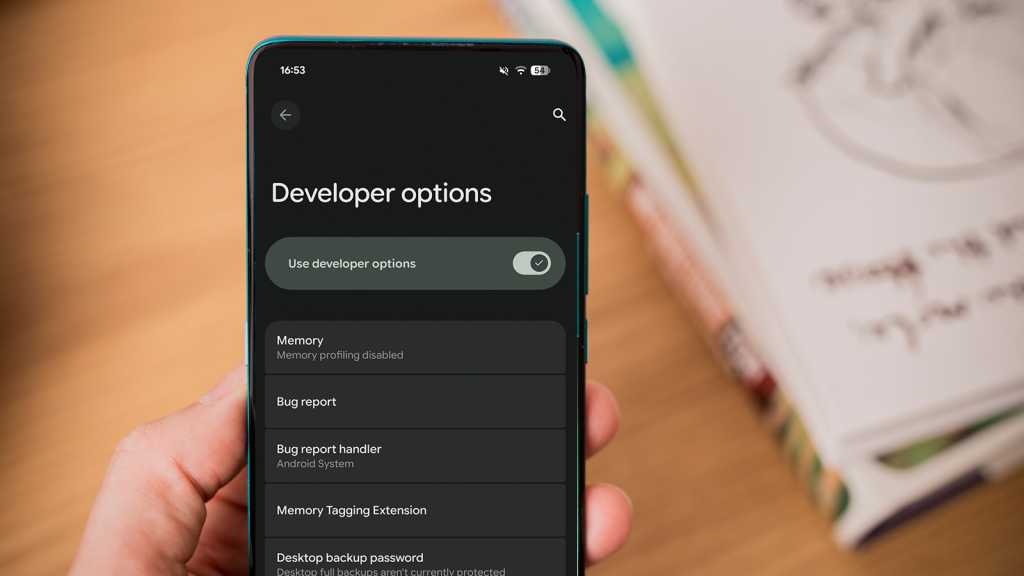
Unlock the Hidden Developer Menu on Your Android Phone
Have you ever delved deep into your Android smartphone’s Settings app? If not, you might be missing out on a hidden treasure trove of settings that can enhance your overall smartphone experience. The Developer menu, tucked away within Settings, offers a wide array of options that can be tweaked to optimize your device. Here are some developer settings that I recommend every Android user should enable on their phone.
How to Access the Developer Menu on Your Android Device
The Developer settings are typically hidden from general users as they are primarily intended for Android developers. To unlock the Developer menu, you need to follow a simple process. Open the Settings app on your Android phone, navigate to the About Phone section, and tap the Build Number option seven times. Once you do this, a message confirming that you are now a developer will appear, indicating that the Developer menu has been successfully unlocked on your device.
The location of the Developer menu may vary depending on the type of Android smartphone you have. For instance, on Pixel 10, you can find it under the System option in the Settings app, while on Samsung Galaxy phones, it is usually located near the bottom of the Settings app. If you have trouble locating the Developer menu manually, you can use the search function in the Settings app to find it.
Enable the Show Taps Feature
If you create video tutorials on your Android smartphone, enabling the Show Taps feature in the Developer menu is highly recommended. This option displays a small translucent circle on the screen wherever you touch it, making it easier to highlight specific areas during your video demonstrations. You can find the Show Taps toggle under the Input section in the Developer menu.
Customize Default USB Configuration
When you connect your smartphone to a Windows PC, you are often prompted to choose an action, such as File transfer, Webcam, or No data transfer. To streamline this process and avoid repetitive selections, you can set a Default USB configuration in the Developer menu. This option allows you to choose the default action whenever your phone is connected to a PC and can be found under the Networking section.
Enhance Split-Screen Functionality for All Apps
While the split-screen feature on Android allows you to use two apps simultaneously, not all apps support this functionality. By enabling the Force activities to be resizable setting in the Developer menu, you can extend the split-screen feature to all apps on your device, regardless of their default compatibility. This option is located under the Window Management section.
Ensure Peak Refresh Rate for Smooth Performance
For devices with non-LTPO displays like the Pixel 10, maintaining a consistent refresh rate is crucial for optimal performance, especially during gaming. By enabling the Force peak refresh rate setting in the Developer menu, you can ensure that your device always operates at its highest supported refresh rate. Keep in mind that this may slightly impact battery life.
Optimize Phone Speed and Responsiveness
To boost the speed and responsiveness of your smartphone, consider adjusting the animation settings in the Developer menu. By tweaking the Window Animation Scale and Transition Animation Scale options under the Drawing section, you can make the animations faster or slower based on your preference. This can significantly enhance the overall feel of your device.
Conclusion
Exploring the hidden developer settings on your Android phone can unlock a world of customization and optimization options that can elevate your smartphone experience. By enabling these developer settings, you can personalize your device, improve its performance, and enhance your productivity. Take the time to delve into the Developer menu on your Android phone and discover the endless possibilities it offers for fine-tuning your device to suit your needs.













Lost in the Fantasia: The Rise and Fall of a Colourful JRPG

The Ultimate Performance: Exploring Phones with Qualcomm Snapdragon 8 Elite Gen 6 Processor

Mark Wahlberg: Disrupting the Future in 2026

Apple’s Latest Innovations Unveiled: HomePod mini, iPad mini, and Apple TV 4K Leak

Grand Opening of London’s Apple Music Hall: A Night with Elton John and Special Guests

Setting the Standard: How Bentley’s Design Influence Inspires Imitation

Industry Impact: Microsoft’s Job Cuts Shake Up Artists, Game Designers, and Producers in Washington State

Release Dates Revealed: Mycopunk and Virtue Unleashed with a Sledgehammer

Oppo Find X10: The Next Generation OnePlus 16 Replacement

EU Takes Action Against Instagram and Facebook for Violating Illegal Content Rules

Warning: Facebook Creators Face Monetization Loss for Stealing and Reposting Videos

Facebook’s New Look: A Blend of Instagram’s Style

Facebook Compliance: ICE-tracking Page Removed After US Government Intervention

Facebook and Instagram to Reduce Personalized Ads for European Users

InstaDub: Meta’s AI Translation Tool for Instagram Videos

Reclaim Your Account: Facebook and Instagram Launch New Hub for Account Recovery

Meta discontinues Messenger apps for Windows and macOS

Breaking Updates: Meta Connect 2025 Unveils Latest Developments

Samsung Galaxy S9 & S9+ UNBOXING!

Samsung Galaxy S9 Plus vs iPhone X

The BEST $300 Phone (2018) ft. MKBHD, Technical Guruji, iJustine + More

Samsung Galaxy S9 Plus Gaming Review! (vs OnePlus 5T)

THE BEST PHONE HTC EVER MADE?

The Truth about Google?

Samsung S9/ S9+ vs iPhone X vs Galaxy Note 8 Battery Life DRAIN TEST

Samsung S9 / S9+ vs Mate 10 Pro vs iPhone X Charging SPEED Test

The BEST APPS in 2018 – ft. MKBHD, UrAvgConsumer, iJustine + More
-
 Facebook11 months ago
EU Takes Action Against Instagram and Facebook for Violating Illegal Content Rules
-
 Facebook12 months ago
Warning: Facebook Creators Face Monetization Loss for Stealing and Reposting Videos
-
 Facebook10 months ago
Facebook’s New Look: A Blend of Instagram’s Style
-
 Facebook12 months ago
Facebook Compliance: ICE-tracking Page Removed After US Government Intervention
-
 Facebook10 months ago
Facebook and Instagram to Reduce Personalized Ads for European Users
-
 Facebook12 months ago
InstaDub: Meta’s AI Translation Tool for Instagram Videos
-
 Facebook10 months ago
Reclaim Your Account: Facebook and Instagram Launch New Hub for Account Recovery
-
 Apple11 months ago
Meta discontinues Messenger apps for Windows and macOS
