
Tech News
Mastering Video Face Swap AI: A Guide to Selecting the Best Tool for Your Needs in 2026


A few years ago, swapping a face in a video meant either academic Python scripts (InsightFace, DeepFaceLab – take your pick) or a cloud API that charged per second and sent your footage who‑knows‑where. Neither was creator‑friendly: hours of tinkering or immediate privacy flags.
Then came all‑in‑one tools like VidMage – a video face swap AI that runs locally on a Mac, no uploads, no command line. But here’s the question sponsored content rarely asks: how do these integrated tools stack up against the loose‑cannon standards they’re trying to replace? Not in “best” or “top” terms. In raw capability: tracking accuracy under difficult lighting, fast motion, batch processing, and keeping sensitive footage off strangers’ servers. Because if a tool falls apart the moment you point at a backlit subject, simplicity doesn’t matter.
How to Choose a Video Face Swap AI: 5 Criteria + 4 Hidden Pitfalls
Not all face swap tools are built for the same job. Before you commit to any tool, run it against these 5 selection criteria. Then watch out for the 4 common pitfalls that users only discover after rendering 20 minutes of unusable footage.
VidMage
Local vs. cloud
- What to ask: Does it process on my device or upload to a server?
- Why it matters: Privacy, speed, and internet dependence. Local = safe but requires CPU/GPU; cloud = convenient, but your footage leaves your control.
Motion & angle tolerance
- What to ask: How well does it track faces that turn >45° or move fast?
- Why it matters: Most tools flicker or lose tracking. Check if the tool has published examples of side profiles, backlight, or rapid turns.
Hardware compatibility
- What to ask: Does it run on my machine (Mac / NVIDIA / AMD / CPU)?
- Why it matters: Open‑source tools often require NVIDIA. Mac users need native apps or Docker workarounds.
Output quality under “real” conditions
- What to ask: Does the tool provide a stress‑test table (like the one below)?
- Why it matters: Marketing demos always show perfect lighting. You need to know what happens in low light, backlight, or with glasses.
Effort to first usable result
- What to ask: From download to finished swap: 5 minutes or 5 hours?
- Why it matters: Some tools need Python, branches, and Discord troubleshooting. Others are one‑click. Be honest about your patience.
Four Hidden Pitfalls That Ruin a Face Swap Project
Pitfall 1: Branch hell. You download an open‑source tool, and it fails. Then, a Reddit thread says “use the pearl branch, not next”. Hours later, you’re still installing dependencies. If you don’t enjoy compiling code, choose a stable pre‑built binary or a desktop app that just works.
Pitfall 2: Assumed privacy. Many “free online” face swap services store or reuse your uploads. For any sensitive footage (internal videos, NDA content), verify that the tool processes locally with no upload.
Pitfall 3: Flicker after full render. The preview looks fine, but the final 5‑minute export has glitches every 10‑15 seconds. Always test on a representative 30‑second clip that includes your worst lighting and motion.
Pitfall 4: The demo‑only tool. The website shows a flawless swap of a well‑lit person talking slowly. Your footage has side light, quick turns, or a hand near the face – and the results are terrible. If the tool doesn’t publish its limits, assume it fails outside perfect studio conditions.
Step-by-step guide to video face swap with VidMage
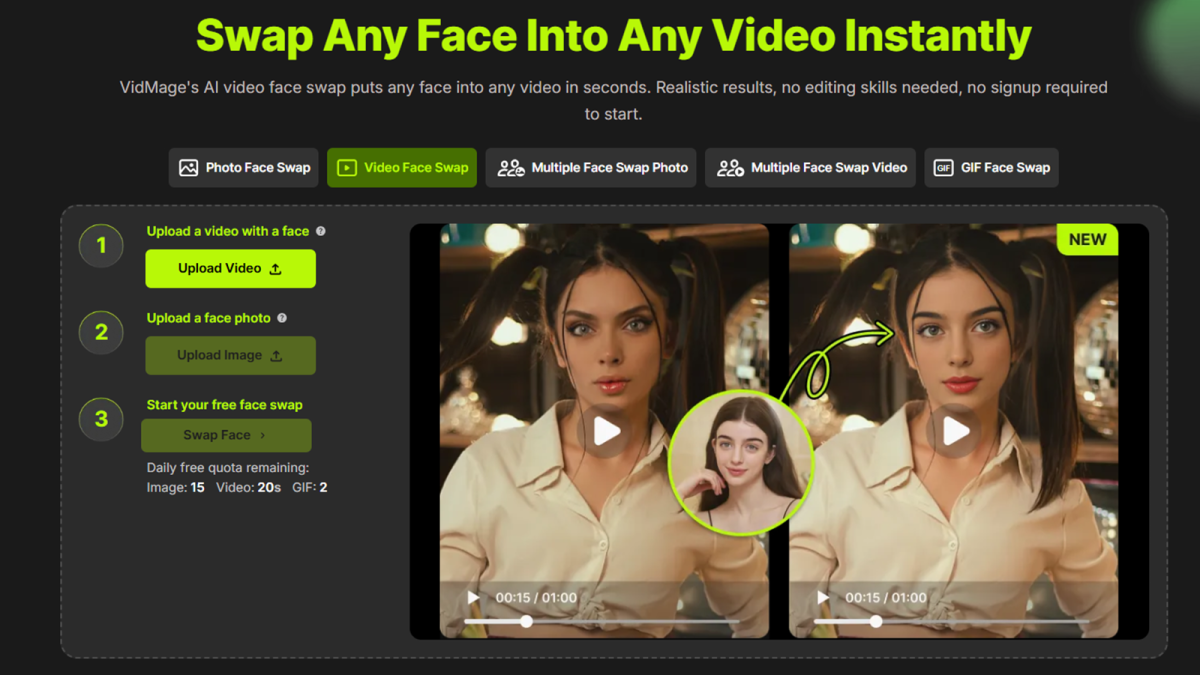
VidMage’s video face swap AI follows a simple three‑step workflow. Before using VidMage for video face swap, you’ll need:
- A source video file (MP4, MOV, M4V, or WebM). Best results come from well‑lit, front‑facing clips with minimal fast head movement.
- One or more source face images (JPG, PNG, or GIF). Use high-resolution photos (minimum 512×512 pixels) where the face is clearly visible and well‑lit. Low‑res images will be sharpened automatically.
VidMage
Step 1: Upload your video
Go to VidMage’s video face swap page. Click the upload button and select the video file from your device.
Enhancing Your Videos with VidMage: A Comprehensive Guide
Are you looking to elevate your video content with face swaps? VidMage is the perfect tool for you. This innovative software supports a wide range of formats, including MP4, MOV, M4V, and WebM. Whether you’re working with a short clip or a full-length feature, VidMage has you covered.
Understanding File Limits
It’s essential to be aware of file limits when using VidMage. The tool is designed to handle various formats, but if your video exceeds these limits, you may encounter issues. Consider trimming your video or upgrading to a paid plan for seamless processing.
Step 1: Upload Your Face Image
Before you begin the face swap process, make sure to upload a clear face photo in JPG or PNG format. For optimal results, use a high-resolution image with good lighting to ensure the face is fully visible. If you only have a low-resolution image, VidMage’s source face enhancement feature can help sharpen it before mapping.
Pro Tip: If your source photo is small or low quality, VidMage’s enhancement feature can improve the final output.
Step 2: Generate the Face Swap
Once you’ve uploaded your face image, it’s time to generate the face swap. Simply click the “generate” button, and VidMage’s AI will process the clip frame by frame, tracking the face throughout the video. For more detailed information on processing times and advanced settings, refer to the product page.
After the processing is complete, you can download the swapped video directly, ready to use without any additional editing.
Optimizing Results for Different Scenarios
Not all videos are created equal, and different scenarios can impact the quality of your face swap. Here’s a breakdown of what to expect with VidMage in various situations:
| Scenario | Result | Notes |
|---|---|---|
| Single face, front-facing, consistent lighting | Smooth, natural swap | Minimal glitches; stable tracking |
| Single face, moderate side lighting, or slight head turns | Good quality | Occasional softness on edges |
| Single face, strong backlight, or rapid head movement | Occasional flicker | Recommended for short clips |
| Low-light scenes | Tracking instability after 20 seconds | Keep clips under 15 seconds |
Optimization Tips for Different Scenarios
For Well-Lit Front-Facing Clips
- Use the highest resolution face image available.
- If there’s edge softness, try a different source photo with even lighting.
For Moderate Side Lighting or Head Turns
- Consider trimming extreme angles.
- Add fill light for shadow side softness.
For Strong Backlight or Fast Head Movement
- Reduce backlight or keep backlit segments short.
- Slow down head movement or replace still segments.
Plan your edit to avoid flickers every 10-15 seconds in this scenario.
For Low-Light Scenes
- Break longer clips into shorter segments.
- Use a source image with similar brightness levels to avoid tracking errors.
Summary
VidMage’s video face swap AI offers a user-friendly workflow with support for common formats like MP4 and MOV. With watermark-free outputs on the free tier and advanced features for multiple face swaps, VidMage is a versatile tool for enhancing your videos. While it excels in well-lit, front-facing scenarios, it can still deliver quality results in challenging conditions.
By understanding these optimization tips and scenarios, you can make the most of VidMage’s capabilities and create stunning face swaps for your videos.
Transform the following:
Original sentence: The cat jumped onto the table and knocked over a vase.
Transformed sentence: A vase was knocked over by the cat as it jumped onto the table.











24/7 Surveillance: The Controversial Reality of Amazon’s Delivery Driver Smart Glasses

October 2026’s PS Plus Lineup: Join the Battle in EDF: World Brother 2

Unleashing the Power of the Galaxy Tab S12 Ultra: A 24-Hour Journey with Multiple Expletives

Startup Safety: The Ultimate Guide to Protecting Your Business as a First-Time Founder

Insights from AI Experts: Evaluating Trump’s latest safety initiative

California Highway Patrol Unveils Last Chevrolet Camaro in Fleet

Revolutionizing Home Entertainment: The Fire TV Stick 4K’s Power-Saving Feature

Arkansas Semiconductor Institute: Pioneering Innovation in Technology

The Isle of Beautiful Monsters: A First-person RPG Adventure

EU Takes Action Against Instagram and Facebook for Violating Illegal Content Rules

Warning: Facebook Creators Face Monetization Loss for Stealing and Reposting Videos

Facebook’s New Look: A Blend of Instagram’s Style

Facebook Compliance: ICE-tracking Page Removed After US Government Intervention

Facebook and Instagram to Reduce Personalized Ads for European Users

InstaDub: Meta’s AI Translation Tool for Instagram Videos

Reclaim Your Account: Facebook and Instagram Launch New Hub for Account Recovery

Meta discontinues Messenger apps for Windows and macOS

Breaking Updates: Meta Connect 2025 Unveils Latest Developments

Unboxing the First Ever Samsung Galaxy S!!

Huawei P Smart – Huawei’s new Killer Budget Smartphone!

MYSTERY Package from Xiaomi – HUGE UNBOXING!

5 ways you’re using your Smartphone wrong.

THE INSANE DUAL BATTERY SMARTPHONE!

ELEPHONE U PRO UNBOXING AND REVIEW!

Mrwhosetheboss – 1 Million Subscribers

The Surprising TRUTH about Samsung – 15 things you did not know.

10 Incredible Android DIY Hacks!
-
 Facebook11 months ago
EU Takes Action Against Instagram and Facebook for Violating Illegal Content Rules
-
 Facebook12 months ago
Warning: Facebook Creators Face Monetization Loss for Stealing and Reposting Videos
-
 Facebook10 months ago
Facebook’s New Look: A Blend of Instagram’s Style
-
 Facebook12 months ago
Facebook Compliance: ICE-tracking Page Removed After US Government Intervention
-
 Facebook10 months ago
Facebook and Instagram to Reduce Personalized Ads for European Users
-
 Facebook12 months ago
InstaDub: Meta’s AI Translation Tool for Instagram Videos
-
 Facebook10 months ago
Reclaim Your Account: Facebook and Instagram Launch New Hub for Account Recovery
-
 Apple12 months ago
Meta discontinues Messenger apps for Windows and macOS
