
Mobile Tech
"Unlocking the Secrets: 3 iPhone Mail Settings for Enhanced Privacy & Focus" "Mastering Your Mail: 3 Hidden iPhone Settings for Better Privacy & Focus" "Secrets Revealed: Enhance Your iPhone Mail Privacy & Focus with These 3 Settings"

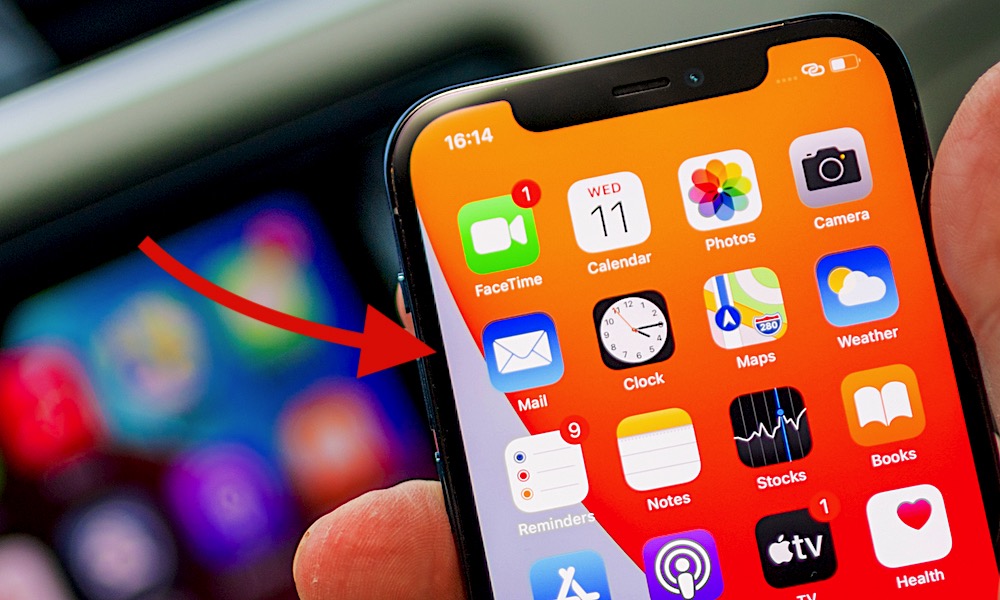
Discovering the hidden settings of the iPhone’s Mail app can greatly enhance your user experience. While these features may not be readily apparent, they offer valuable functionalities that can make managing your emails more intuitive and convenient.
Here are three lesser-known iPhone Mail app settings that can improve your email management and communication control. These settings focus on notifying you of important emails, enhancing your email privacy, and identifying potentially suspicious senders. Each setting can be activated in under a minute, providing you with added convenience and security.
1. Notify Me
The Notify Me feature in the Mail app allows you to receive push notifications for specific email threads that you want to monitor closely. By setting a notification flag on a particular conversation, you can stay updated on important responses without constantly checking your inbox.
To enable Notify Me for a specific email thread, follow these simple steps:
- Open the Mail app.
- Long-press on the email thread you wish to receive notifications for.
- Tap on Notify Me.
- You will see a small alarm bell icon in the top-right corner of the thread in your inbox.
Disabling Notify Me is just as easy. Follow the same steps, long-press on the thread with the alarm bell, and select Stop Notifying.
2. Mail Privacy Protection
Mail Privacy Protection is a feature that enhances your email privacy by masking your IP address and preventing senders from tracking your online activity. By loading remote images through Apple’s servers, this feature adds an extra layer of privacy and security to your email interactions.
To activate Mail Privacy Protection, follow these steps:
- Open Settings.
- Go to Apps.
- Select the Mail app.
- Scroll down to Privacy Protection.
- Toggle Protect Mail Activity on.
It’s important to note that Mail Privacy Protection only works with Apple’s Mail app and not with third-party email applications.
3. Mark Addresses
Mark Addresses is a useful feature in the Mail app that helps you identify potentially suspicious email senders. By marking specific domain names, you can visually distinguish safe and unsafe emails, providing an added layer of security against phishing scams.
To mark addresses in the Mail app, follow these steps:
- Go to Settings.
- Tap on Apps.
- Select Mail.
- Tap on Mark Addresses under the Composing section.
- Enter the domain names you trust, separated by commas.
These simple Mail app settings can significantly improve your email management and security. By taking control of who can reach you and ensuring your privacy, you can enhance your overall email experience. Give these settings a try to make your inbox more secure and efficient.
global $wp;
. ‘/’;
?>










TOP 5 MOST UNUSUAL SMARTPHONES

Umidigi S2 – Flagship Smartphone for $199??

Mystery Unboxing from Logitech!

7 Smartphone Life Hacks YOU SHOULD KNOW!

The Oneplus 5T has been LEAKED!

iPhone X – ULTIMATE PACKAGE UNBOXING!

iPhone X vs Galaxy Note 8 vs iPhone 8 Plus- Battery Life Drain Test

iPhone X vs Galaxy Note 8 vs iPhone 8 Plus – Battery Charging Speed Test

$1200 iPhone X vs INSANE $80 iPhone X Fake!

EU Takes Action Against Instagram and Facebook for Violating Illegal Content Rules

Warning: Facebook Creators Face Monetization Loss for Stealing and Reposting Videos

Facebook’s New Look: A Blend of Instagram’s Style

Facebook Compliance: ICE-tracking Page Removed After US Government Intervention

Facebook and Instagram to Reduce Personalized Ads for European Users

InstaDub: Meta’s AI Translation Tool for Instagram Videos

Reclaim Your Account: Facebook and Instagram Launch New Hub for Account Recovery

Meta discontinues Messenger apps for Windows and macOS

Breaking Updates: Meta Connect 2025 Unveils Latest Developments
TOP 5 MOST UNUSUAL SMARTPHONES
Umidigi S2 – Flagship Smartphone for $199??
Mystery Unboxing from Logitech!
7 Smartphone Life Hacks YOU SHOULD KNOW!
The Oneplus 5T has been LEAKED!
iPhone X – ULTIMATE PACKAGE UNBOXING!
iPhone X vs Galaxy Note 8 vs iPhone 8 Plus- Battery Life Drain Test
iPhone X vs Galaxy Note 8 vs iPhone 8 Plus – Battery Charging Speed Test
$1200 iPhone X vs INSANE $80 iPhone X Fake!
-
 Facebook1 year ago
EU Takes Action Against Instagram and Facebook for Violating Illegal Content Rules
-
 Facebook1 year ago
Warning: Facebook Creators Face Monetization Loss for Stealing and Reposting Videos
-
 Facebook11 months ago
Facebook’s New Look: A Blend of Instagram’s Style
-
 Facebook1 year ago
Facebook Compliance: ICE-tracking Page Removed After US Government Intervention
-
 Facebook11 months ago
Facebook and Instagram to Reduce Personalized Ads for European Users
-
 Facebook1 year ago
InstaDub: Meta’s AI Translation Tool for Instagram Videos
-
 Facebook11 months ago
Reclaim Your Account: Facebook and Instagram Launch New Hub for Account Recovery
-
 Apple1 year ago
Meta discontinues Messenger apps for Windows and macOS