
Gadgets
How to Determine if Your Android Battery Needs Replacing – A Complete Guide

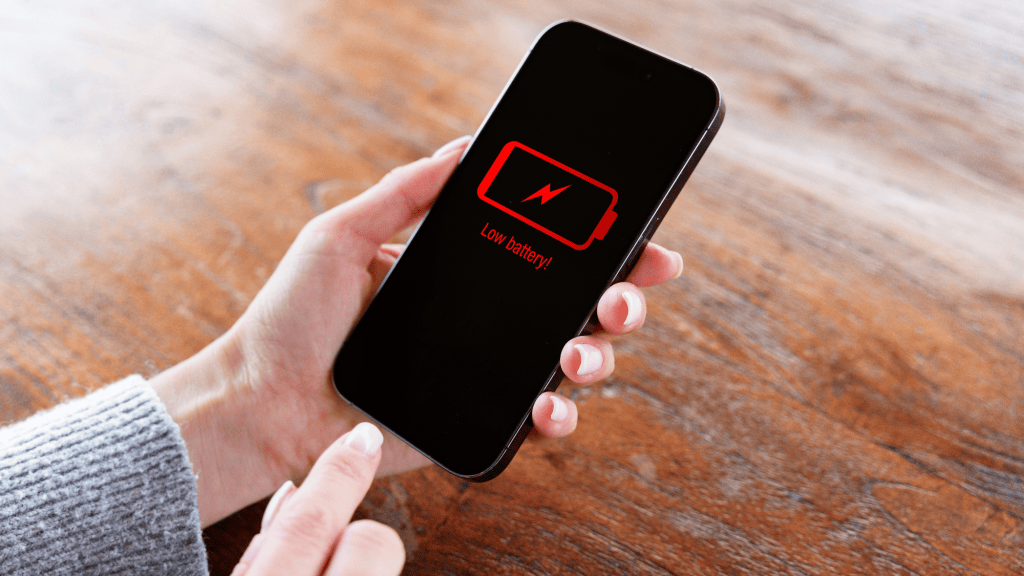
For Android users, it’s essential to know the current status of your battery health to make informed decisions about its maintenance. Fortunately, most Android smartphones offer easy ways to check your battery health.
How to Monitor Battery Health on Your Android Device
While the software experience may vary across different Android devices, the process of checking battery health remains consistent:
- Go to your phone’s Settings.
- Select ‘Battery’.
- Look for options like ‘Battery information’, ‘Battery status’, or ‘Battery details’. If not found there, check under ‘About phone’ or ‘Device maintenance’.
For Samsung Galaxy users, the path typically is Settings → Battery → Battery Information. Alternatively, you can use the Samsung Members app by navigating to Support → Phone Diagnostics → Battery Status.
Google Pixel owners can find this information by going to Settings → Battery → Battery health.
Foundry
Upon checking, your device will typically display the battery health as a percentage, or with simple indicators like ‘Normal’ or ‘Low’. You may also find information on the total number of charge cycles, indicating how many times your phone has been fully charged and discharged. On Pixel phones, this can be found in Settings → About phone → Battery information.












BMW ALPINA Unveils Powerful V8 Engine for Ultimate Performance and Comfort

The Intriguing Potential of Amazon’s Acquisition of Decart: A Mysterious AI Startup

Drastic Cut: Valor Mortis’ System Requirements Reduced Before Launch

The Ultimate Guide to Tech Gadgets Unlocking the Secrets of Cutting-Edge Technology Navigating the World of Tech Without Key Features

How to Determine if Your Android Battery Needs Replacing – A Complete Guide

HyLight Secures €13 Million Funding to Expand Autonomous Airship Inspections Across Europe’s Critical Infrastructure

Apple Retail Gears Up for Highly Anticipated iPhone Duo Release

BMW ALPINA Unveils Enhanced V8 Engine for Luxury 7 Series Lineup

Microsoft’s Bold Move: Unveiling New AI Chip to Challenge Nvidia

EU Takes Action Against Instagram and Facebook for Violating Illegal Content Rules

Warning: Facebook Creators Face Monetization Loss for Stealing and Reposting Videos

Facebook’s New Look: A Blend of Instagram’s Style

Facebook Compliance: ICE-tracking Page Removed After US Government Intervention

Facebook and Instagram to Reduce Personalized Ads for European Users

InstaDub: Meta’s AI Translation Tool for Instagram Videos

Reclaim Your Account: Facebook and Instagram Launch New Hub for Account Recovery

Meta discontinues Messenger apps for Windows and macOS

Breaking Updates: Meta Connect 2025 Unveils Latest Developments

10 Android Apps you NEED to try in 2017 / 2018

The Most Bizarre Smartphone we’ve seen all year.

Best Tech under $2000 – December 2017 / January 2018!

This could be your next Smartphone.

Top 10 most INSANE Limited Edition Smartphones!

How Smart is the AI-Powered Huawei Mate 10 – with EMUI 8.0?

I used a 2012 Smartphone in 2018 – Here’s what happened.

How to send ANY file Anywhere!

NEW Oneplus 5T Sandstone White Unboxing – The Ultimate Oneplus 5T?
-
 Facebook12 months ago
EU Takes Action Against Instagram and Facebook for Violating Illegal Content Rules
-
 Facebook12 months ago
Warning: Facebook Creators Face Monetization Loss for Stealing and Reposting Videos
-
 Facebook10 months ago
Facebook’s New Look: A Blend of Instagram’s Style
-
 Facebook12 months ago
Facebook Compliance: ICE-tracking Page Removed After US Government Intervention
-
 Facebook10 months ago
Facebook and Instagram to Reduce Personalized Ads for European Users
-
 Facebook12 months ago
InstaDub: Meta’s AI Translation Tool for Instagram Videos
-
 Facebook10 months ago
Reclaim Your Account: Facebook and Instagram Launch New Hub for Account Recovery
-
 Apple12 months ago
Meta discontinues Messenger apps for Windows and macOS