
Gadgets
Troubleshooting Guide: Unable to Access 192.168.0.1

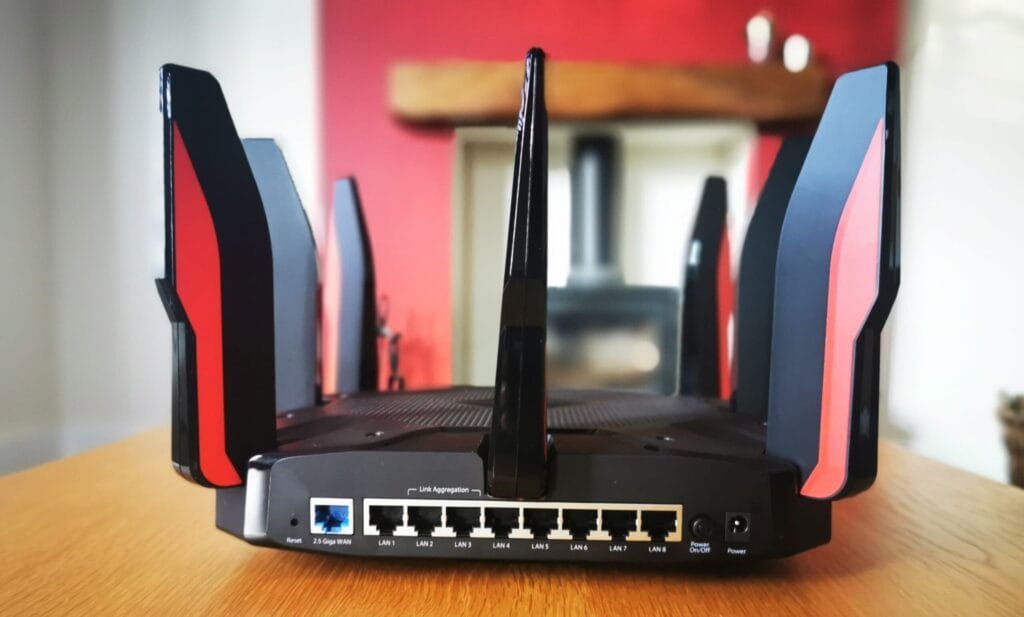
The default address 192.168.0.1 is commonly used by many routers to access their admin page, where users can adjust settings such as Wi-Fi name, password, port forwarding, and connection status. When this address fails to load, there are several potential reasons. It could be due to typos in the address, the router using a different address, or interference from a VPN or other network settings.
Here are some quick checks to try first:
– Type http://192.168.0.1 exactly, using numbers 1 and 0, not letters l and o.
– Ensure you are connected to your home network, not a guest network or mobile data.
– Turn off any VPN on your device.
– Find your router’s real address (default gateway) using the steps below.
– Restart the router and try again.
If these quick checks do not work, there may be more detailed issues to address. Common typing mistakes, such as using lowercase “l” instead of number 1, or letter “o” instead of number 0, are often the cause of the address not loading. Adding http:// to the start of the address is recommended to ensure the browser recognizes it as a valid address.
Browser error messages can also provide clues to the issue. Messages like “192.168.0.1 took too long to respond” or “192.168.0.1 refused to connect” indicate different problems that may need specific solutions. Security or certificate warnings, HTTPS-only browser settings, and other network configurations can also impact access to the admin page.
It is essential to understand how to find your router’s IP address, as it may not always be 192.168.0.1. Different UK broadband providers may use various default addresses, so it’s crucial to check the correct address for your specific router model. Mesh Wi-Fi systems, double NAT setups, and VPN configurations can also affect access to the admin page.
If all else fails, resetting the router to factory settings may be necessary as a last resort. This process erases all custom settings, including Wi-Fi name and password, so it should be done with caution. Remember to check for unique admin passwords printed on the router or consult the manual for specific instructions on resetting.
In conclusion, troubleshooting issues with accessing 192.168.0.1 requires attention to detail, understanding of network configurations, and patience to resolve any underlying issues effectively. By following these guidelines and understanding the potential reasons for inaccessibility, users can ensure smooth and secure access to their router’s admin page.













Mystery Unboxing from Logitech!

7 Smartphone Life Hacks YOU SHOULD KNOW!

The Oneplus 5T has been LEAKED!

iPhone X – ULTIMATE PACKAGE UNBOXING!

iPhone X vs Galaxy Note 8 vs iPhone 8 Plus- Battery Life Drain Test

iPhone X vs Galaxy Note 8 vs iPhone 8 Plus – Battery Charging Speed Test

$1200 iPhone X vs INSANE $80 iPhone X Fake!

10 Insanely Cool Gadgets under $20.

Huawei Mate 10 Pro REAL Review

EU Takes Action Against Instagram and Facebook for Violating Illegal Content Rules

Warning: Facebook Creators Face Monetization Loss for Stealing and Reposting Videos

Facebook’s New Look: A Blend of Instagram’s Style

Facebook Compliance: ICE-tracking Page Removed After US Government Intervention

Facebook and Instagram to Reduce Personalized Ads for European Users

InstaDub: Meta’s AI Translation Tool for Instagram Videos

Reclaim Your Account: Facebook and Instagram Launch New Hub for Account Recovery

Meta discontinues Messenger apps for Windows and macOS

Breaking Updates: Meta Connect 2025 Unveils Latest Developments
Mystery Unboxing from Logitech!
7 Smartphone Life Hacks YOU SHOULD KNOW!
The Oneplus 5T has been LEAKED!
iPhone X – ULTIMATE PACKAGE UNBOXING!
iPhone X vs Galaxy Note 8 vs iPhone 8 Plus- Battery Life Drain Test
iPhone X vs Galaxy Note 8 vs iPhone 8 Plus – Battery Charging Speed Test
$1200 iPhone X vs INSANE $80 iPhone X Fake!
10 Insanely Cool Gadgets under $20.
Huawei Mate 10 Pro REAL Review
-
 Facebook1 year ago
EU Takes Action Against Instagram and Facebook for Violating Illegal Content Rules
-
 Facebook1 year ago
Warning: Facebook Creators Face Monetization Loss for Stealing and Reposting Videos
-
 Facebook11 months ago
Facebook’s New Look: A Blend of Instagram’s Style
-
 Facebook1 year ago
Facebook Compliance: ICE-tracking Page Removed After US Government Intervention
-
 Facebook11 months ago
Facebook and Instagram to Reduce Personalized Ads for European Users
-
 Facebook1 year ago
InstaDub: Meta’s AI Translation Tool for Instagram Videos
-
 Facebook11 months ago
Reclaim Your Account: Facebook and Instagram Launch New Hub for Account Recovery
-
 Apple1 year ago
Meta discontinues Messenger apps for Windows and macOS