
Tech News
The Ultimate Guide to Recovering Data After Formatting: Everything You Need to Know

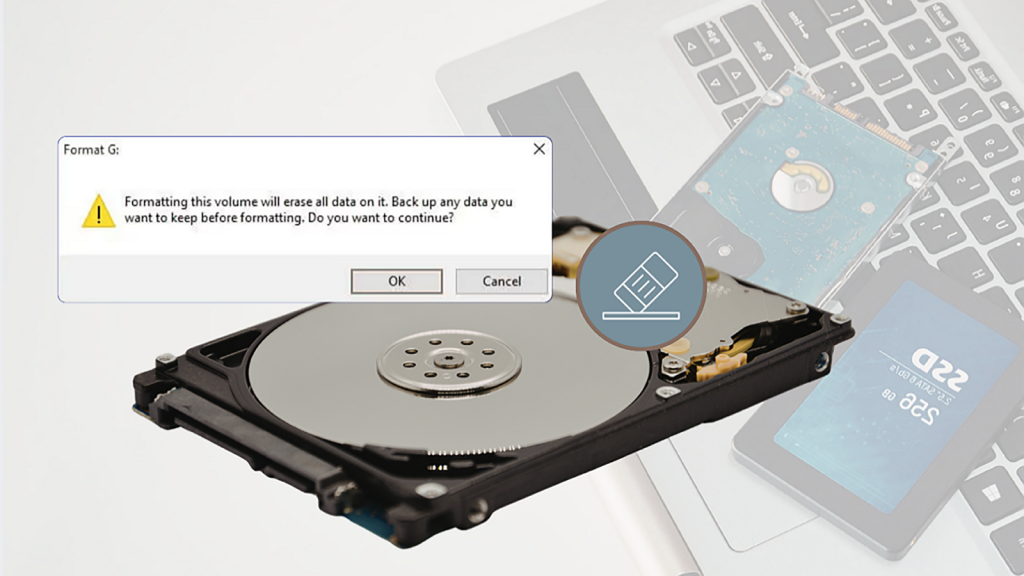
Formatting a hard drive, USB stick, SD card, or external storage device by accident can be a common and distressing error. A simple click, an unexpected system prompt requiring formatting, or an error during operating system reinstallation can lead to the deletion of photos, work files, videos, and documents in an instant. Many individuals believe that formatting results in the complete deletion of data, leaving no chance of recovery.
However, the truth is that data can often be recovered after formatting. Whether you are using Windows or Mac, and whether you formatted a traditional hard drive, a USB drive, an SD card, or an SSD, lost files can usually be recovered.
Understanding Formatting: Data Recovery Possibilities
To comprehend formatted data recovery, it is essential to understand what formatting actually does. The most common misconception is that formatting permanently wipes out all files on a storage device. In reality, standard quick formatting does not do this.
Formatting only deletes the file system index, a small database that indicates where each file, photo, and folder is stored on the drive. The actual data remains on the storage sectors of the device, hidden but not deleted.
Several factors determine the possibility of recovering data after formatting:
- Data Overwriting Status: When new files are saved to the formatted drive, old data gets overwritten and becomes unrecoverable.
- Storage Device Type: Traditional HDDs offer better recovery potential compared to SSDs with TRIM enabled.
- Time Since Formatting: The longer you use the formatted device, the higher the risk of permanent data loss.
EaseUS
Common Incidents of Accidental Formatting
Accidental formatting occurs in various everyday situations. Recognizing your specific scenario can assist in selecting the most efficient recovery method:
- Unintentional Manual Formatting: Accidentally selecting Format when right-clicking a USB drive or external hard drive with no backup.
- Forced Device Formatting Prompts: Errors like “You need to format the disk in the drive before you can use it” leading users to confirm out of frustration.
- OS Reinstallation Errors: Mistakenly formatting secondary data drives instead of the system drive during Windows or Mac reinstalls.
- Digital Device Formatting: Accidental formatting of camera, drone, and GoPro SD cards, erasing travel footage and raw images.
- SSD-Specific Formatting Issues: Automatic TRIM on modern laptops and external SSDs gradually erasing data after formatting if left unattended.
Regardless of the incident, immediate action and reliable recovery software can significantly increase the chances of recovering lost files.
Recovering Data from a Formatted Drive
Below are three methods with step-by-step instructions suitable for beginners and compatible with Windows 10/11 and the latest macOS versions.
Method 1: Restoring From Backups
Utilizing backups is the simplest and risk-free way to recover data after formatting, requiring no third-party software. If you have regular backups, this is the recommended starting point.
For Windows Users:
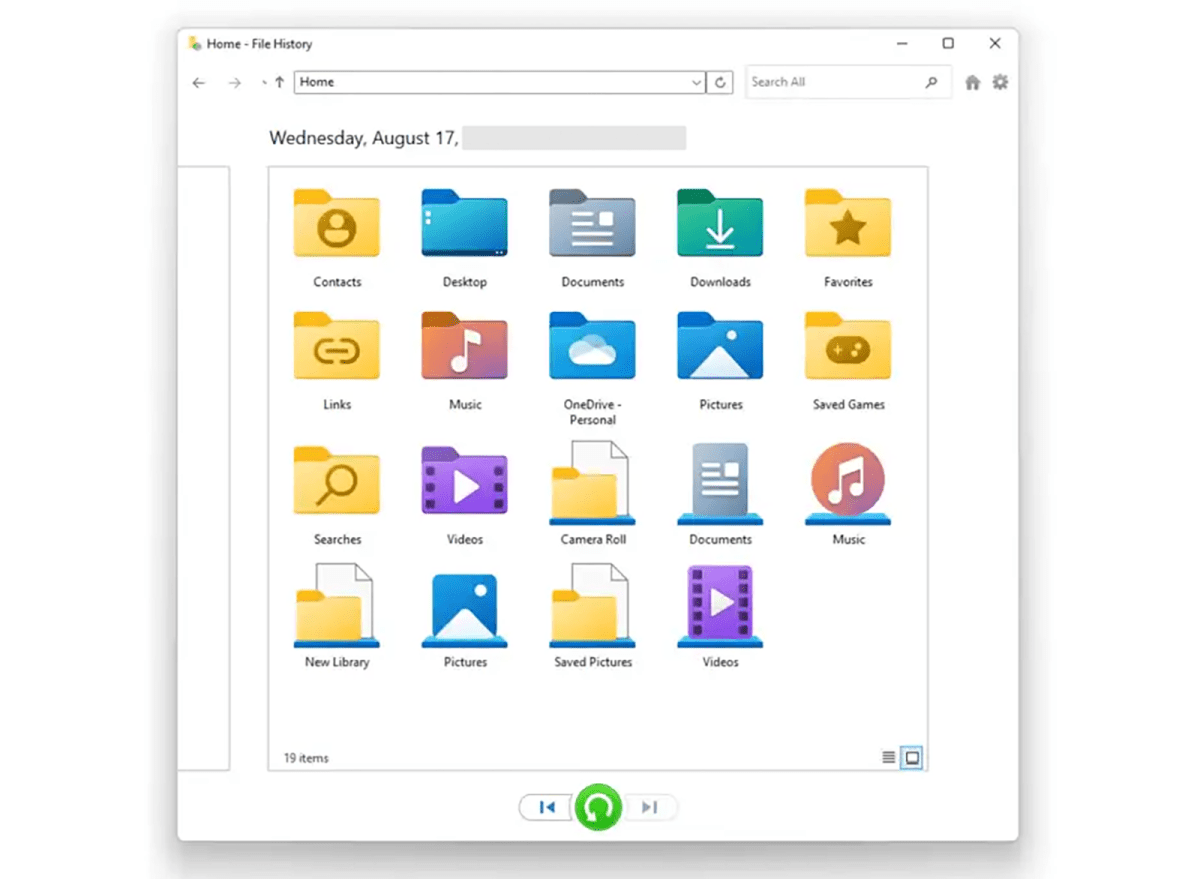
Access File History or the built-in Backup and Restore tool. Choose a restore point created before the accidental format and recover folders, documents, and media files to a secure local drive.
EaseUS
For Mac Users:
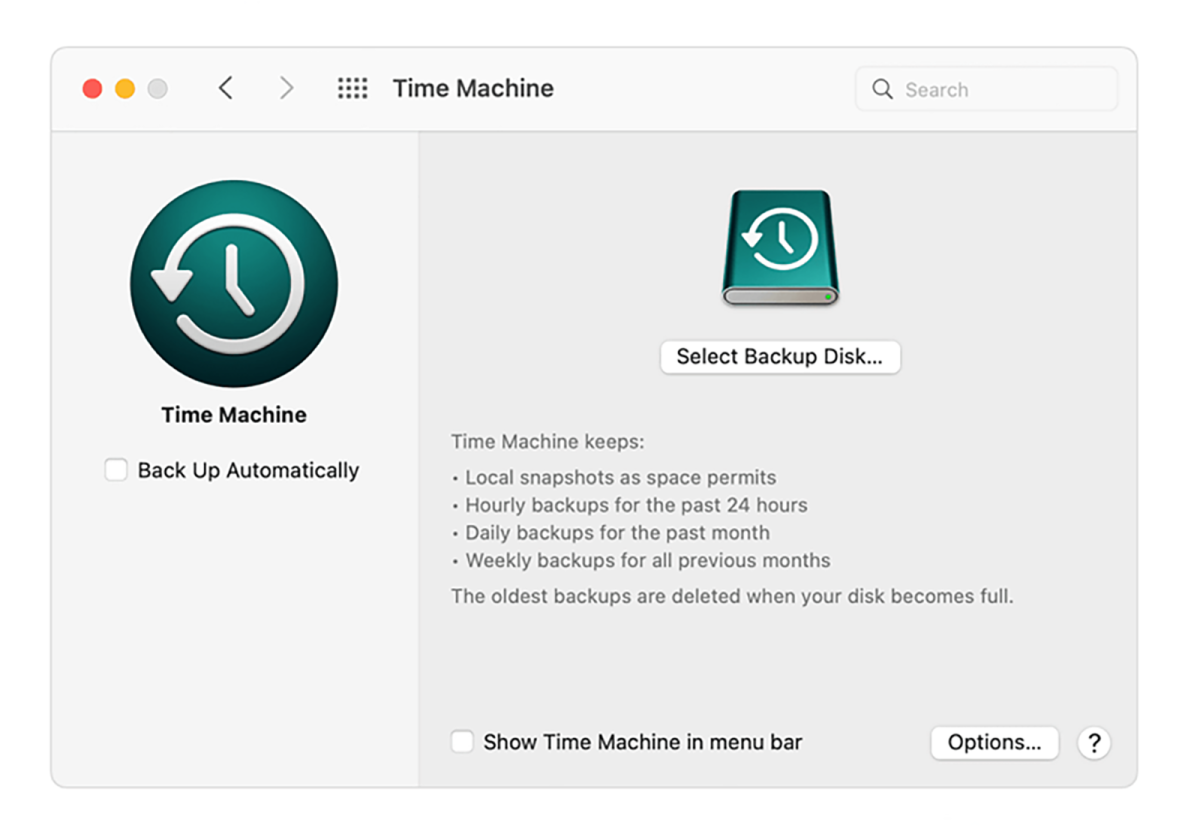
Launch Time Machine, browse your backup timeline, and restore all formatted files and folders from a saved snapshot.
EaseUS
Cloud & External Backups:
Users who store files on services like Google Drive or external hard drives can easily re-download or copy over lost content. While effective, this method is suitable for users with proactive backup habits.
Method 2: Data Recovery Using Professional Tools
For users without backups, utilizing tools like EaseUS Data Recovery Wizard is a reliable option for recovering data from formatted drives. Here’s why it is recommended:
- It is user-friendly and requires no technical expertise.
- It supports various storage types and recovers common file formats.
- It offers a preview before charging for recovery.
Follow these steps to recover your data using EaseUS Data Recovery Wizard:
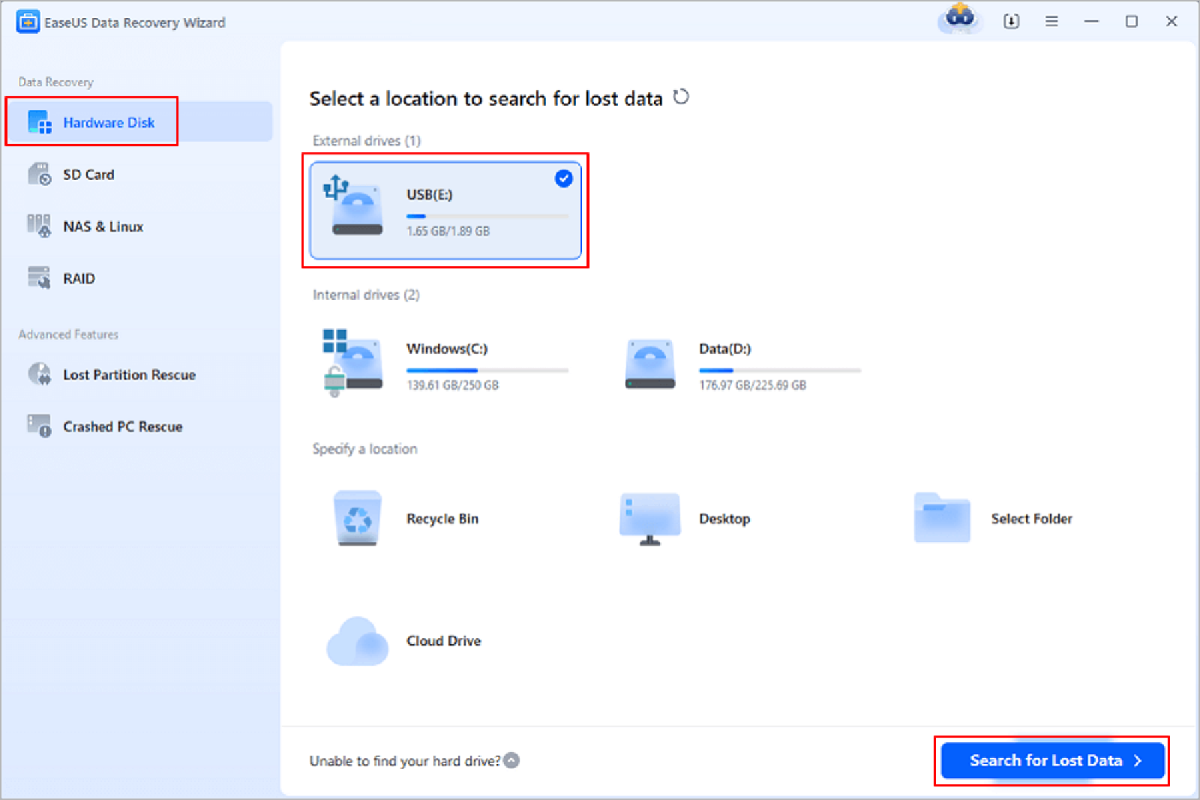
Step 1: Connect your formatted storage device to your computer and select it from the drive list.
EaseUS
Step 2: Start the automatic scan to locate recently lost formatted files.
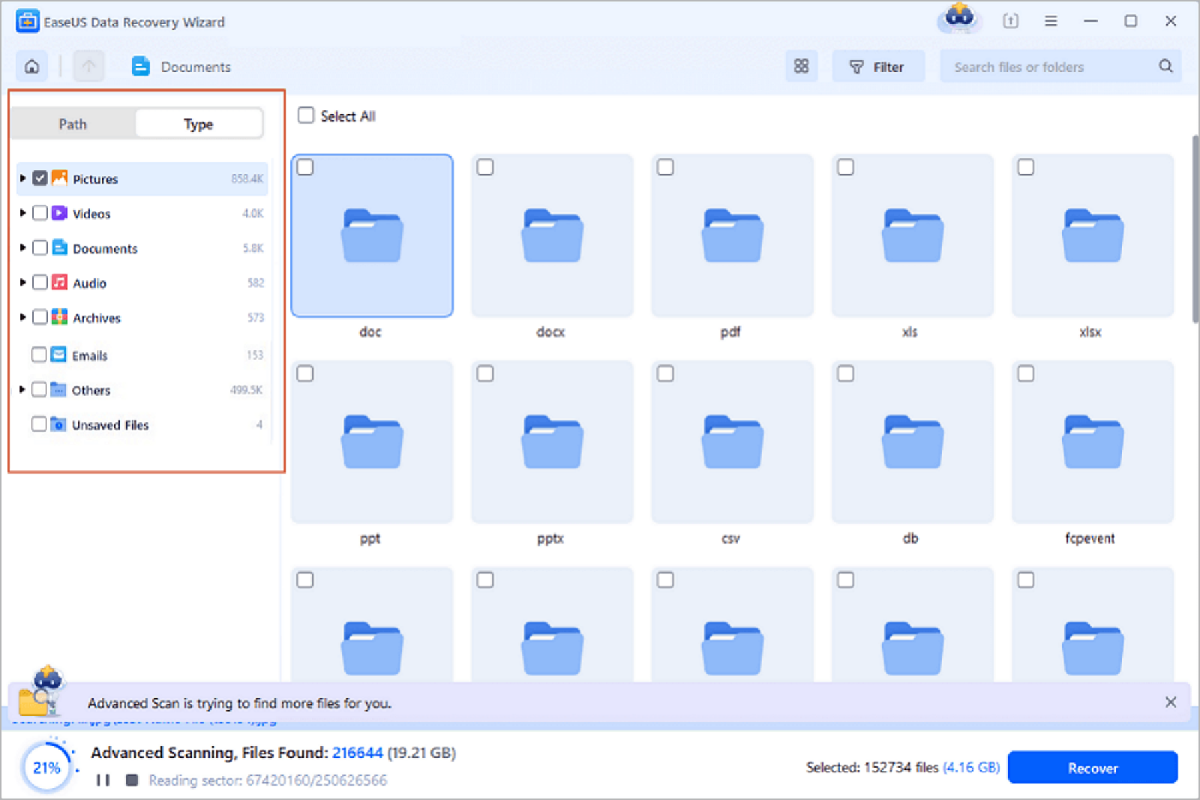
EaseUS
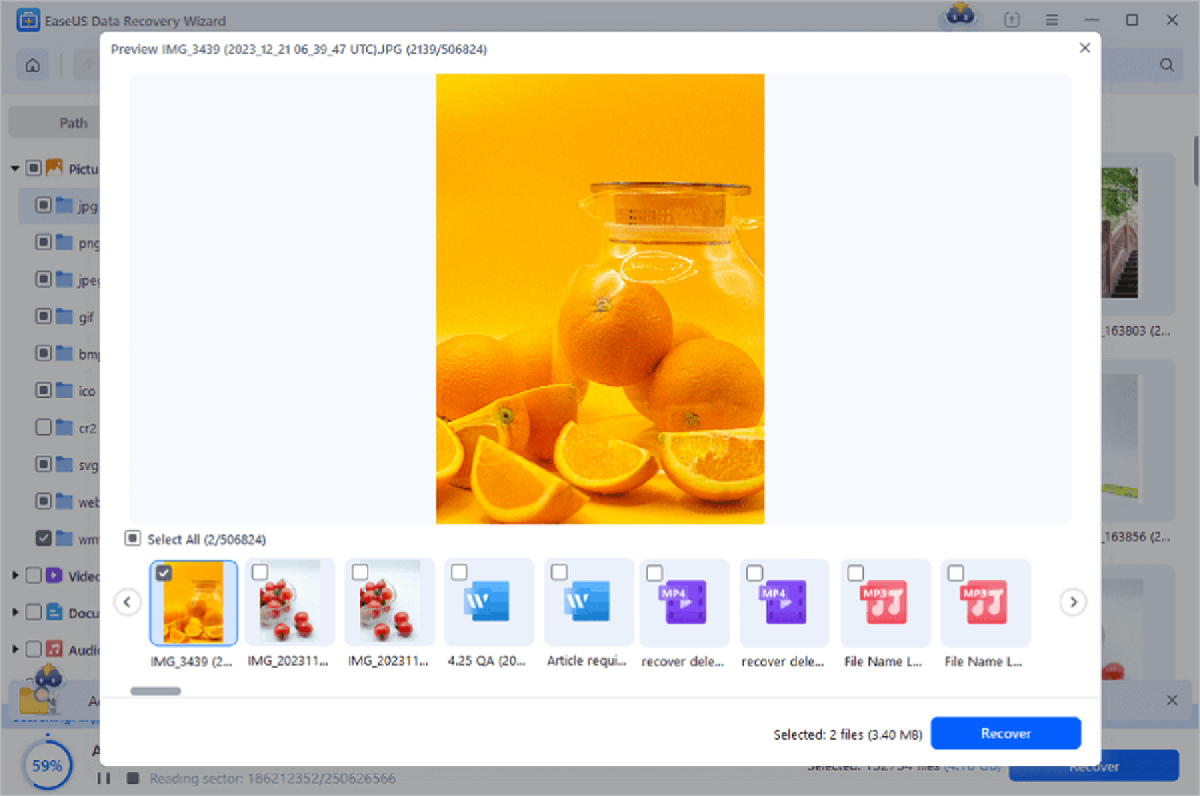
Step 3: Filter results by file type and preview each file to confirm recovery.










The Battle of Technology: iPhone 18 Pro vs AI

Revolutionizing Luxury: The 2027 Porsche Cayenne Electric with Automatic Doors and Wireless Charging

Capcom Takes a Stand Against Microtransactions in Monster Hunter Wilds: Ascendance

Uncovering the Hidden Quirks of iPhone Duo Design: A Tech Advisor’s Perspective

Xiaomi Redmi Note 17 5G Slashes Prices on Amazon – Tech Bargain Alert!

The Rise of Garden Rooms: Ireland’s Newest Home Craze

Lidl’s Autonomous Delivery Fleet: Revolutionizing Logistics in Germany

Streamlining Data Transfer: iOS 27.2 Facilitates Seamless App Upgrades

10 Android Mods that Change Everything

EU Takes Action Against Instagram and Facebook for Violating Illegal Content Rules

Warning: Facebook Creators Face Monetization Loss for Stealing and Reposting Videos

Facebook Compliance: ICE-tracking Page Removed After US Government Intervention

Facebook’s New Look: A Blend of Instagram’s Style

Facebook and Instagram to Reduce Personalized Ads for European Users

InstaDub: Meta’s AI Translation Tool for Instagram Videos

Reclaim Your Account: Facebook and Instagram Launch New Hub for Account Recovery

Meta discontinues Messenger apps for Windows and macOS

Breaking Updates: Meta Connect 2025 Unveils Latest Developments
10 Android Mods that Change Everything

I used the first Android Phone in the World.

DOOGEE MIX 4 UNBOXING (PROTOTYPE)!

MYSTERY UNBOXING FROM SAMSUNG!

The Truth about Huawei P20 Pro – REAL Review

How to Love your Android Phone again.

The LG G7 has a Big Problem.

The most Beautiful Android Games you’ve never played.

Charge your Smartphone in 5 Minutes – How Batteries are about to Change!
-
 Facebook11 months ago
EU Takes Action Against Instagram and Facebook for Violating Illegal Content Rules
-
 Facebook11 months ago
Warning: Facebook Creators Face Monetization Loss for Stealing and Reposting Videos
-
 Facebook11 months ago
Facebook Compliance: ICE-tracking Page Removed After US Government Intervention
-
 Facebook9 months ago
Facebook’s New Look: A Blend of Instagram’s Style
-
 Facebook9 months ago
Facebook and Instagram to Reduce Personalized Ads for European Users
-
 Facebook11 months ago
InstaDub: Meta’s AI Translation Tool for Instagram Videos
-
 Facebook10 months ago
Reclaim Your Account: Facebook and Instagram Launch New Hub for Account Recovery
-
 Apple11 months ago
Meta discontinues Messenger apps for Windows and macOS
