
Mobile Tech
Streamlining Your Schedule: iOS 26’s New Feature Allows Calendar Event Creation from Screenshots

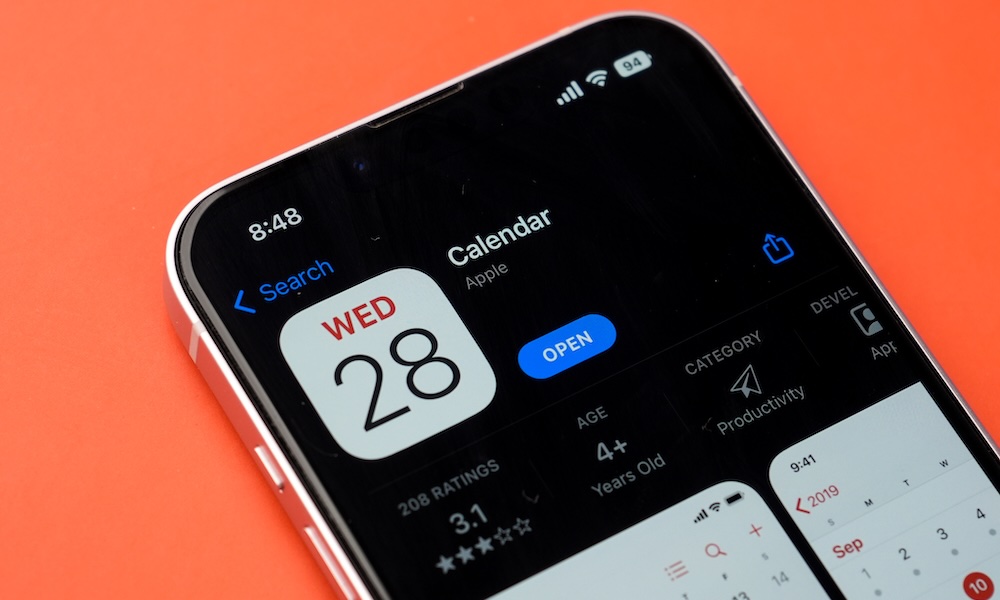
The much-anticipated iOS 26 from Apple introduces a host of new features, including the new transparent Liquid Glass design and enhanced privacy and security measures. Alongside these major changes are a variety of useful but less conspicuous features waiting to be explored. Among these additions is a small yet incredibly handy new feature for the Calendar app, one of the most frequently used apps on the iPhone.
If you’ve already updated to iOS 26 and own an iPhone 15 Pro or newer model, your device is now compatible with Apple Intelligence. This allows you to add events to your Calendar app directly from a screenshot. This added convenience is made possible through visual intelligence, a component of Apple’s AI suite that was first introduced in iOS 18.2. While initially exclusive to real-world images captured by your iPhone’s camera, iOS 26 now extends this functionality to screenshots as well.
One noticeable change in iOS 26 is the default handling of screenshots on your iPhone. Instead of immediately displaying as a thumbnail in the lower-left corner, screenshots now open in full screen. This adjustment ensures quick access to visual intelligence, enabling you to ask questions or perform searches based on the content of your screenshot.
Visual intelligence will also recognize event details within your screenshots and offer an “Add to Calendar” option at the bottom-center of the screen. Simply tap on this option to view the detected event and add it to your calendar. This feature works with screenshots from various sources, including emails, social media posts, text messages, and websites.
Upon tapping “Add to Calendar,” you have the opportunity to edit any details before proceeding. If the event information is accurate, you can simply tap “Create Event” to add it to your calendar immediately.
If you prefer the classic thumbnail view for screenshots, you can revert to this by navigating to Settings > General > Screen Capture and turning off “Full-Screen Previews.” This will restore the thumbnail behavior from iOS 18, although the visual intelligence feature will remain active, requiring you to tap the thumbnail to access the full-screen view.
Give this new feature a try, as it offers an efficient way to manage your calendar and may become your preferred method for adding new events when the details are already on your iPhone.












Streaming Wars: Disney+ and Hulu Increase Subscription Fees in 2026

The Surprising TRUTH about Samsung – 15 things you did not know.

McLaren’s Legacy: The Remuera and Muriwai Trademarks

Cloudscape Chronicles: A Fumito Ueda-inspired Parkour Adventure

Rising Prices: Samsung Galaxy Tab S12 and Xiaomi Pad 9 Series

Uncovering the Hidden Profit Potential: Startup Lessons from Healthy Averages

Apple’s Costly Conundrum: $5.7 Billion Damages for Haptic Patent Infringement

Snack Time and Screen Time: Free Peanuts and Fresh Shows

The Ultimate BMW N62 V8 Engine Handbook: Troubleshooting, Performance Upgrades, and Durability

EU Takes Action Against Instagram and Facebook for Violating Illegal Content Rules

Warning: Facebook Creators Face Monetization Loss for Stealing and Reposting Videos

Facebook’s New Look: A Blend of Instagram’s Style

Facebook Compliance: ICE-tracking Page Removed After US Government Intervention

Facebook and Instagram to Reduce Personalized Ads for European Users

InstaDub: Meta’s AI Translation Tool for Instagram Videos

Reclaim Your Account: Facebook and Instagram Launch New Hub for Account Recovery

Meta discontinues Messenger apps for Windows and macOS

Breaking Updates: Meta Connect 2025 Unveils Latest Developments
The Surprising TRUTH about Samsung – 15 things you did not know.

10 Incredible Android DIY Hacks!

Does a Cheap 2018 Smartphone beat a 2013 Flagship?

Samsung Galaxy S9 & S9+ UNBOXING!

Samsung Galaxy S9 Plus vs iPhone X

The BEST $300 Phone (2018) ft. MKBHD, Technical Guruji, iJustine + More

Samsung Galaxy S9 Plus Gaming Review! (vs OnePlus 5T)

THE BEST PHONE HTC EVER MADE?

The Truth about Google?
-
 Facebook11 months ago
EU Takes Action Against Instagram and Facebook for Violating Illegal Content Rules
-
 Facebook12 months ago
Warning: Facebook Creators Face Monetization Loss for Stealing and Reposting Videos
-
 Facebook10 months ago
Facebook’s New Look: A Blend of Instagram’s Style
-
 Facebook12 months ago
Facebook Compliance: ICE-tracking Page Removed After US Government Intervention
-
 Facebook10 months ago
Facebook and Instagram to Reduce Personalized Ads for European Users
-
 Facebook12 months ago
InstaDub: Meta’s AI Translation Tool for Instagram Videos
-
 Facebook10 months ago
Reclaim Your Account: Facebook and Instagram Launch New Hub for Account Recovery
-
 Apple11 months ago
Meta discontinues Messenger apps for Windows and macOS
