
Gadgets
Unlocking the Potential: How This Secret App Enhances Every Samsung Galaxy Phone

Summary provided by Smart Answers AI
In summary:
- Tech Advisor has emphasized Samsung’s Good Lock app, which is a hidden customization hub offering over 20 modules for Galaxy phones running One UI 6 or newer.
- This app offers extensive personalization options including lock screen widgets, navigation bar tweaks, camera enhancements, and S Pen customizations for compatible devices.
- Available on Samsung Galaxy Store and Google Play Store, users can choose to install specific modules like LockStar, Camera Assistant, and MultiStar to enhance their Galaxy experience.
Samsung has a long history of producing exceptional smartphones.
However, the true potential of One UI isn’t fully realized in the system settings but in an app that many Galaxy phone users overlook: Good Lock. Discover what this app can do, which modules are worth exploring, and how to set up Good Lock.
What is Samsung Good Lock?
Good Lock is an official service by Samsung that acts as a central hub for a range of add-on modules. Each module focuses on a specific aspect of One UI such as the lock screen, navigation, camera, notifications, multitasking, and more. This provides a level of customization that was previously only achievable through custom ROMs.
The app is completely free, developed directly by Samsung, ensuring the same level of security as One UI itself.
Which Galaxy devices is Good Lock available for?
Good Lock is compatible with all Samsung Galaxy phones running One UI 6 or later. This includes:
- Galaxy S series: S23, S23, S23 Ultra and newer (including the S26 range)
- Galaxy Z series: Z Flip 5 and Z Fold 5 and later
- Galaxy A series: Selected models with One UI 6
- Galaxy Tab: Tab S9 and newer
Good Lock can be found in the Samsung Galaxy Store and, as of the end of 2025, is also available on the Google Play Store. However, certain modules may still have regional restrictions.
Important: The individual modules are not automatically installed. Users can choose which modules they want to activate, saving storage space and keeping the system organized.
How to install Good Lock
- Open the Galaxy Store on your Samsung device (or the Google Play Store).
- Search for “Good Lock”. The icon features four colored, interlocking jigsaw pieces.
- Install and open the app.
- Choose the modules you want directly in Good Lock and download them by tapping the icon with a down arrow inside a box.
Tip: Start by installing two or three modules that meet your specific needs, rather than installing all modules at once.
How is Good Lock structured?
Good Lock serves as the control center. Once installed, users will find a clear interface with four main sections:
- Make up: Modules for visual customization, including themes, lock screen, and wallpapers.
- Life up: Modules for functional enhancements such as navigation, camera, and multitasking.
- Clock: Dedicated to clock modules like ClockFace for the Always-On Display.
- Extensions: Additional modules available under the ‘Make up’ and ‘Life up’ categories.
By tapping on a module, users can download and install it directly from there, without needing to go through the Galaxy Store. Currently, there are over 20 modules available.
PC-Welt
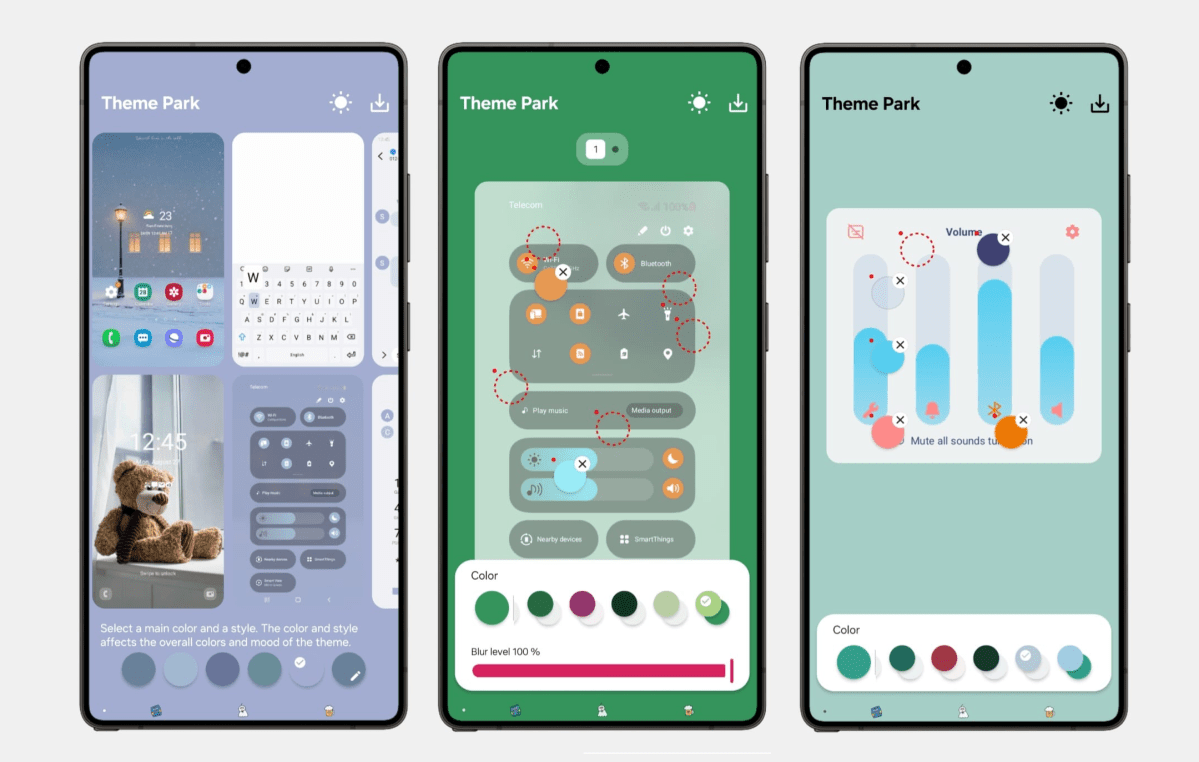
Theme Park acts as the gateway to visual personalization. This module allows users to create their own themes by combining colors, icon shapes, background images, and fonts. Additionally, users can integrate and manage existing icon packs from the Play Store.
PC-Welt
Since 2026, an AI theme generator has been introduced. Users can describe in text how they want their theme to look, and the AI will automatically create a suitable color scheme, including icons and a background image.
One-Handed Operation
For users of Galaxy S Ultra or Z Fold devices, one-handed operation can be a challenge. One Hand Operation solves this by providing six configurable Edge gestures (three per side). Each gesture can be customized individually for actions like Back, App Overview, Screenshot, Torch, Notifications, and more.
What sets this module apart is its ability to work alongside the standard navigation bar, adding extra swipe gestures.
LockStar
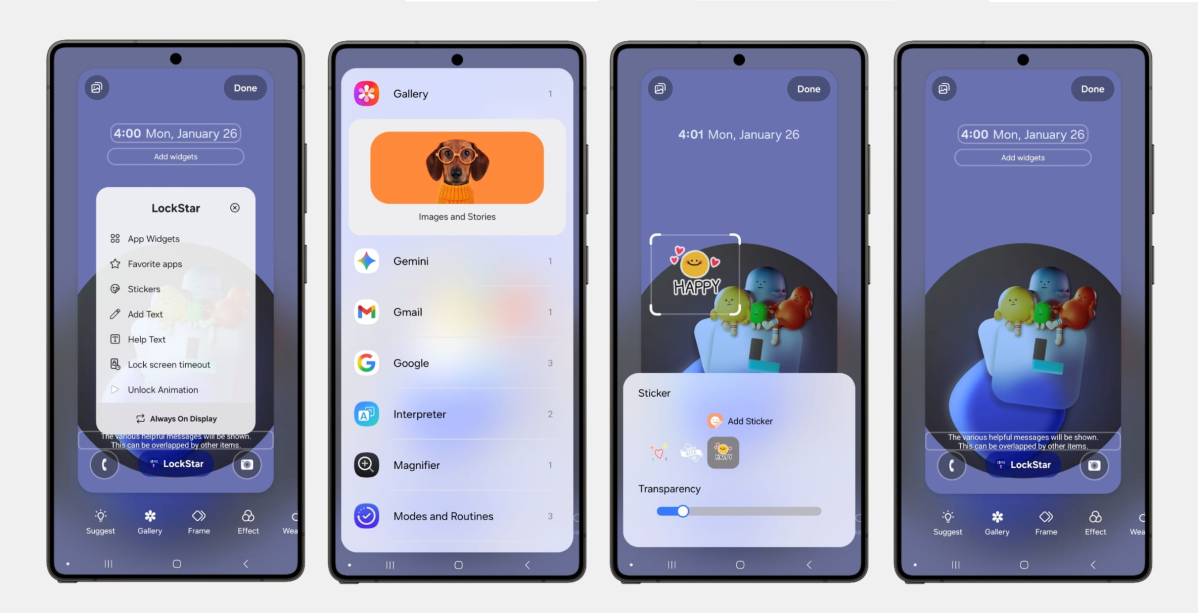
The lock screen is the first thing users see when picking up their smartphones. While One UI offers limited customization options, LockStar opens up more possibilities. With a WYSIWYG editor, users can freely arrange the clock, date, widgets, and app shortcuts on the screen in both portrait and landscape orientations. Users can also hide elements they don’t prefer.
PC-Welt
LockStar also enables app widgets on the lock screen, a feature not available by default on Samsung devices. This allows users to view calendar events, step counts, or weather forecasts directly on the locked screen without unlocking the smartphone first. App shortcuts can be placed as desired, with the camera icon launching the camera without unlocking the device.
New for 2026 are animated unlock effects, such as the ‘Swirl’ animation that sweeps the lock screen inwards as the phone is unlocked. Other styles like ‘Curtain’, ‘Ripple’, ‘Mosaic’, or ‘Wave’ add a visual flair to the unlocking process.
MultiStar
MultiStar enhances multitasking capabilities significantly. It allows users to open any app in split-screen mode or as a pop-up window, even for apps that don’t officially support these modes. New for 2026 are app pairs on the home screen, which launch two apps simultaneously in split-screen mode.
For foldable device users, MultiStar offers control over how apps switch between the cover and main screens when the device is opened or closed. Users can run any app on the Z Flip cover screen, a feature disabled by default.
Samsung DeX users benefit from features like higher resolutions and the ability to run more than five apps simultaneously on the connected display.
RegiStar
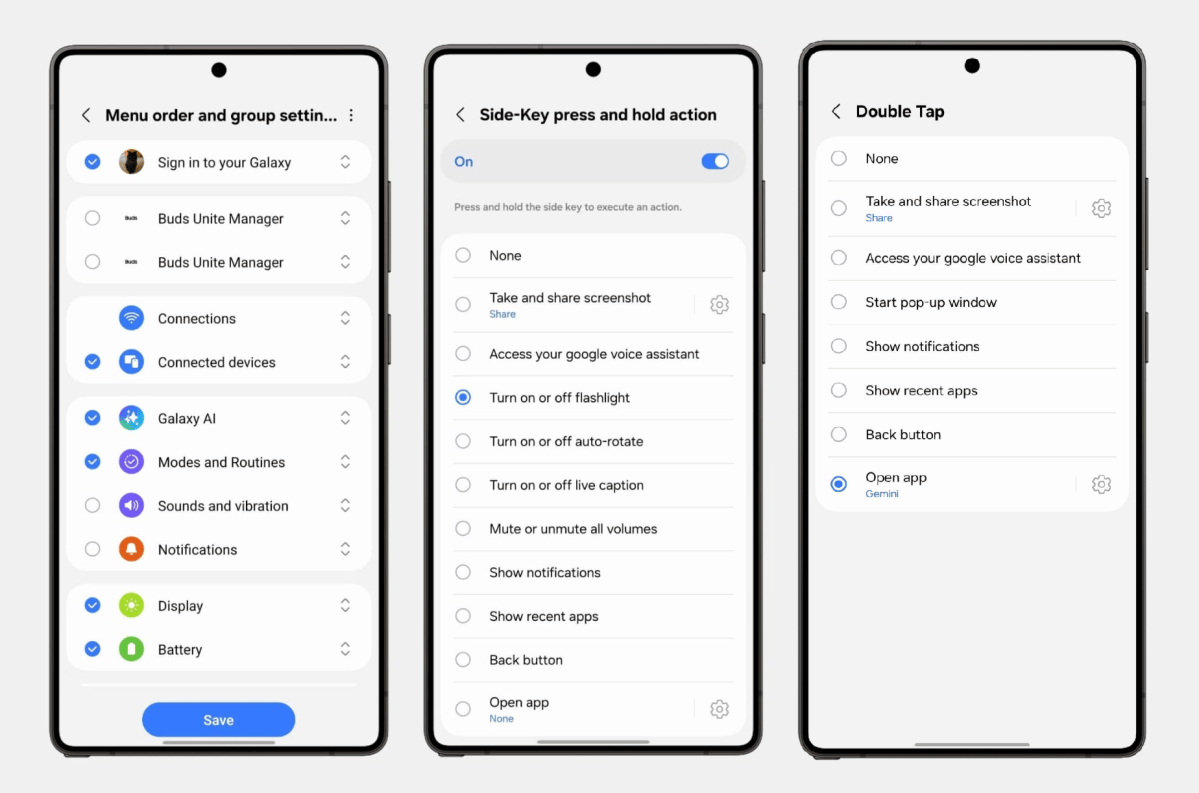
RegiStar is ideal for users who find the standard button and gesture navigation options lacking. One of its key features is the Backtap gesture, where tapping the back of the smartphone twice opens a user-defined app or function like the torch or a screenshot. This provides an additional control option that remains hidden.
Furthermore, RegiStar allows users to remap the side button, assigning different actions to double-taps and long presses. It also enables users to reorganize the One UI settings menu and logs recent changes made to the system in the settings history.
PC-Welt
With RegiStar, users can also create a Backtap gesture, where tapping the back of the smartphone twice opens a specific app or function. Additionally, the settings history keeps track of recent system changes.
See also Samsung Galaxy S26 Launch Postponed Once More, Claimed by Insider Sources








Apple TV 4K: A Vintage First-Gen Retrospective

Unbeatable Deals on Australia’s Most Affordable Seven-Seat Diesel SUV

Forza Horizon 6: Revving Up for a 2027 Release on PS5

Embracing Success: A Geek’s Guide to Conquering the Stereotypes of Villainy

Uncovering the Bronze Age Influence in Paradox’s Afterworld: A Deeper Dive Beyond the Top Five Reference Points

iPhone Duo: The Future of Mobile Dominance

Tech Advisor: The Delayed Android 17 QPR1 Update for Pixel 11

Venture Capital Firm Monte Carlo Capital Secures €13 Million for Fund II to Back Early-Stage DeepTech, AI, and SpaceTech Startups

The Battle Over iPhone Driver’s Licenses: Florida and Rhode Island Stand Firm

EU Takes Action Against Instagram and Facebook for Violating Illegal Content Rules

Warning: Facebook Creators Face Monetization Loss for Stealing and Reposting Videos

Facebook’s New Look: A Blend of Instagram’s Style

Facebook Compliance: ICE-tracking Page Removed After US Government Intervention

Facebook and Instagram to Reduce Personalized Ads for European Users

InstaDub: Meta’s AI Translation Tool for Instagram Videos

Reclaim Your Account: Facebook and Instagram Launch New Hub for Account Recovery

Meta discontinues Messenger apps for Windows and macOS

Breaking Updates: Meta Connect 2025 Unveils Latest Developments

How Smart is the AI-Powered Huawei Mate 10 – with EMUI 8.0?

I used a 2012 Smartphone in 2018 – Here’s what happened.

How to send ANY file Anywhere!

NEW Oneplus 5T Sandstone White Unboxing – The Ultimate Oneplus 5T?

HUAWEI P20 – THE SMARTPHONE REVOLUTION IS HERE?

How OnePlus succeeded when they should have failed.

Samsung sent us THIS! #AD

Ulefone Power 3 – Quad Camera Smartphone that last 2 weeks!

EPIC Smartphone FAILS that people will never forget.
-
 Facebook12 months ago
EU Takes Action Against Instagram and Facebook for Violating Illegal Content Rules
-
 Facebook12 months ago
Warning: Facebook Creators Face Monetization Loss for Stealing and Reposting Videos
-
 Facebook10 months ago
Facebook’s New Look: A Blend of Instagram’s Style
-
 Facebook12 months ago
Facebook Compliance: ICE-tracking Page Removed After US Government Intervention
-
 Facebook10 months ago
Facebook and Instagram to Reduce Personalized Ads for European Users
-
 Facebook12 months ago
InstaDub: Meta’s AI Translation Tool for Instagram Videos
-
 Facebook10 months ago
Reclaim Your Account: Facebook and Instagram Launch New Hub for Account Recovery
-
 Apple12 months ago
Meta discontinues Messenger apps for Windows and macOS
