
Gadgets
Master Your Samsung Galaxy: 10 Essential Tips & Tricks for UI 9

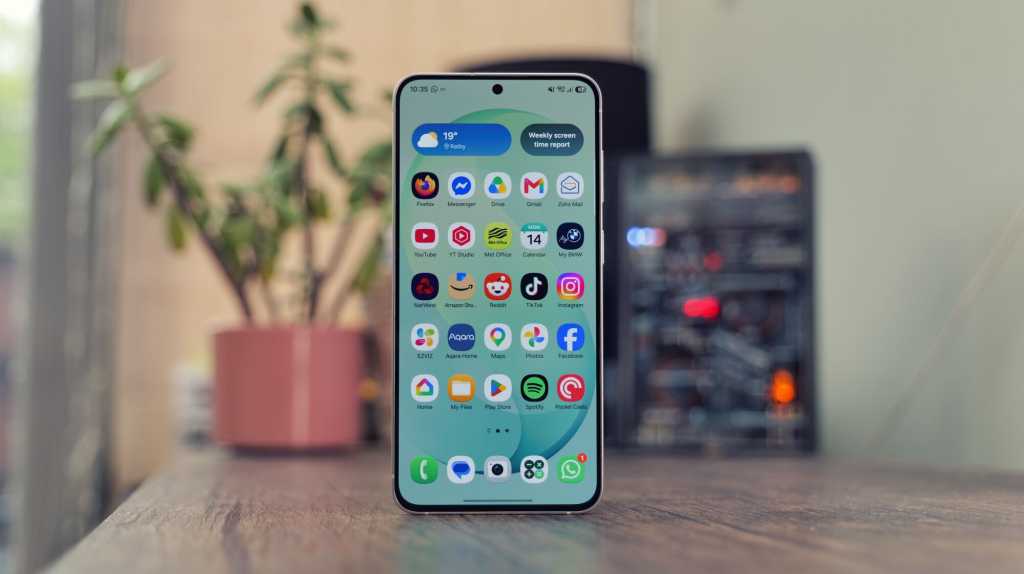
- Initiate video playback on popular platforms such as YouTube, TikTok, or Netflix.
- Swipe from the upper right corner to access the Quick Panel.
- A new button labeled Audio Eraser will now be visible at the top; tap on it.
- Choose your preferred strength level and decide whether to enable Voice Focus.
Unlock Advanced Customization with Good Lock
One UI 9 offers a decent array of customization options by default. However, if you enjoy extensive customization or consider yourself a power user, exploring Good Lock is highly recommended. This app can be downloaded from either the Play Store or the Galaxy Store like any other application.
Luke Baker
Within Good Lock, you’ll find 25 distinct modules, each packed with customization features that allow you to modify almost every aspect of your phone’s behavior. While it’s impossible to cover all the features comprehensively here, let’s highlight some of the standout options.
Home Up provides comprehensive control over the home screen grid, folder arrangements, and app drawer layout. You can opt for a cluttered or minimalist look, or even eliminate the grid entirely to place widgets and app icons freely.
Sound Assistant offers per-app volume adjustments, a personalized EQ, and more. QuickStar enables you to declutter the status bar by hiding icons like the alarm or NFC indicators, or even add a real-time network speed display. The customization possibilities are vast and varied.












2027 BMW i5: Enhanced Range at Same Price

Stock Milestone: Record High Achieved After Rollercoaster Year

.

Enhanced Sleep Tracking Features for Samsung Health on Galaxy Watch, Fit, and Ring

Master Your Samsung Galaxy: 10 Essential Tips & Tricks for UI 9

Unicorn Power: Skeleton Technologies Secures Multi-Million Funding for US AI Expansion

Revitalize Your Classic iPod with Sprout Pi’s Upgraded Features: Bluetooth, Streaming, and USB-C Connectivity

AI-Powered Android Detects Scammers in Google Messages

Siri Turns 15: Still Refusing to Aid in Body Disposal

EU Takes Action Against Instagram and Facebook for Violating Illegal Content Rules

Warning: Facebook Creators Face Monetization Loss for Stealing and Reposting Videos

Facebook’s New Look: A Blend of Instagram’s Style

Facebook Compliance: ICE-tracking Page Removed After US Government Intervention

Facebook and Instagram to Reduce Personalized Ads for European Users

InstaDub: Meta’s AI Translation Tool for Instagram Videos

Reclaim Your Account: Facebook and Instagram Launch New Hub for Account Recovery

Meta discontinues Messenger apps for Windows and macOS

Breaking Updates: Meta Connect 2025 Unveils Latest Developments

TOP 6 Smartphones from Companies you NEVER Expected!

A Surprise Smartphone from EE!

DOOGEE MIX 2 VS DOOGEE MIX 1!

INCREDIBLE Smartphone Gadgets on Amazon!

10 Android Apps you NEED to try in 2017 / 2018

The Most Bizarre Smartphone we’ve seen all year.

Best Tech under $2000 – December 2017 / January 2018!

This could be your next Smartphone.

Top 10 most INSANE Limited Edition Smartphones!
-
 Facebook12 months ago
EU Takes Action Against Instagram and Facebook for Violating Illegal Content Rules
-
 Facebook12 months ago
Warning: Facebook Creators Face Monetization Loss for Stealing and Reposting Videos
-
 Facebook10 months ago
Facebook’s New Look: A Blend of Instagram’s Style
-
 Facebook12 months ago
Facebook Compliance: ICE-tracking Page Removed After US Government Intervention
-
 Facebook10 months ago
Facebook and Instagram to Reduce Personalized Ads for European Users
-
 Facebook12 months ago
InstaDub: Meta’s AI Translation Tool for Instagram Videos
-
 Facebook10 months ago
Reclaim Your Account: Facebook and Instagram Launch New Hub for Account Recovery
-
 Apple12 months ago
Meta discontinues Messenger apps for Windows and macOS