
Tech News
Effortlessly Free Up 10 GB of Storage in Just 5 Minutes with These Tech Tips

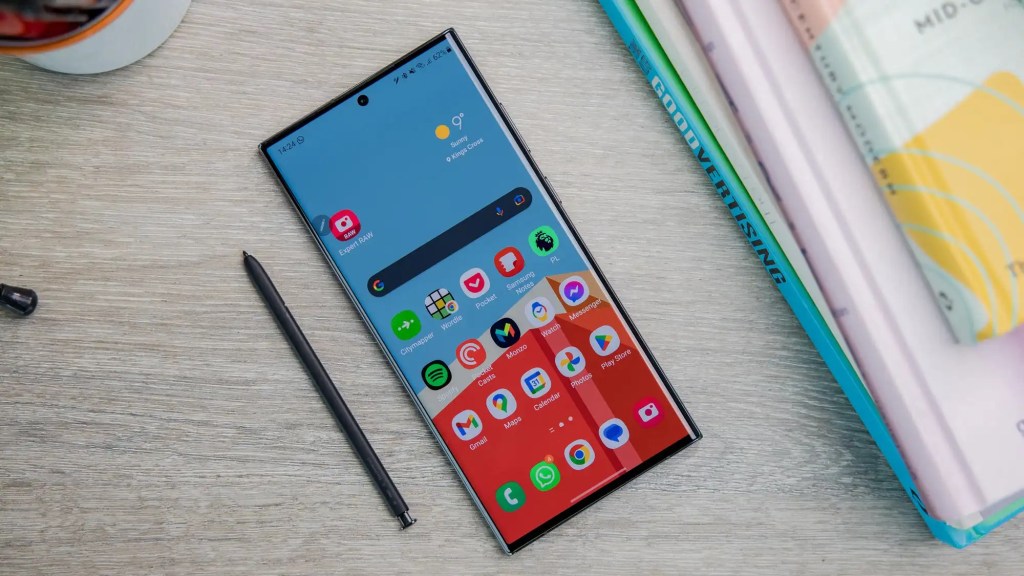
Understanding Device Care on Samsung Galaxy Smartphones
Device Care is a built-in system app that is included with every Samsung Galaxy smartphone. It combines five essential areas into one convenient location: battery, storage, RAM, performance, and overall device care, including updates and maintenance tasks.
While many Galaxy users may only see Device Care as a simple button for quickly optimizing their device, there is much more to it than meets the eye, especially within the storage sub-menu.
Device Care not only provides an analysis of the storage space being used but also identifies what is consuming that space. It highlights specific files and groups of files that may have been forgotten over time and offers suggestions on what can be deleted. This distinguishes it from a typical ‘clean-up’ function, as users have the control to decide which data to remove.
Comparing Prices for the Galaxy S26
$789

$880

$899.99

$978.99
How to Access Device Care on Your Samsung Galaxy
To access Device Care on your Samsung Galaxy device, follow these simple steps:
- Open the Settings on your Samsung Galaxy.
- Scroll down and tap on Device Maintenance.
- Tap on Storage to view the storage analysis.
Within the storage analysis, you will see a breakdown of how your storage is utilized, including apps, photos, videos, audio files, documents, the recycle bin, and other categories. This overview provides valuable insights before taking any actions.
Instead of manually going through each category and file, which can be time-consuming, Device Care offers two convenient functions below the category list: Duplicate Files and Large Files. These functions help streamline the process of identifying and managing storage space efficiently.











The True Cost of Apple HomeView Wall Mount: Uncovering Hidden Expenses and Sacrifices

MYSTERY UNBOXING FROM GOOGLE!

2027 BMW i5: Enhanced Range at Same Price

Stock Milestone: Record High Achieved After Rollercoaster Year

.

Enhanced Sleep Tracking Features for Samsung Health on Galaxy Watch, Fit, and Ring

Master Your Samsung Galaxy: 10 Essential Tips & Tricks for UI 9

Unicorn Power: Skeleton Technologies Secures Multi-Million Funding for US AI Expansion

Revitalize Your Classic iPod with Sprout Pi’s Upgraded Features: Bluetooth, Streaming, and USB-C Connectivity

EU Takes Action Against Instagram and Facebook for Violating Illegal Content Rules

Warning: Facebook Creators Face Monetization Loss for Stealing and Reposting Videos

Facebook’s New Look: A Blend of Instagram’s Style

Facebook Compliance: ICE-tracking Page Removed After US Government Intervention

Facebook and Instagram to Reduce Personalized Ads for European Users

InstaDub: Meta’s AI Translation Tool for Instagram Videos

Reclaim Your Account: Facebook and Instagram Launch New Hub for Account Recovery

Meta discontinues Messenger apps for Windows and macOS

Breaking Updates: Meta Connect 2025 Unveils Latest Developments
MYSTERY UNBOXING FROM GOOGLE!

TOP 6 Smartphones from Companies you NEVER Expected!

A Surprise Smartphone from EE!

DOOGEE MIX 2 VS DOOGEE MIX 1!

INCREDIBLE Smartphone Gadgets on Amazon!

10 Android Apps you NEED to try in 2017 / 2018

The Most Bizarre Smartphone we’ve seen all year.

Best Tech under $2000 – December 2017 / January 2018!

This could be your next Smartphone.
-
 Facebook12 months ago
EU Takes Action Against Instagram and Facebook for Violating Illegal Content Rules
-
 Facebook12 months ago
Warning: Facebook Creators Face Monetization Loss for Stealing and Reposting Videos
-
 Facebook10 months ago
Facebook’s New Look: A Blend of Instagram’s Style
-
 Facebook12 months ago
Facebook Compliance: ICE-tracking Page Removed After US Government Intervention
-
 Facebook10 months ago
Facebook and Instagram to Reduce Personalized Ads for European Users
-
 Facebook1 year ago
InstaDub: Meta’s AI Translation Tool for Instagram Videos
-
 Facebook10 months ago
Reclaim Your Account: Facebook and Instagram Launch New Hub for Account Recovery
-
 Apple12 months ago
Meta discontinues Messenger apps for Windows and macOS